Restrict Secret Mode for your organization
Learn how to disable or re-enable MonoGPT Secret Mode for organization members.
Updated: September 2026
The master admin can decide whether organization members may use Secret Mode inside MonoGPT. Restricting Secret Mode does not affect regular chats or other allowed features.
Restrict access
- Sign in with the organization master account.
- Open Settings → Enterprise basics.
- Find Secret Mode under Feature access settings.
- Turn off the switch. The change is saved automatically.
What members see
- The Secret Mode button in the header appears gray.
- Selecting it shows This app is not allowed by your organization admin.
- If Secret Mode is already active, it turns off after the organization setting synchronizes.
Allow it again
- Go to Feature access settings under Settings → Enterprise basics.
- Turn Secret Mode back on to make it available to organization members.
Scope
- This setting controls only the Secret Mode feature inside MonoGPT.
- It does not control private browsing windows provided by browsers such as Chrome, Edge, or Safari.
If the change is not visible on another open device or browser, refresh the MonoGPT page.
Follow the screen
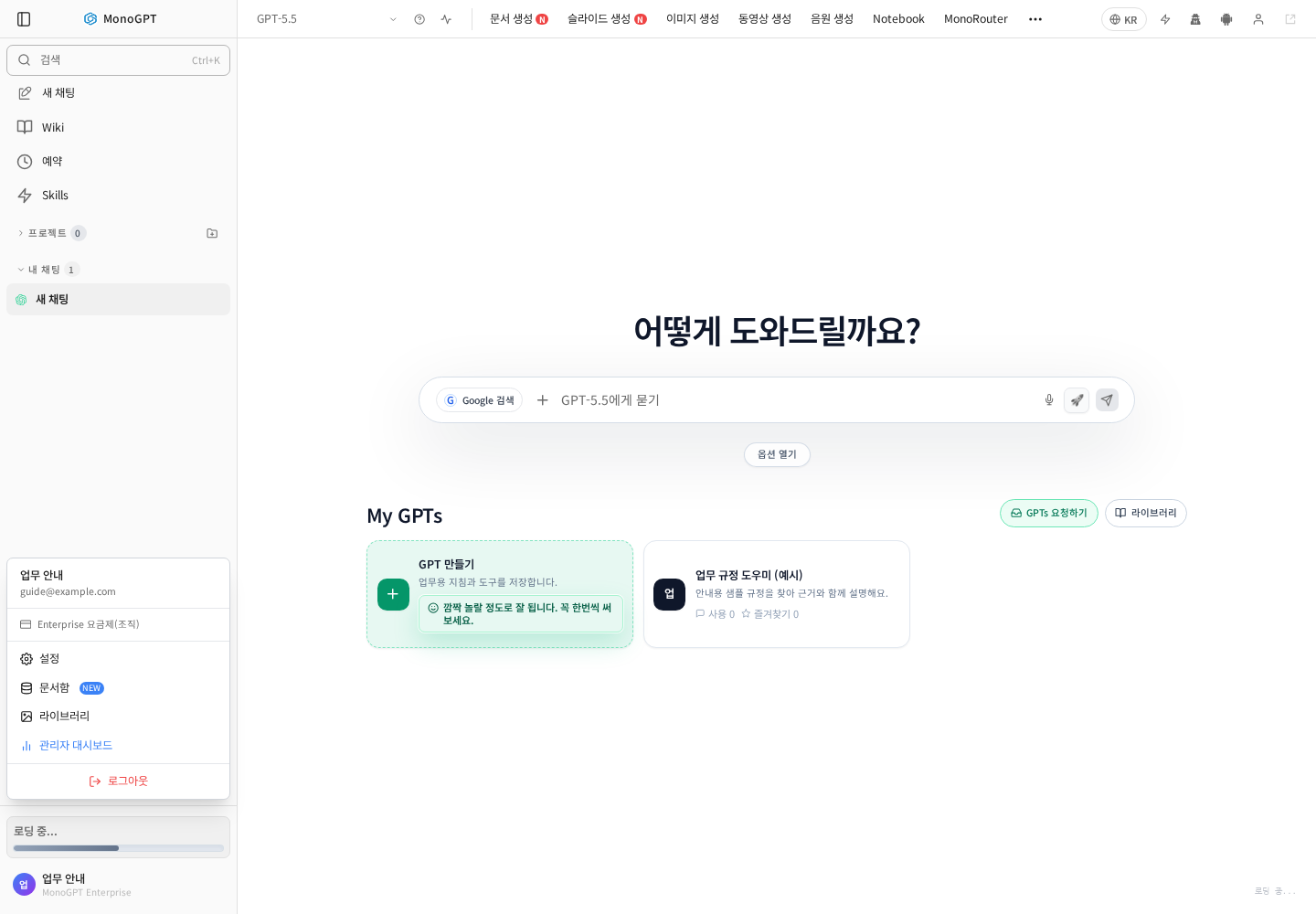
Actual Korean application screen with sample account/data. Available controls depend on permissions and selections.
The screenshot shows the account-menu entry. Organization settings require the master role.
Open Settings → Organization or organization settings, confirm the organization and feature-access settings, and save the selected Secret Mode policy. Refresh a member view to check the result. If the menu is missing, verify the signed-in account’s role.
Was this answer helpful?