Using HRDK Overseas Employment
Compare overseas job requirements
Updated: October 2026
Compare overseas job requirements with HRDK Overseas Employment. Retrieve relevant information and keep its source and reference date together.
A practical use case
Compare overseas job requirements. Check country, role, experience and language requirements, application period and employer.
1. Open MCP connectors in the composer
Sign in to MonoGPT chat and open MCP connectors below the message input. An enabled button may display MCP Auto or a selected count such as MCP 1. Identify it by its name among the other composer tools.

2. Connect and select it for this conversation
- Find the HRDK Overseas Employment card shown in the screenshot below. Catalog labels currently appear in Korean; match the logo and card name in the image, or search using that displayed name.
- Open Connect, read the external data notice, give consent and connect. Skip this step if already connected.
- Turn on Use connectors in this conversation at the top.
- Choose Manual selection and check the HRDK Overseas Employment card. Confirm that its name appears above the results.
- Close the panel and enter the sample prompt below.
Personal connections belong to your account. For an organization connection without management controls, ask your organization administrator. To use automatic selection, keep the connection and switch to Automatic selection.
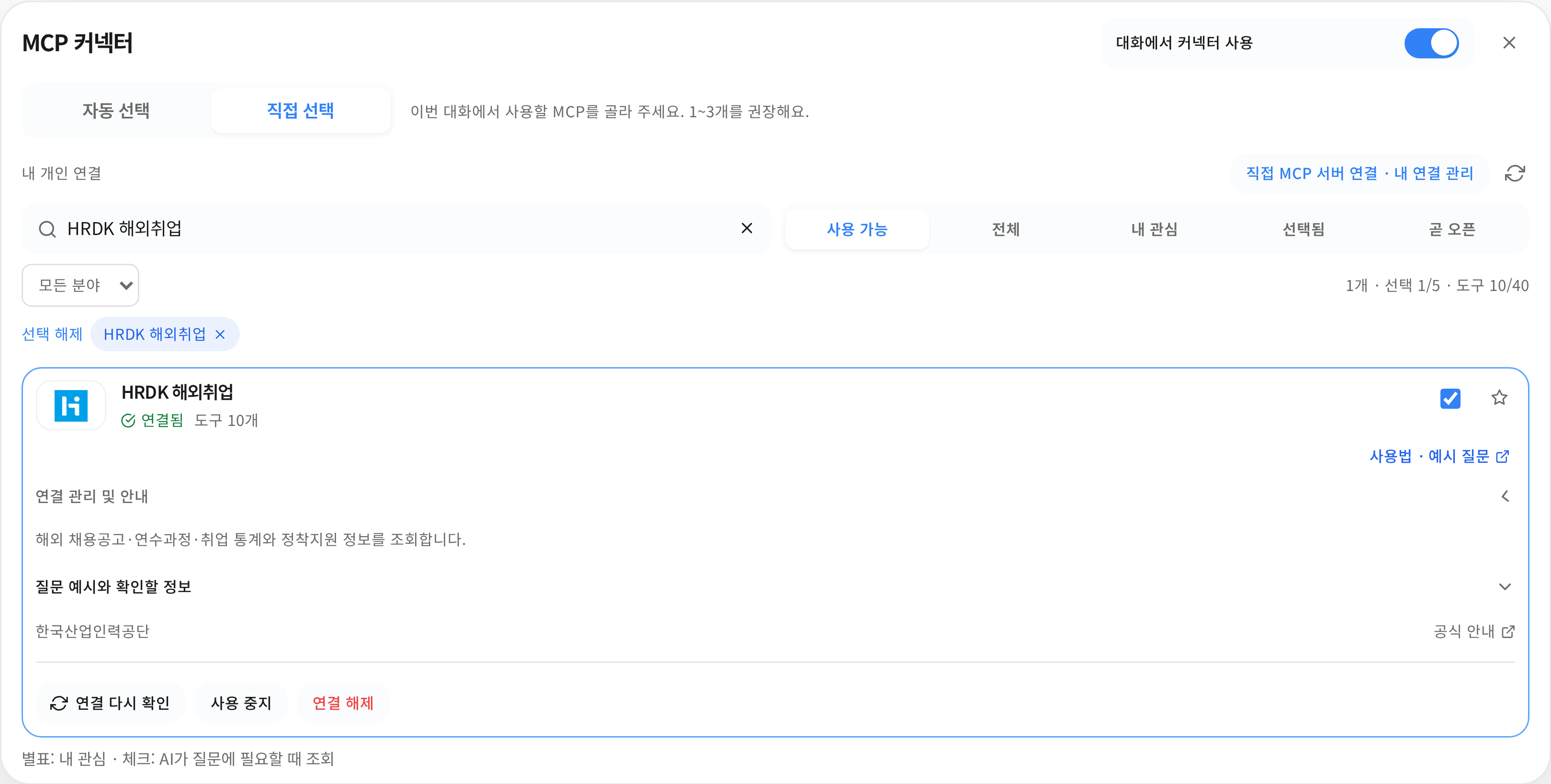
The actual application connector picker, captured at 3x resolution. Connection and selection states are demonstrations, not a real account installation or conversation result. The interface is shown in Korean. Click an image to open it at its original size.
3. Try this prompt
Find IT job postings in Japan and summarize roles, requirements, closing dates and original sources.
This is a sample question, not a retrieved result. Answers depend on the query date and available data. Adapt the subject and period to your work.
Check the answer
- Check country, role, experience and language requirements, application period and employer.
- Inspect the tool activity above the answer to see whether a lookup actually ran.
- Open the source and check values and dates. Ask the assistant to distinguish missing information from the scope it searched.
Check whether the original posting is still open. This query does not submit an application or contact an employer.
If a lookup fails, check the connection, conversation switch, manual selection and supported model in that order. Being connected and enabling use in a conversation are separate settings.
Was this answer helpful?