MCP connectors: from connection to your first question
Find Korean legislation, statistics, qualifications and overseas jobs in chat. Follow the screens to connect, enable and ask.
Updated: October 2026
Connect, then ask naturally. MCP connectors let MonoGPT look up legislation, statistics, qualifications and jobs through external services.
Connect → enable → choose a selection mode → ask. If connected, start by enabling.
Deployed Korean UI at 3× resolution, with demo connection states and no account details or existing chats. Select an image for its original size.
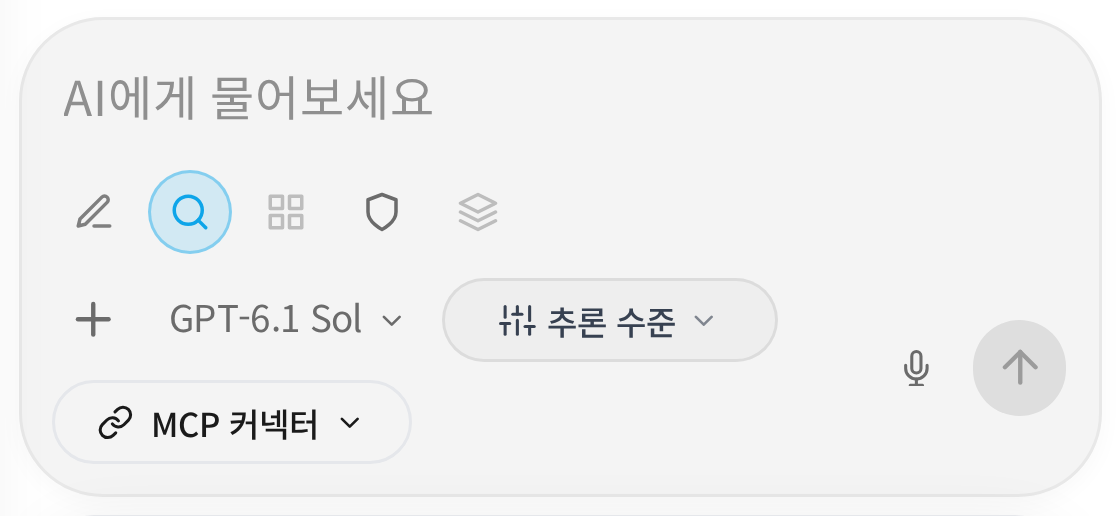
1. Select the MCP connectors button
Sign in at MonoGPT chat. Below the message field, select the labeled MCP connectors button beside the model and reasoning controls. The composer also has attachment, search, voice and send tools.

Tools vary by model, account and screen width. On mobile, find the same labeled MCP button.
2. Find the MCP you need
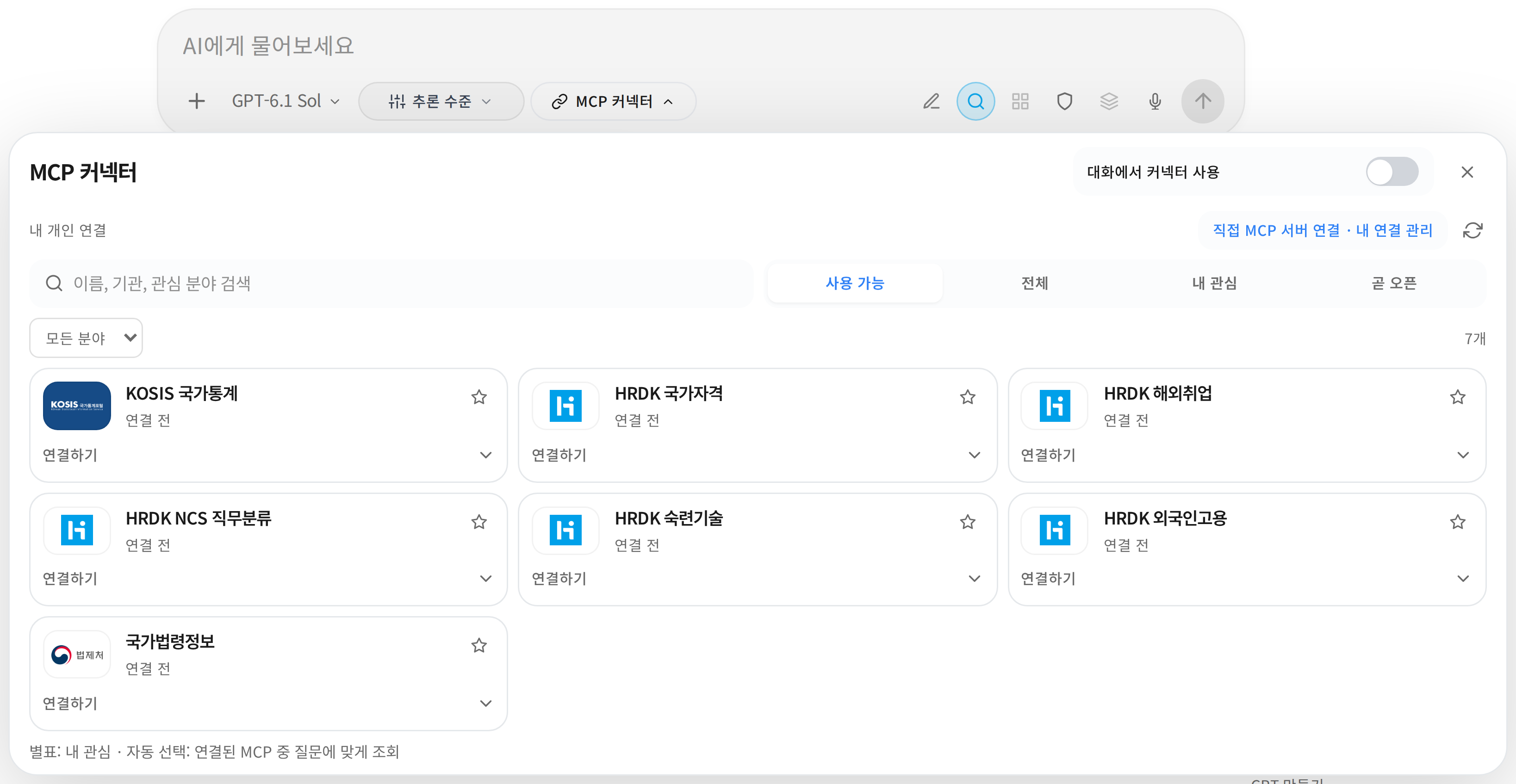
Search for a name or topic, such as legislation, KOSIS, or national qualifications. The category selector can narrow the list.
| Information | Connector | Coverage |
|---|---|---|
| Legislation and policy | Korean legislation | Current legislation, provisions, judgments, administrative rules and local ordinances |
| Statistics | KOSIS national statistics | Population, prices, employment and regional statistics |
| Qualifications and careers | HRDK national qualifications, overseas employment, NCS job classifications and others | Exam dates, fees, overseas vacancies and job classifications |
| Economic indicators | Bank of Korea ECOS | Statistical tables, items, rates and time series |
| Corporate disclosures | DART | Company search, filings and consolidated/separate financial statements |
| Market data | KRX | Daily indices and KOSPI/KOSDAQ stock prices |
| Patents | KIPRIS | Korean patent/utility searches and application details |
| Public procurement | Nara Jangteo | Standard bid, award and contract listings |
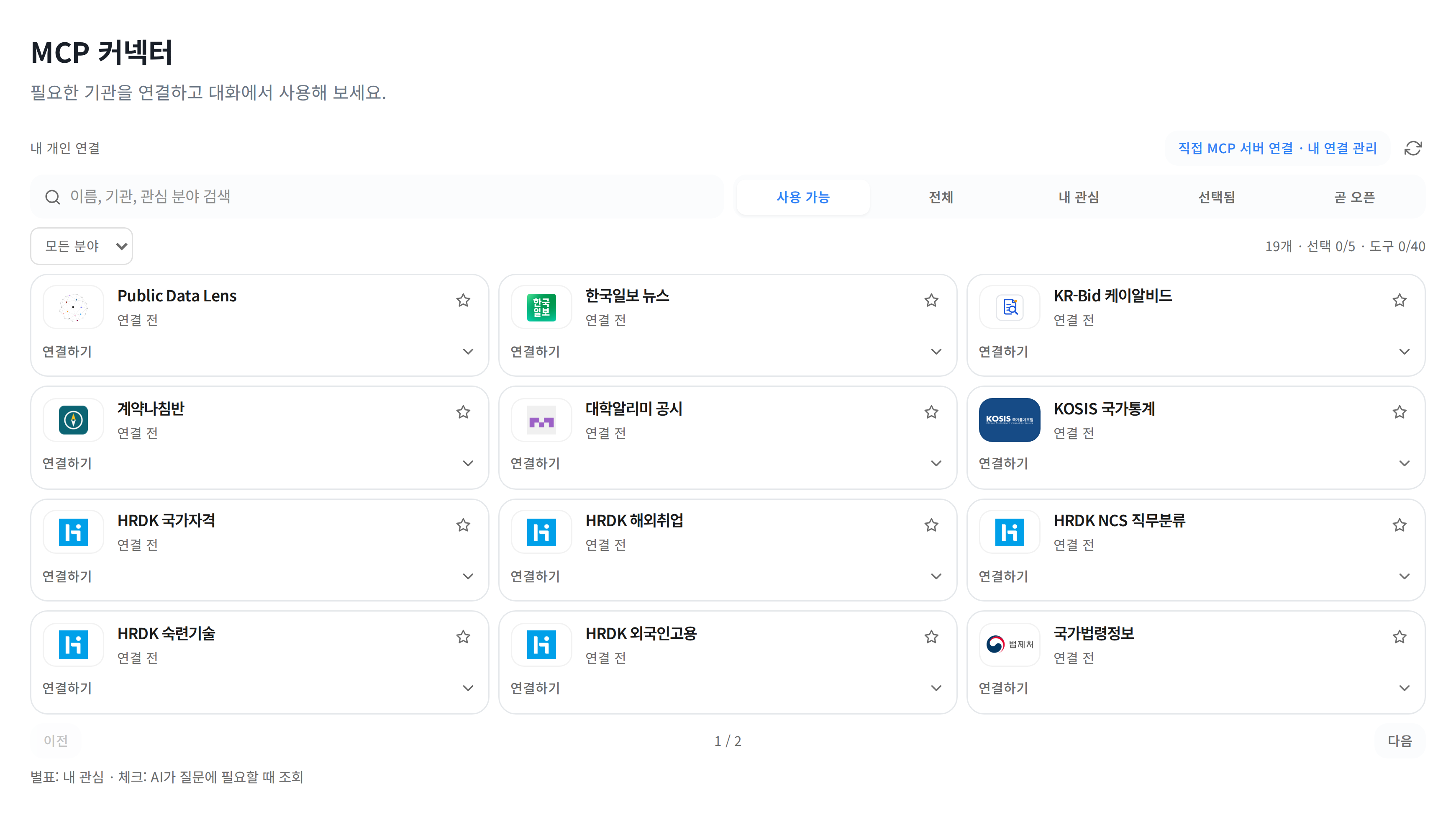
Captured from the current UI components at 3× resolution, using example disconnected states.
HRDK has separate connectors for different purposes. Choose national qualifications for exams and overseas employment for job postings. Coming-soon entries can be favorited, but cannot yet be connected or selected for chat.
Start on Available. Provider logos identify each card. All and Coming soon include planned connections.
MonoGPT manages API credentials for legislation, ECOS, DART, KRX, KIPRIS and Nara Jangteo. You do not need to enter a personal API key. If a card says authentication setup is required, contact the service administrator.
12 cards per page: use Next, search or categories. Naver Search and the dictionary need operator credentials. KISTI is Coming soon, pending usage terms and credentials.
3. Connect after reviewing the notice
Open Connect on the card. Review the information-sharing notice, check the consent box and select Agree and connect. Success shows Connected.
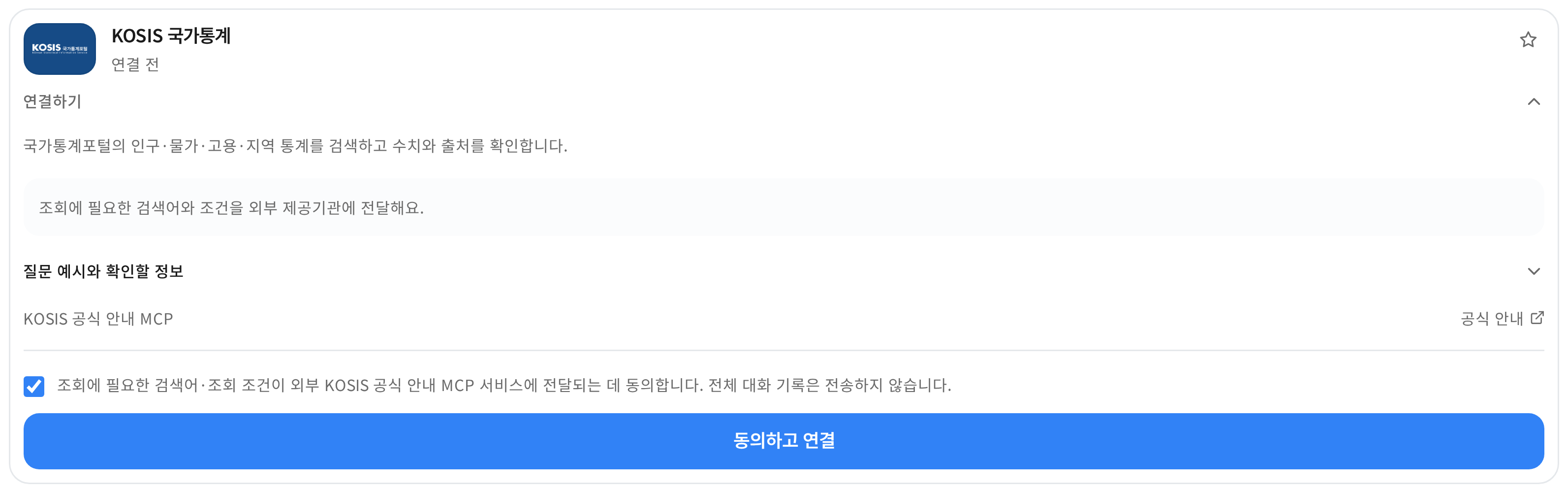
Required search terms and query conditions are sent to that provider. Connection states shown are examples.
Personal connections belong to your account. Administrators manage shared organization connections; members select them for chat. Authentication setup required means an operator must configure provider credentials.
4. Enable usage and choose a selection mode
Turn on Use connectors in chat to start in Automatic selection. The AI chooses up to three connected MCPs for the question, and makes no lookup when none is needed. Check actual activity above the answer.
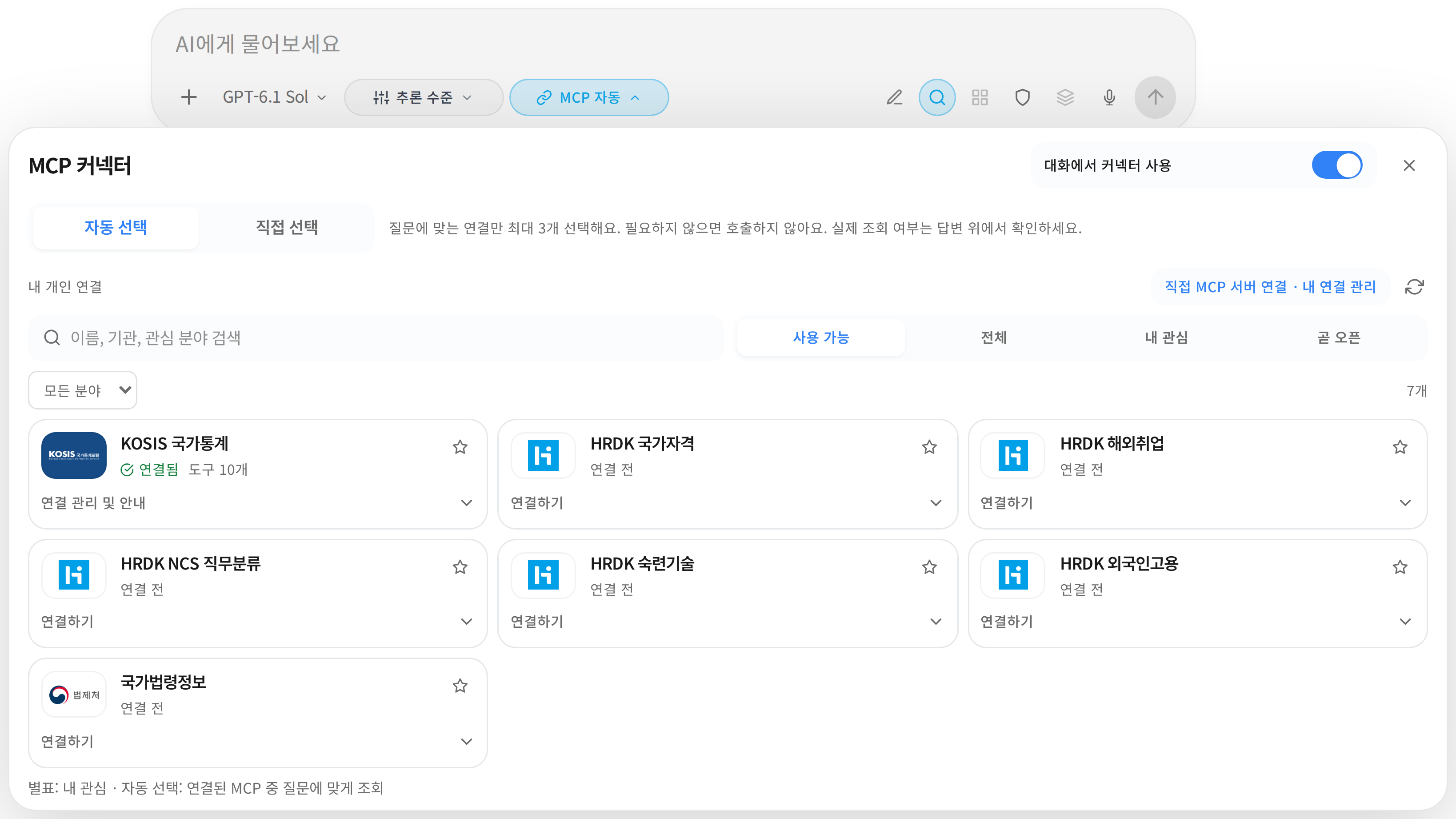
To choose for yourself, switch to Manual selection, then check the desired card. Its name appears above the list. Close the panel and ask your question. The AI uses selected lookup tools when relevant.
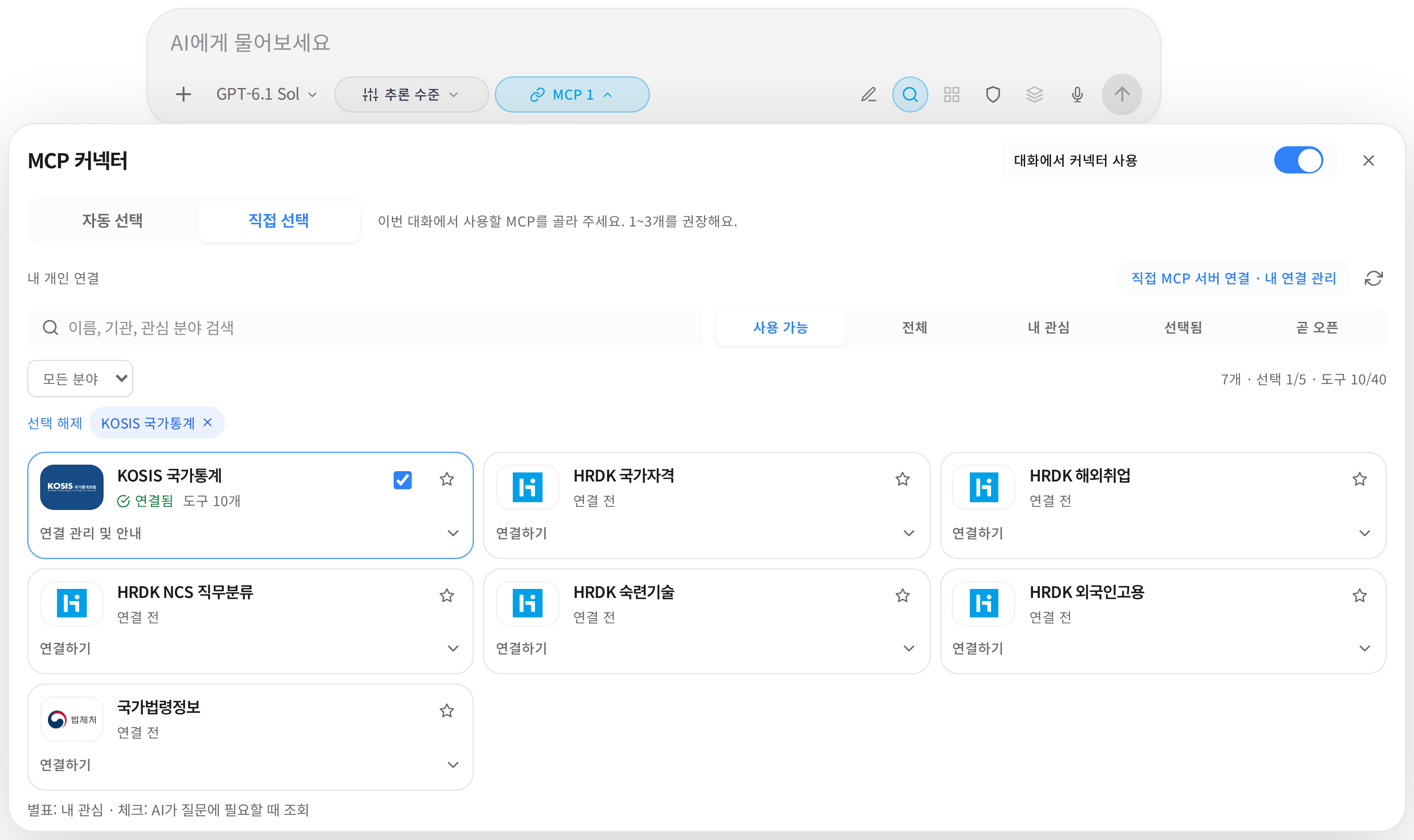
The composer button shows MCP automatic or a selected count such as MCP 1. Select it again to change settings.
Connected does not automatically mean enabled in chat. Check each state separately.
| State | Meaning |
|---|---|
| Connected | The external service has been connected. |
| Usage switch ON | Connector use is enabled for the current chat. |
| Automatic selection | The AI chooses up to three relevant connections. |
| Manual selection checkbox | This MCP is selected for the AI in this conversation. |
| Star | Saved in Favorites; this does not select it for chat. |
For Manual selection, start with 1–3 connectors; the limit is 5 MCPs / 40 tools. Check the switch and selections again after reloading or switching accounts or organizations.
5. Try these conversations
Adapt these prompts to your task. State the subject, period and desired output. These are suggested questions, not captured answers or guaranteed results.
Legislation: find evidence for a policy review
Select Korean legislation.
Summarize the annual paid leave provisions in Article 60 of Korea’s Labor Standards Act. Include the current provision, effective date and original source.
Follow up with:
Turn the provisions you found into an HR review checklist. Distinguish the original text from your explanation.
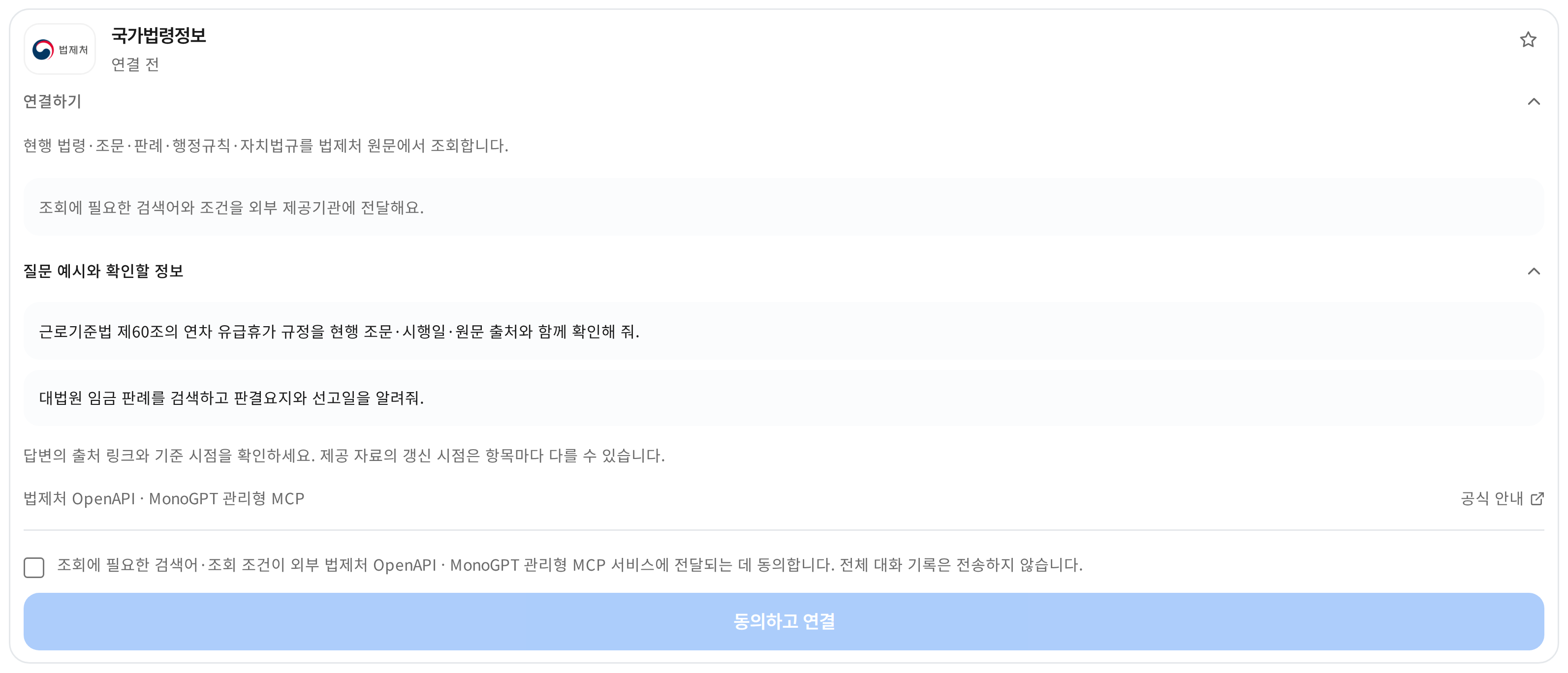
Check: law name, provision number, effective date and source link. Recheck the original and applicable conditions before applying it to a particular case.
Statistics: compare numbers with their definitions
Select KOSIS national statistics.
Compare the most recently published employment rates for Seoul and Busan on the same basis. Include the reference period, units, statistical table name and source link.
Follow up with:
Summarize the difference in three sentences for a report. Flag any differences in the surveyed population or definitions.
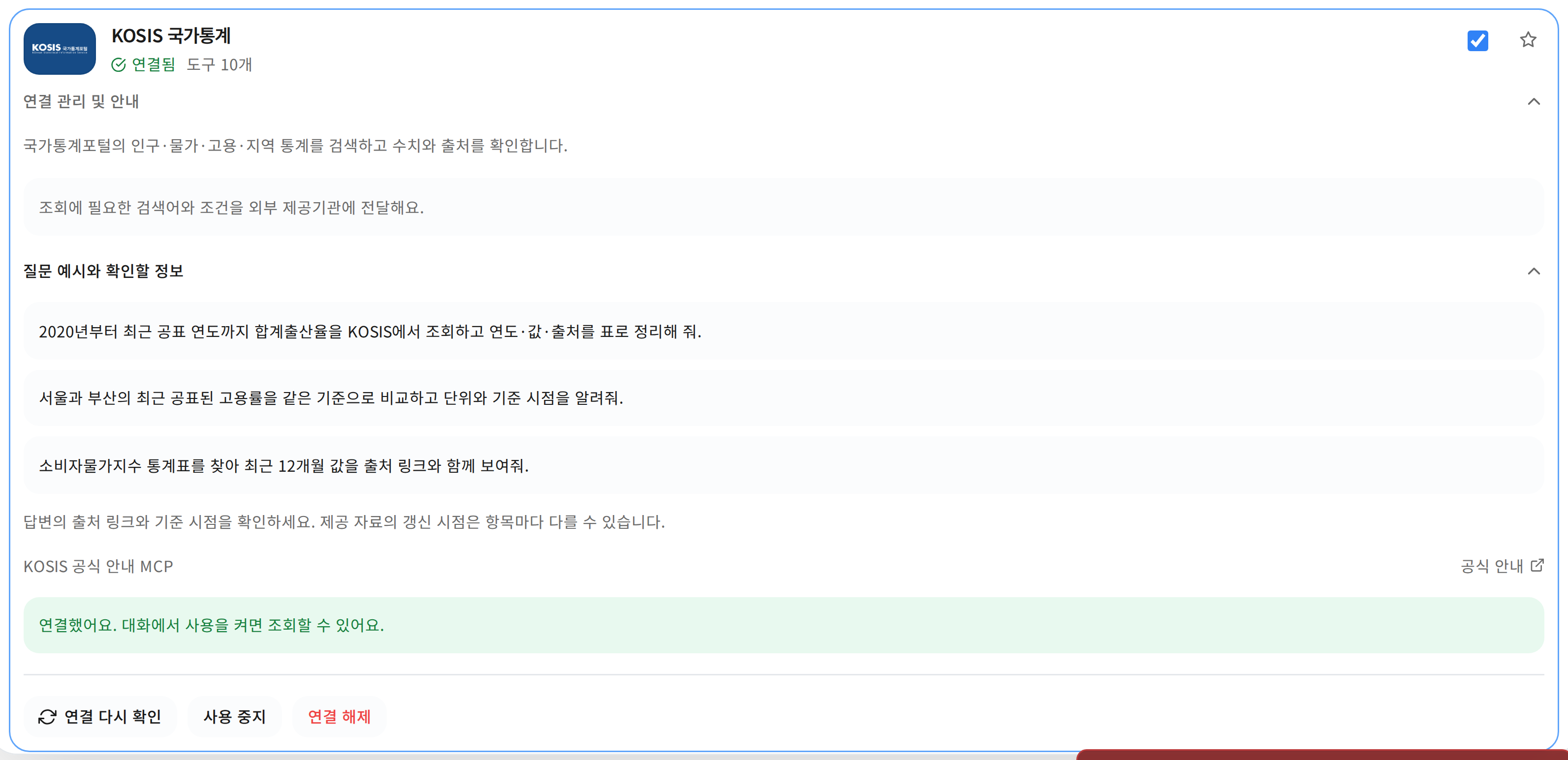
Check: comparable periods, populations and units. The latest published statistics are not necessarily real-time figures.
Qualifications and careers: find dates and requirements
Select HRDK national qualifications.
Find this year’s Engineer Information Processing exam dates and fees, with official sources. Mark anything that could not be verified.
Switch to HRDK overseas employment or HRDK NCS job classifications to ask:
Find overseas IT job postings in Japan. Summarize the requirements and sources.
List the NCS job classifications and detailed classification codes for information and communications.
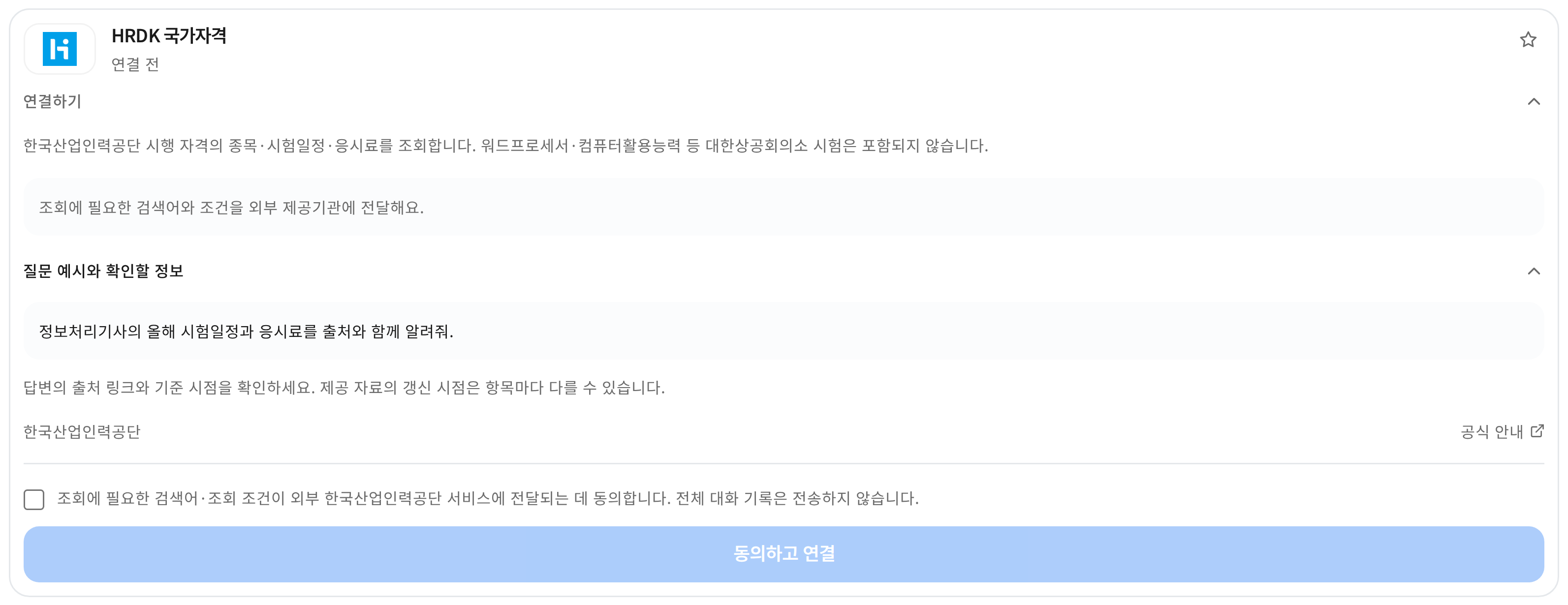
Check: HRDK covers exams administered by the Human Resources Development Service of Korea. Korea Chamber of Commerce and Industry exams, including word processing and computer utilization, are not included. Confirm dates and requirements in the official notice before applying.
Economic, company, patent and procurement questions
Connect the provider, enable Use connectors in chat, and select its card in manual mode.
- ECOS: “Compare the last 12 months of consumer price indices with periods, units and source tables.”
- DART: “Find Samsung Electronics’ latest annual consolidated revenue and operating profit, including the year, currency and filing link.”
- KRX: “Compare KOSPI and KOSDAQ closing values and daily changes on the latest trading day.”
- KIPRIS: “Find forest-monitoring patents and list their titles, application numbers and registration status.”
- Nara Jangteo: “List yesterday’s bid notices with titles, agencies and deadlines.”
Specify the financial year and consolidated/separate basis for DART, and the trading day for KRX. KRX data is daily, not real-time; holidays may return no rows. Procurement uses the approved standard API: bids and contracts support up to seven days per call, and awards one day. Results are paginated listings, not a keyword search over every notice.
Try the newly added connectors
- Public Data Lens: “Compare forestry datasets and quality evidence.” Catalogue and structure metadata only.
- Hankookilbo: “List today's main news with dates and links.” Metadata and excerpts; no full articles.
- KR-Bid: “Find forestry bids and attachment requirements.” Public reads only; no OAuth bookmarks or alerts.
- Contract Compass: “Find legal grounds for a KRW 20 million service contract.” The shared limit is 50 calls per server IP per day, resetting at 09:00 KST.
- University disclosures: “Compare SNU and PNU tuition by indicator year.” An independent project with stored snapshots.
- Naver Search: “Compare forest-therapy search trends.” Relative ratios, not absolute volumes.
- Korean dictionary: “Compare the meanings of sanrim and samrim.”
6. Save frequent connectors in Favorites
Use a card’s star to find it again in Favorites. In Manual selection, Selected shows only the connectors checked for the current chat.
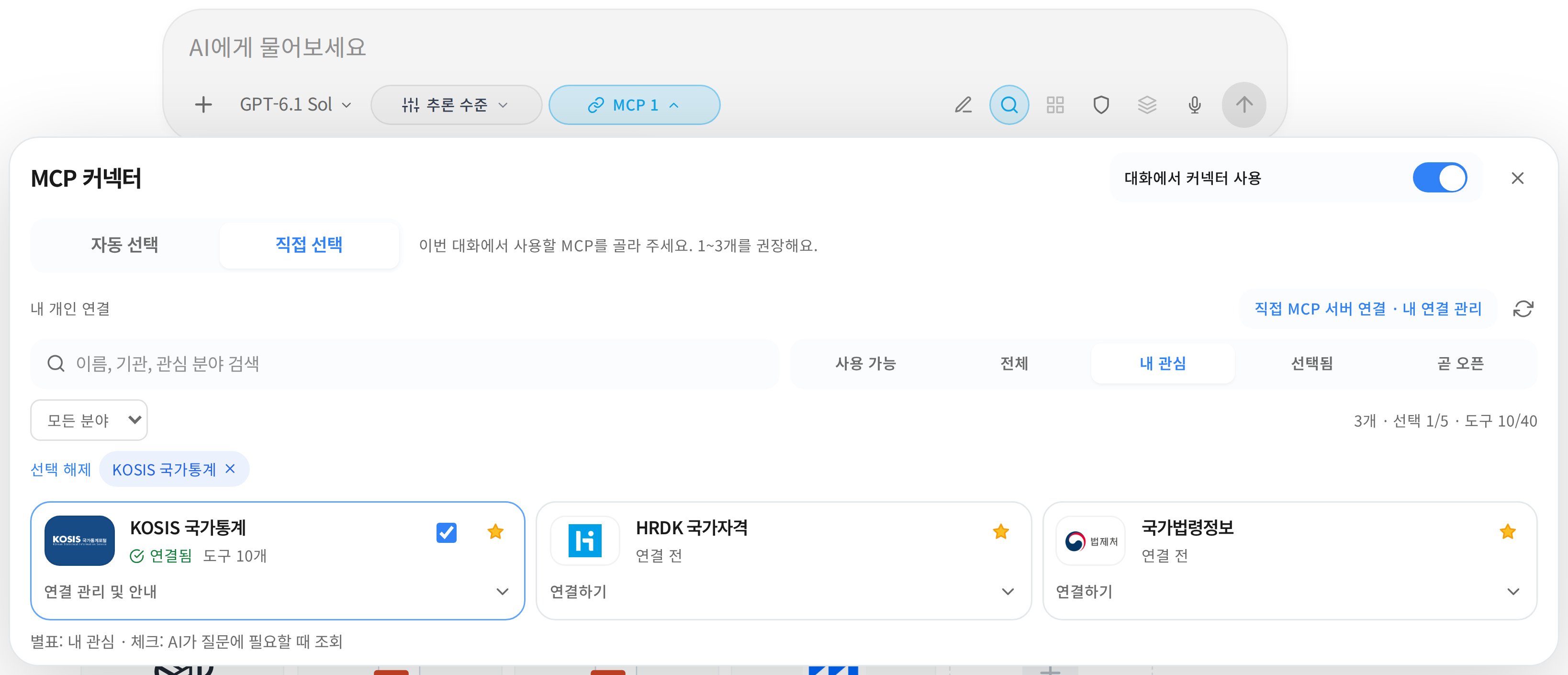
Three starred connectors and one chat selection are separate states. Favorites do not enable automatic lookups.
Favorites are stored in the current browser, separated by account and organization. They do not automatically sync to other browsers or devices. Clear a card checkbox or turn off the switch to stop using it.
7. Troubleshoot a connection
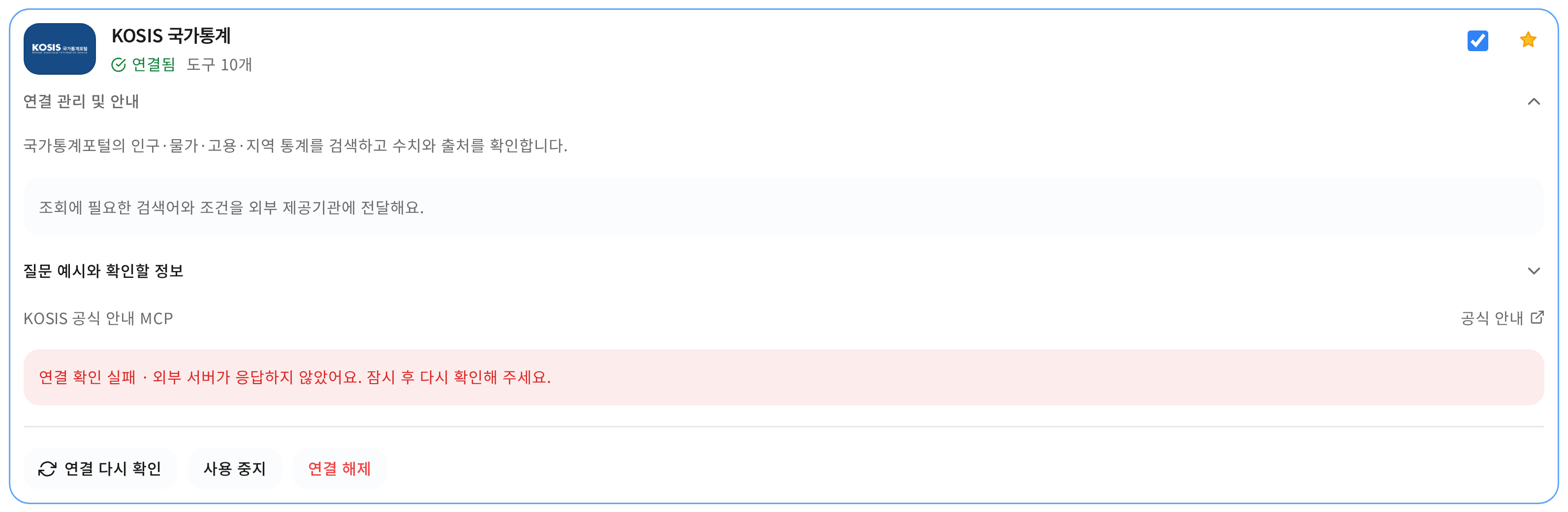
Open Connection management → Recheck connection. If it fails, read the feedback before trying again.
| Situation | What to check |
|---|---|
| Connected, but no lookup | Check the switch and selection mode; manual mode also needs a card checked. The AI queries only when relevant. |
| Disabled checkbox | Check usage, connection state, whether the service was disabled, and organization permissions. |
| Unsupported model or mode | Switch to a model and regular chat mode that support connectors. |
| Authentication setup required | Provider credentials require operator setup. Contact your administrator. |
| Check needed or recheck failed | Recheck the connection. Retry later if the provider is unavailable. |
| No matching information | Specify region, period, law or qualification more precisely. Do not request invented figures. |
These pilot services depend on provider availability and update schedules. Check the source links and reference dates in the answer.
8. Connect your own MCP server
Open Connect an MCP server · Manage my connections → Add server. Enter a name, HTTPS address and, if required, the supplied Bearer token. Review the notice and select Check connection and save.
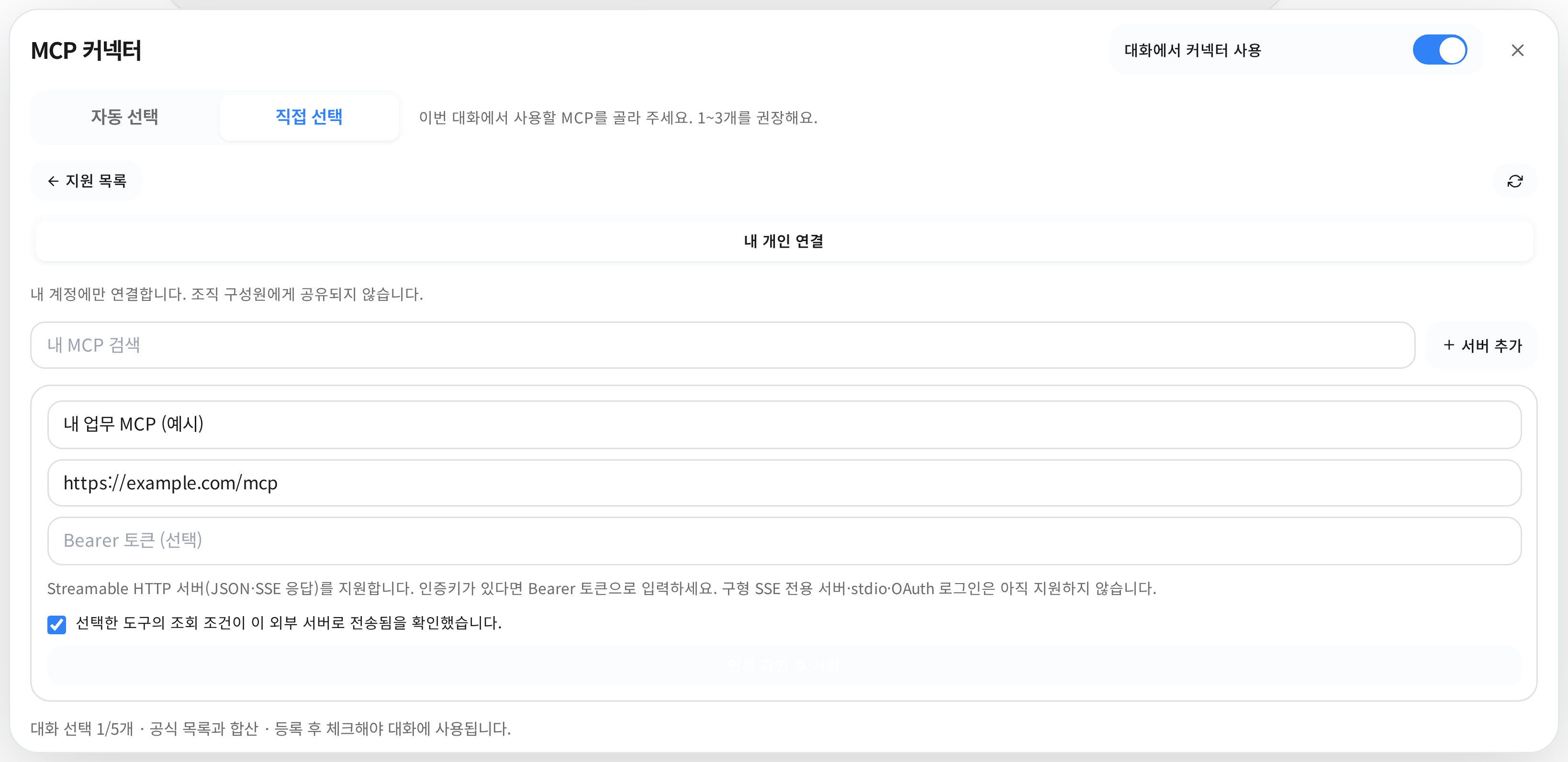
Personal and shared organization connections have different scopes. Check which scope is shown.
Direct connections support Streamable HTTP with JSON or SSE responses, but not legacy SSE-only servers, stdio or OAuth login. Check compatibility, then follow step 4 to enable and select the connection.
Was this answer helpful?