Move your ChatGPT or Claude profile to LLM Wiki
Bring useful work context and response preferences from another AI into your MonoGPT general Wiki and verify that they are applied.
Updated: September 2026
Move a reviewed summary of your profile and response preferences from ChatGPT or Claude into MonoGPT LLM Wiki so general conversations can use that context without asking you to repeat it.
Before you begin
- A summary from another AI may include sensitive details such as your name, organization, work, and interests. Remove anything unnecessary before copying it.
- Never store a password, verification code, API key, government identifier, or financial information in a Wiki.
- This guide uses the general Wiki for conversations outside projects. Put context needed only in one project into that project's Wiki from the project list on the left.
1. Ask the existing AI to summarize your profile
Enter this request in a new ChatGPT or Claude conversation:
I am moving to another AI service. Based on our conversations so far, summarize my work context, preferred response style, frequently used information, and response instructions so I can give them to the new AI.
When enough conversation history and memory are available, the service can summarize your work and project context, interests, and preferred answer format. Delete outdated or private information before moving the result.
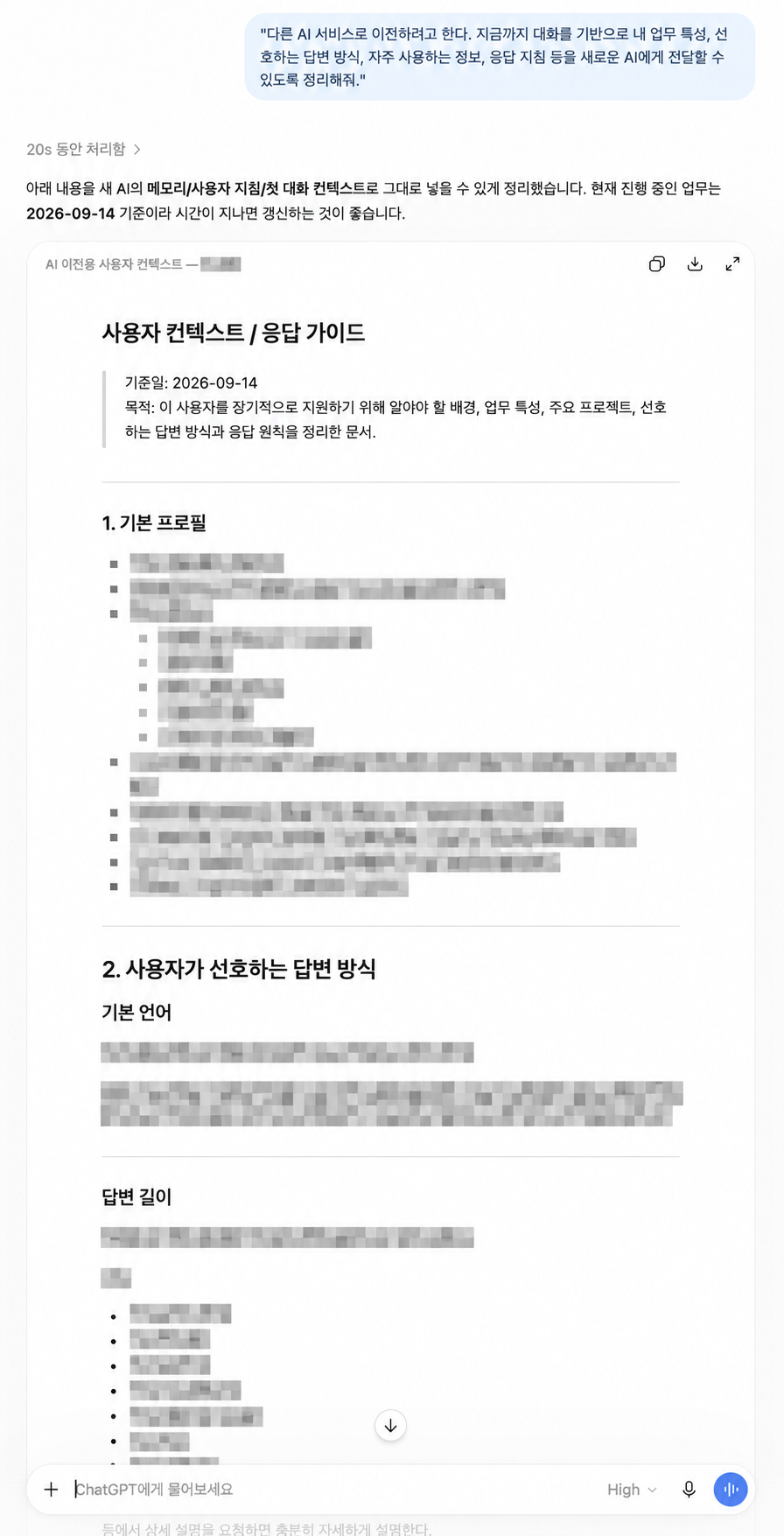
Screen 1. Enter the migration request in ChatGPT. The amount of information depends on the conversations and memory available there.
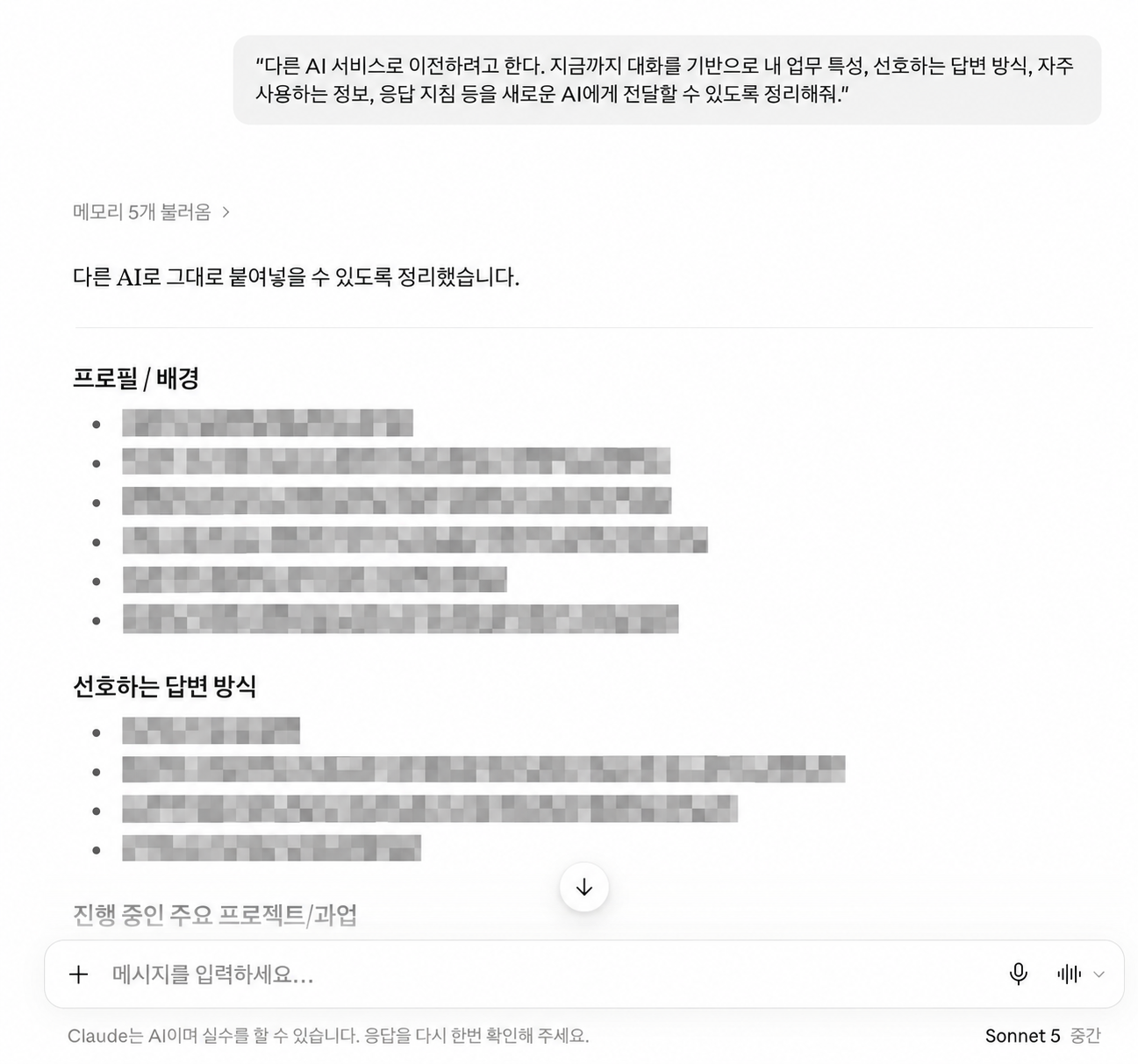
Screen 2. You can use the same approach to prepare a migration summary in Claude.
2. Paste the source into LLM Wiki
- Copy only the reviewed parts of the summary from the existing AI.
- Sign in to MonoGPT, then select Open LLM Wiki.
- Under General on the left, select Wiki to open the context used for general conversations.
- Paste the copied content into the first Source input column.
- Select Replace existing content when creating a Wiki for the first time or intentionally replacing all current content.
- Select Merge with existing content when adding the new material to a Wiki you already use. The formatting action may deduct the AI usage credits described on screen.
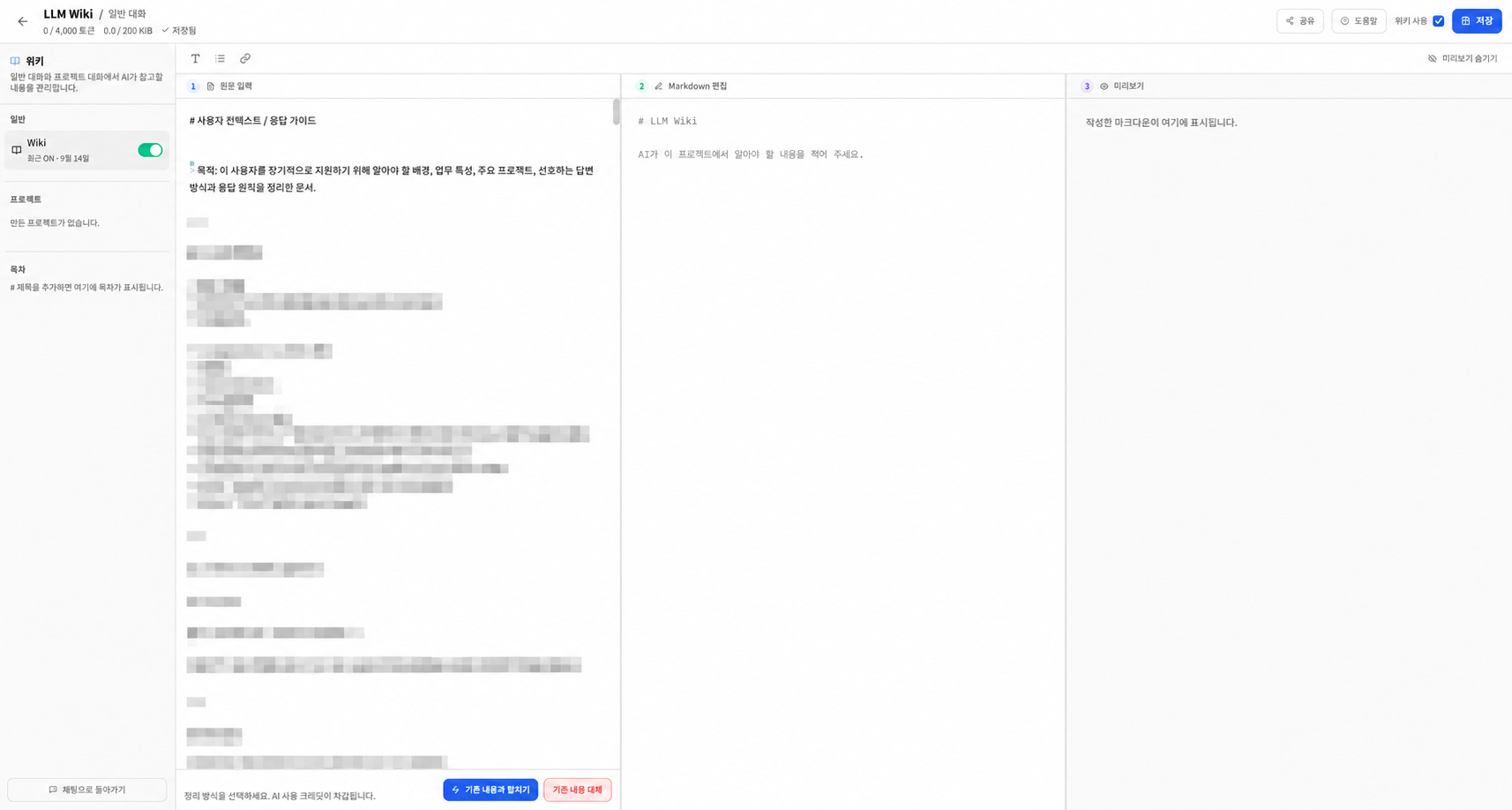
Screen 3. For a new Wiki, use Replace existing content. If a Wiki already has content, review the difference between Merge and Replace first.
3. Review the refined result and save
- After formatting finishes, inspect the headings and list structure in the middle Markdown editor.
- Check the right Preview to make sure the result is easy to read.
- Correct inaccurate assumptions, old dates, unused instructions, and sensitive details.
- Confirm that Use Wiki is enabled at the top.
- Select Save and confirm that the status at the top changes to saved.
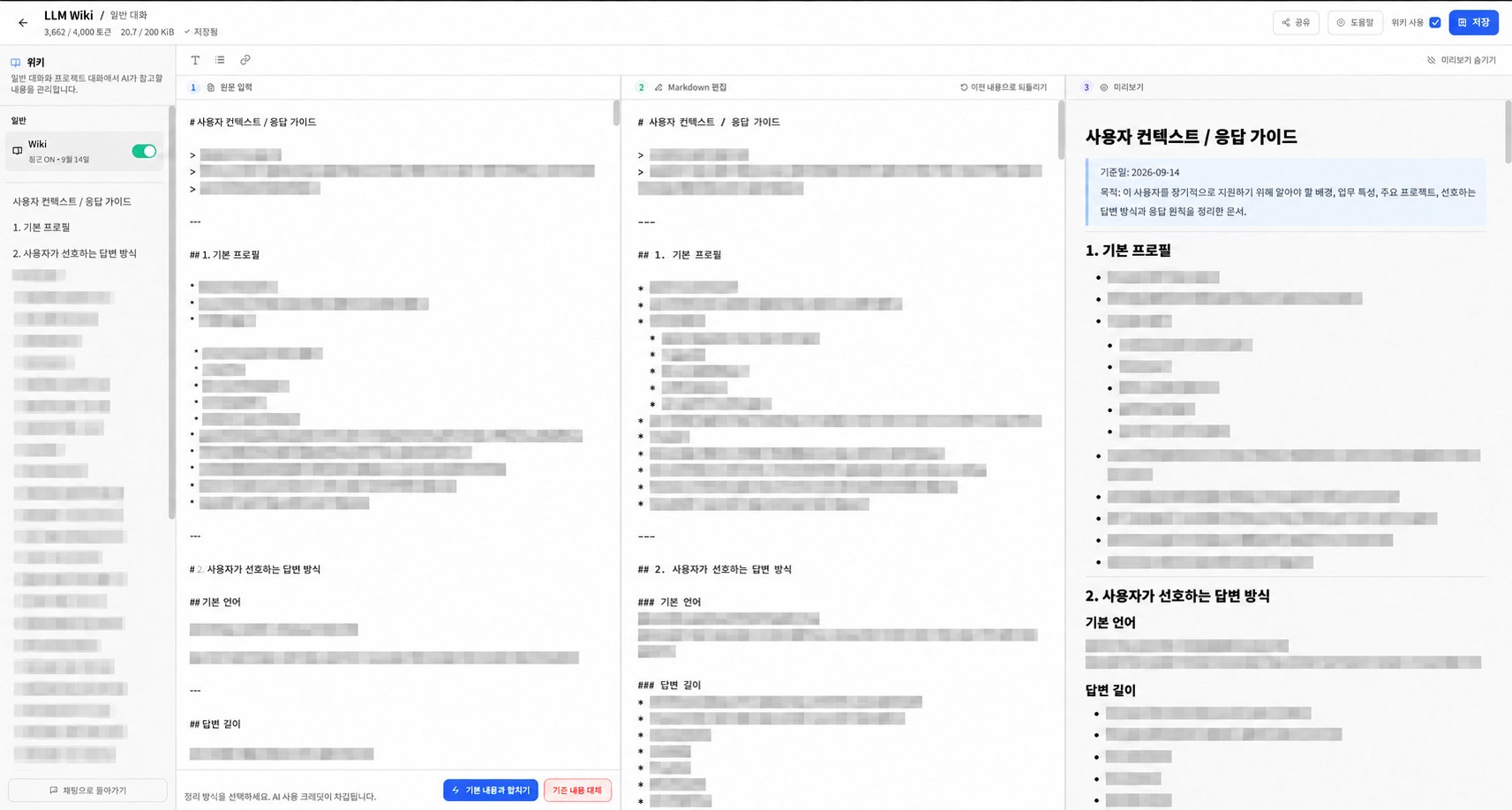
Screen 4. Compare the source, Markdown, and preview before saving the context.
4. Verify it in a new conversation
Open a new conversation outside a project and ask something that needs information from the Wiki.
- Describe my characteristics and how you will respond to me.
- Recommend books based on my interests.
It is working when you see the Wiki · General conversation reference near the response or composer and the answer reflects the saved preferences or context.
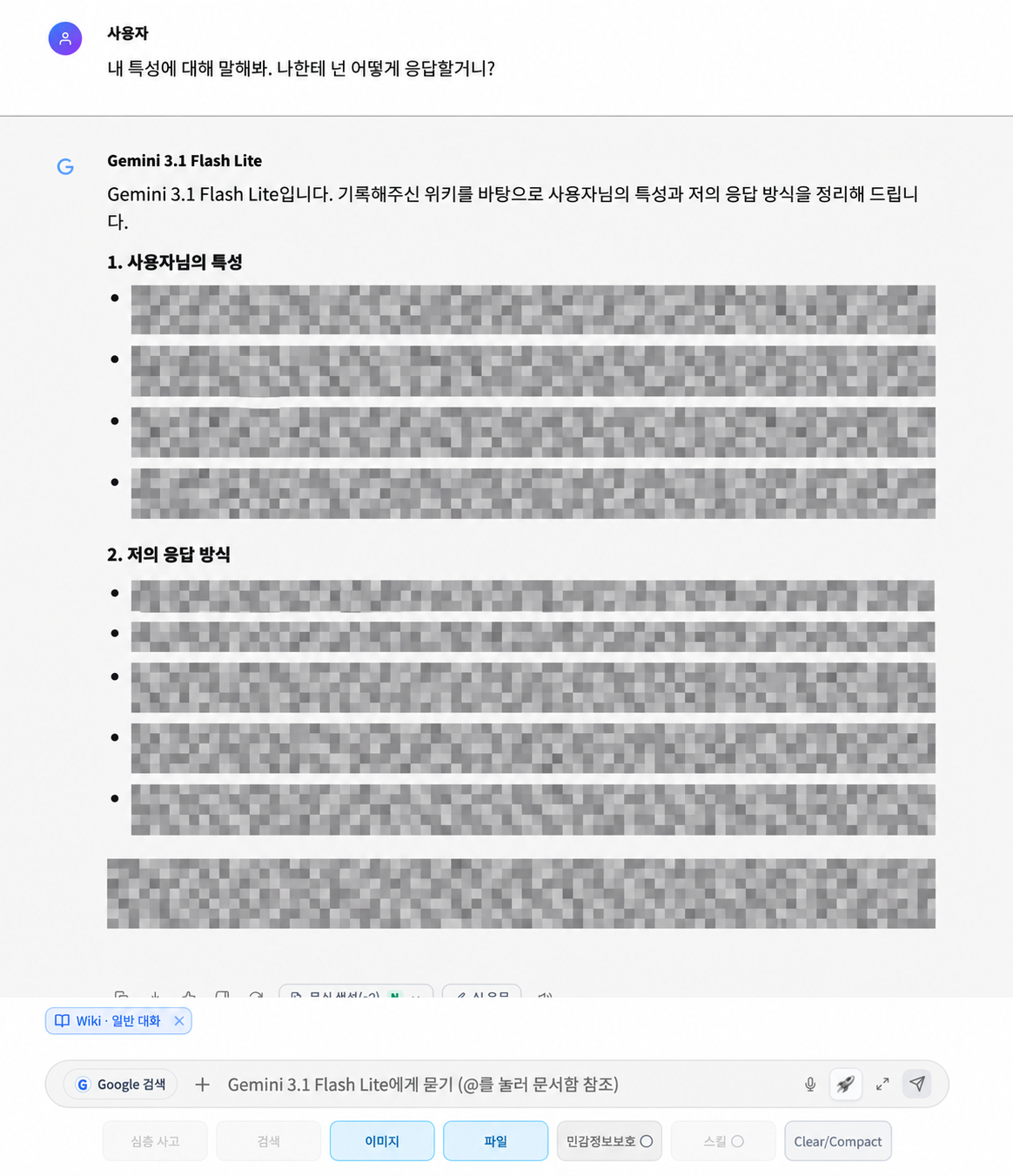
Screen 5. The answer describes characteristics and response preferences by referring to the Wiki.
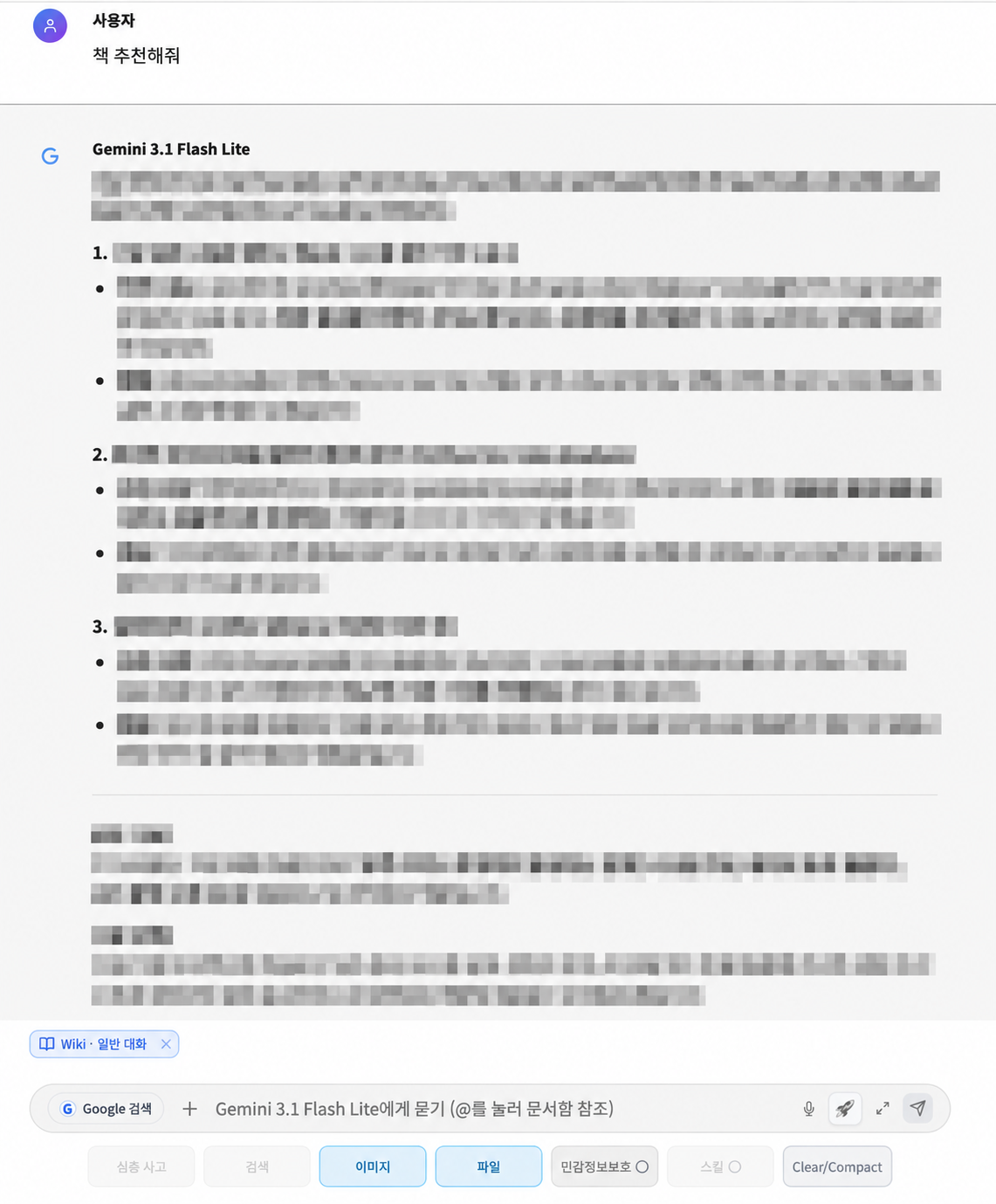
Screen 6. The answer can use the general Wiki even when the question does not repeat those conditions.
What should you move?
| Recommended content | Examples |
|---|---|
| Work and role | Responsibilities, common deliverables, and terminology you use |
| Response preferences | Default language, desired length, conclusion-first style, tables or lists |
| Repeated context | Long-term goals, ongoing fields of work, and recurring writing rules |
| Content to exclude | Login secrets, authentication data, financial information, other people's personal data, and unapproved sensitive material |
Handle personal information safely
- AI-generated summaries can be wrong. Review the source, Markdown, and preview before saving.
- Remove or anonymize other people's names, contact details, and confidential client information unless they are essential and authorized.
- Before sharing a Wiki screen or response, check that the screenshot does not expose saved personal information.
If it does not work
- The summary is too short: The existing service may not have enough conversation history or memory. Add the work context and response preferences you need yourself.
- Existing content disappeared: You may have selected Replace. If Restore previous content is shown, review and restore it, then use Merge next time.
- The Wiki is not reflected in chat: Confirm that the general Wiki was saved, Use Wiki is enabled, and the Wiki reference was not disabled for that conversation.
- Information is old or inaccurate: Correct it in the Markdown editor and save again.
Keep stable information that will be useful repeatedly. Do not save one-off requests or secrets; enter them only in the conversation where they are needed.
Was this answer helpful?