Activate One-time and other codes
Enter and apply One-time, Plus, Pro, Edu, Biz, and Enterprise codes with real product screenshots.
Updated: September 2026
You can enter One-time and other activation codes from the same screen. Check code only previews the benefit. You must select the final action afterward to apply it to your account.
Before you begin
- Check the email of the MonoGPT account that should receive the benefit.
- Copy the code exactly, including capitalization and hyphens, with no spaces before or after it.
- Check the activation deadline and eligible plan in the delivery notice. The activation deadline is the last day the code can be entered.
- If an active Plus, Pro, Edu, or Biz subscription still has valid credits, another subscription code may be unavailable until it expires or is depleted.
Which codes can I enter?
| Code type | What it applies | What the confirmation shows |
|---|---|---|
| One-time | A one-off credit grant | Credits, usage period, activation deadline |
| Plus, Pro, or Edu | A subscription for the specified period | Subscription period, monthly credits, activation deadline |
| Biz Starter or Biz Pro | The Biz plan specified by the code | Subscription period, monthly credits, activation deadline |
| Enterprise | Organization or account benefits allowed by the issued code | The code's credits, period, and activation deadline |
MonoGPT identifies the code type automatically. You do not need to find a separate One-time or subscription menu.
1. Open Credit balance from the sidebar
- Find the Credit balance card near the bottom of the left sidebar.
- A new free account may show a callout above the card that points to the activation-key location.
- Select the callout or the Credit balance card.
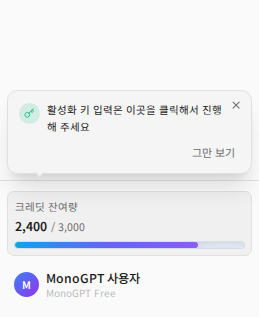
Screen 1. The Credit balance card at the bottom of the sidebar is the starting point.
2. Select Enter activation key in Credit details
- Review the current valid credits and charge and usage history in Credit details.
- Scroll to the bottom and select Enter activation key.
- Purchase opens a new purchase flow. You do not need it when you already have a code.
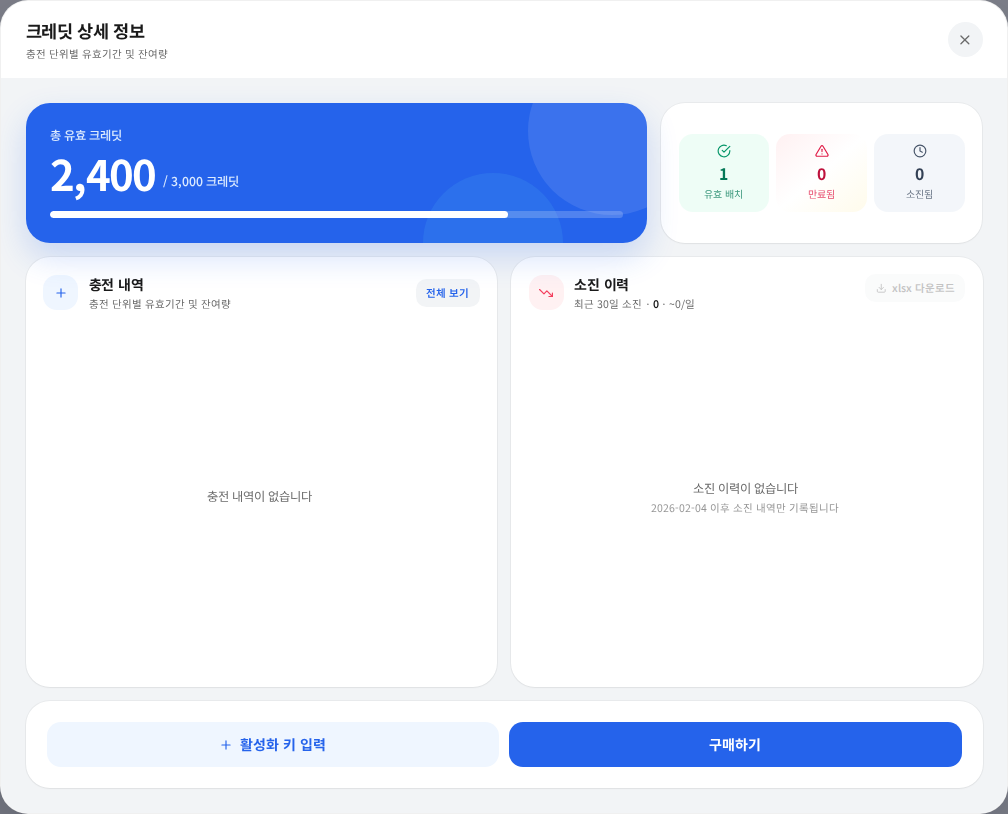
Screen 2. Select Enter activation key at the lower left. The numbers shown are sample values.
3. Paste and check the code
- Paste the issued code into Enter activation key.
- Compare the first and last characters and every hyphen with the original.
- Select Check code. You can also press Enter.
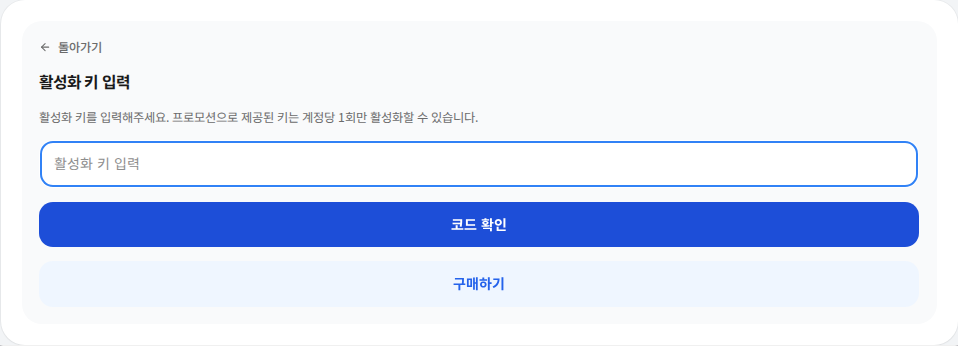
Screen 3. Checking the code does not apply credits or start a subscription yet.
4. Review the code and apply it
- For One-time codes, review credits, usage period, and activation deadline. For subscription codes, review subscription period, monthly credits, and activation deadline.
- The usage period starts after activation and determines how long the credits can be used. The activation deadline is the last date the code can be entered. They are different dates.
- If the information matches the delivery notice, select Add credits for One-time or Enterprise, or Start subscription for Plus, Pro, Edu, and Biz.
- After the success message appears, check that the credit balance or current plan has changed.
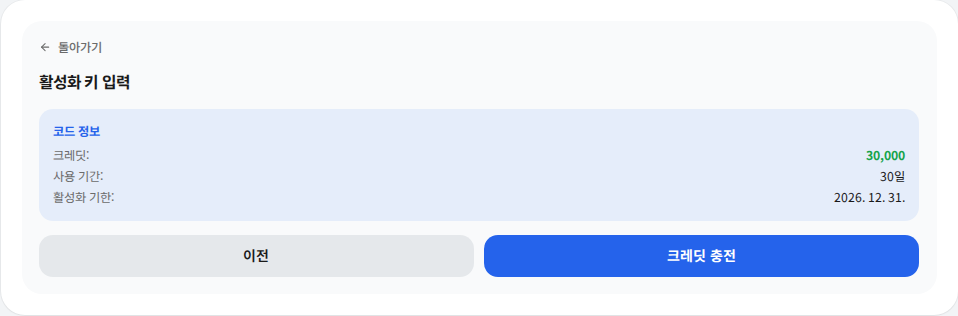
Screen 4. A public sample response is rendered in the real MonoGPT confirmation UI. Your amounts and dates depend on the issued code.
If it does not work
- Enter activation key is missing: Check whether a Plus, Pro, Edu, or Biz subscription is active. Some codes become available only after the valid credits are depleted or the subscription expires.
- Invalid key: Check spelling, hyphens, and spaces, and paste the code in the activation-key field rather than a chat.
- Already used key: One-time and promotional codes may be limited to one use per account or issuance group.
- Activation period expired: Even if a usage period is shown, a code whose activation deadline has passed may need to be reissued.
- The code validates but final activation fails: Check the on-screen plan-conflict message, then send Support the error, time, and only the first and last four code characters. Never send the complete code.
The final action can immediately change the account's credits or plan. Verify the account, benefit, and period one more time before continuing.
Was this answer helpful?