Preview, edit, and restore a generated document
Preview a document, request revisions, or return to an earlier version.
Updated: September 2026
Preview a generated document before downloading it to review the overall flow and formatting. Describe each needed change clearly, and return to an earlier version when that is the better starting point.
Review and revise
- Check the title, outline, body, and tables in the preview.
- Identify the location to change and describe the desired result.
- Review the updated content and continue with any needed revision.
- Download the final document in the desired format.
Return to an earlier result
If a revision does not match your intent, restore an earlier version and request a different change. Splitting major changes into separate requests makes the results easier to compare.
Compare the final file with the original request and confirm that no required content is missing.
Follow the screen
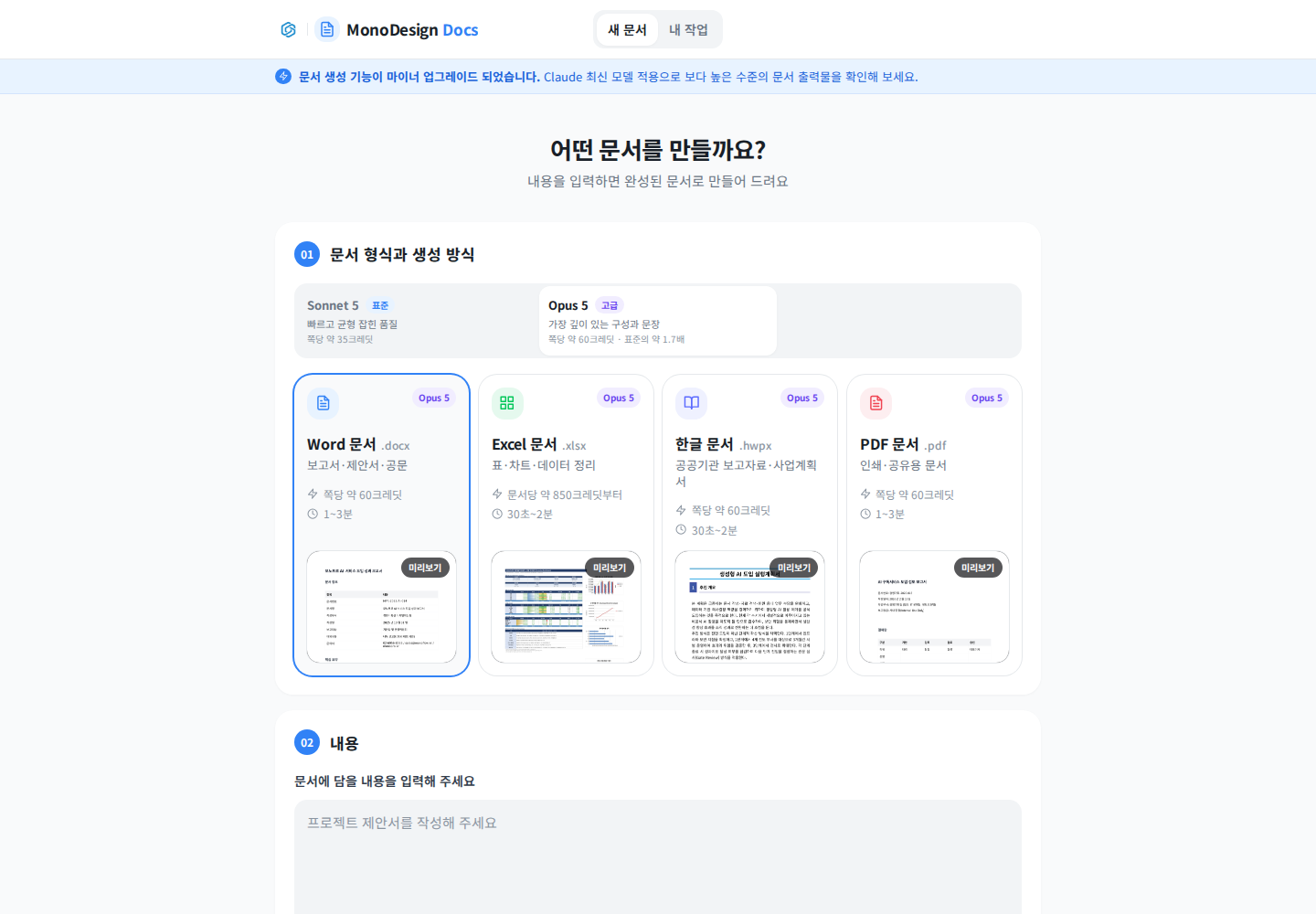
Actual Korean application screen with sample account/data. Available controls depend on permissions and selections.
The screenshot shows the starting screen. Open saved results through My Work at the top.
Open a job, inspect tables, images, and page boundaries, and request a precise change such as adding one owner column on page two. Compare before and after. Use version selection or revert only where the particular workflow provides it. Open the downloaded file as well. If no revert control is available, use a previously saved file for a new task rather than assuming an unsaved version can be restored.
Was this answer helpful?