Create document files in chat
Request a document in chat and generate it in several file formats.
Updated: September 2026
Draft reports and emails in chat with Gemini 3.8 Flash or GPT-5.6 Terra. For a downloadable Word, Excel, HWPX, or PDF file, open Document generation or MonoDesign Docs. For presentations, use slide generation.
Actual Korean app screens use demonstration inputs and documents. Chat models and document production models are separate settings. Click screenshots to enlarge them.
1. Choose the format and production mode
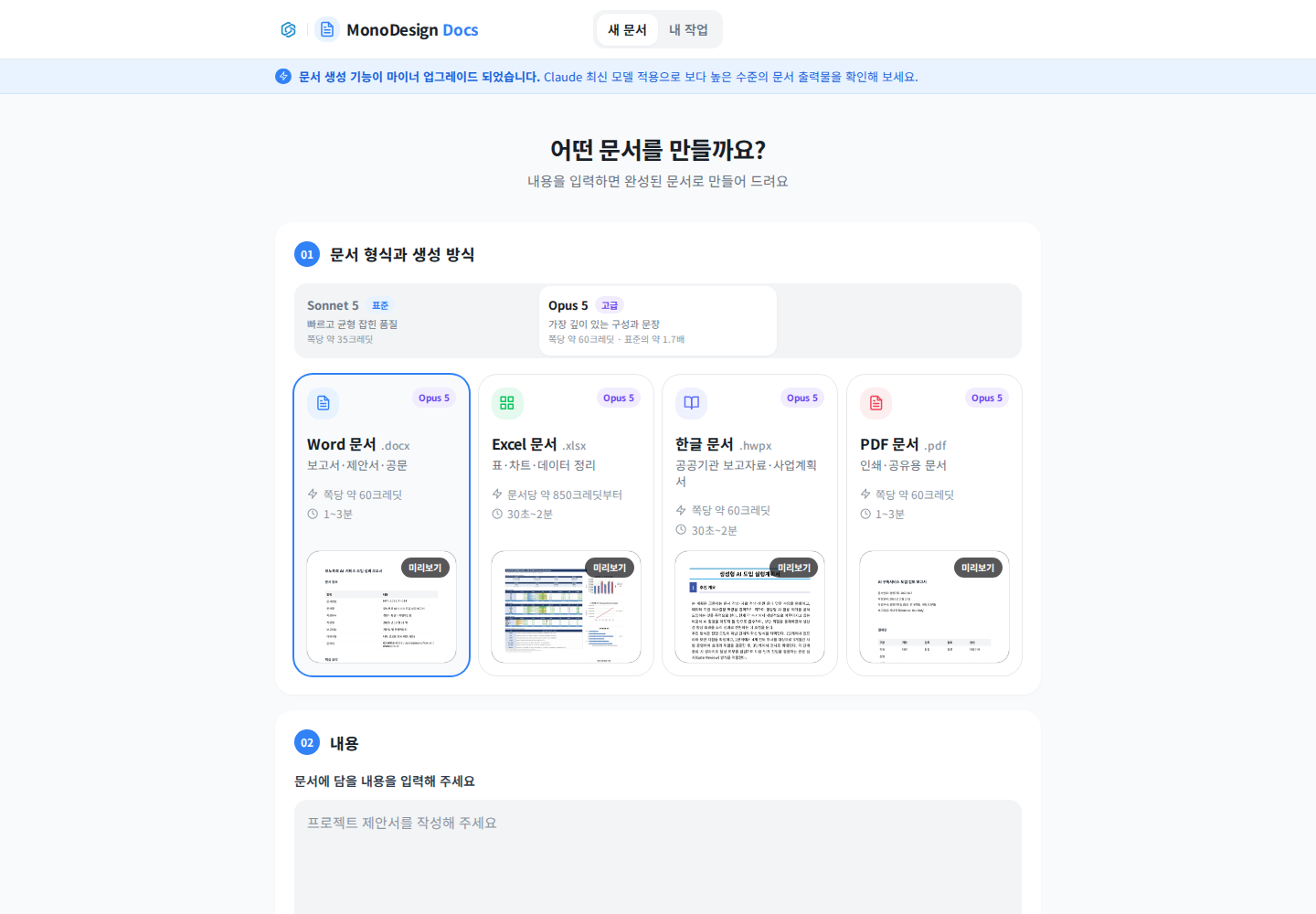
In New document, choose Word for editable reports, Excel for tables and data, HWPX for Korean word-processing documents, or PDF for printing and sharing. Consider Standard for an initial draft and compare its displayed model and estimated credits with advanced mode. Selecting Terra in chat does not change this app's production model to Terra.
2. Enter purpose, structure and length
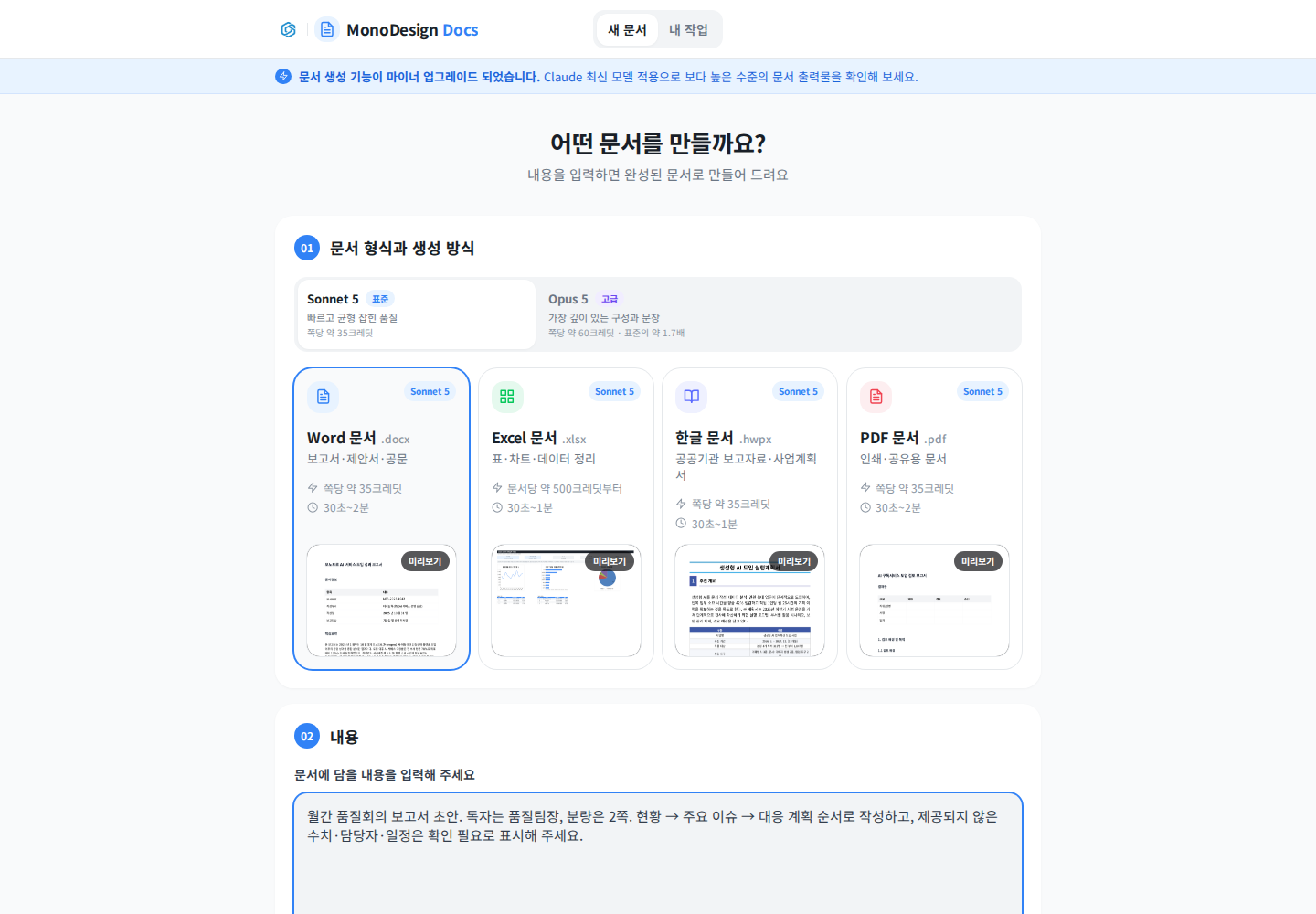
Paste the reviewed draft or requirements into Content. For example:
Write a two-page monthly quality-meeting report for the quality manager. Use current status → key issues → action plan. Keep source figures and units. Mark missing owners and dates as “confirmation required.”
If you request a Word file in chat, check that an actual downloadable file card appears. If you only receive prose or a filename, move the draft to this document app.
3. Add reference material
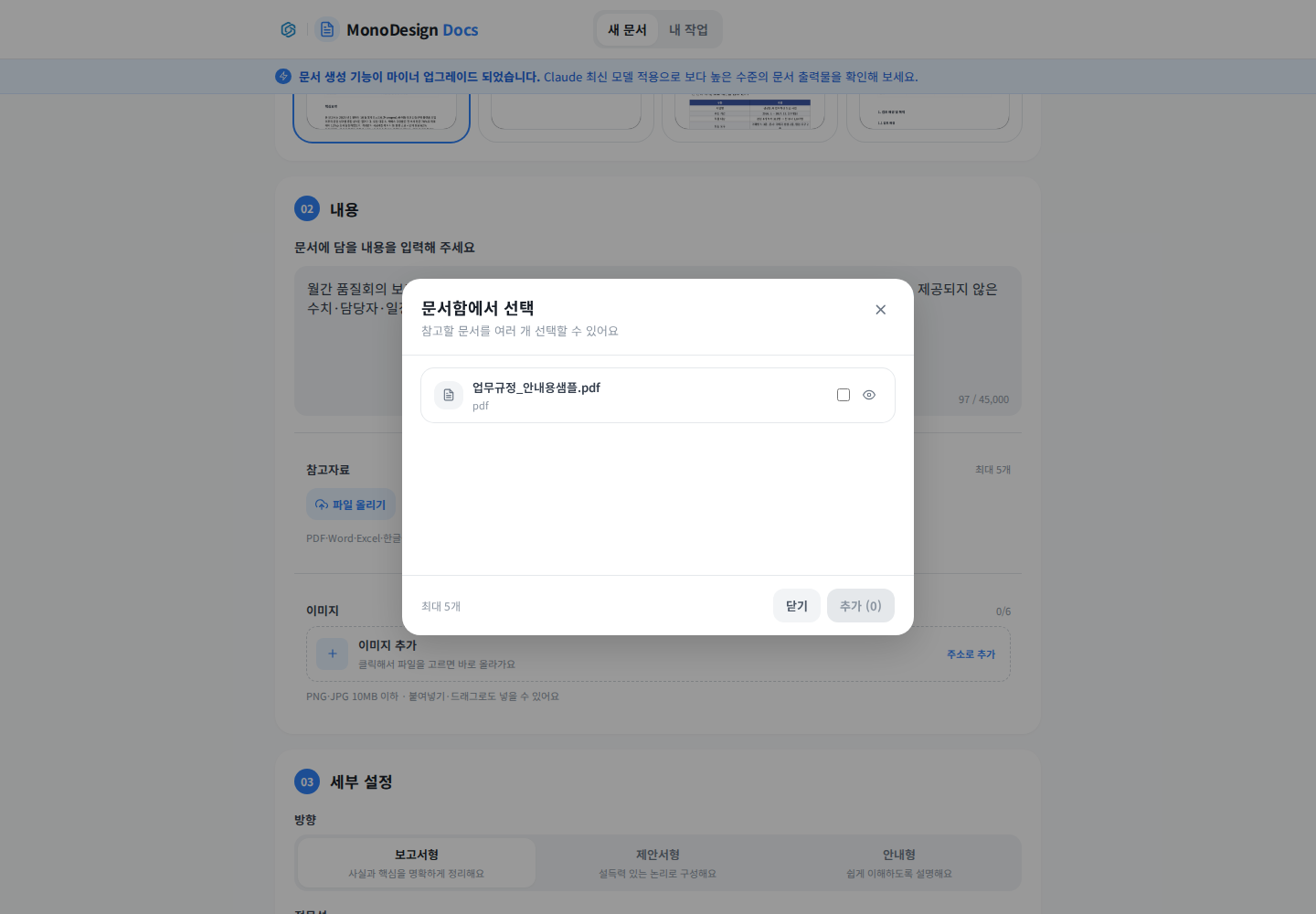
- Choose Upload file or Select from library.
- Check the required documents and click Add. Opening the picker alone does not attach them.
- Verify filenames and versions. The regulation file shown is only a selection example; choose the actual sources for your report.
- Use the dedicated web-page or YouTube menus for those sources. Reference documents and images have separate input areas.
4. Review settings and cost
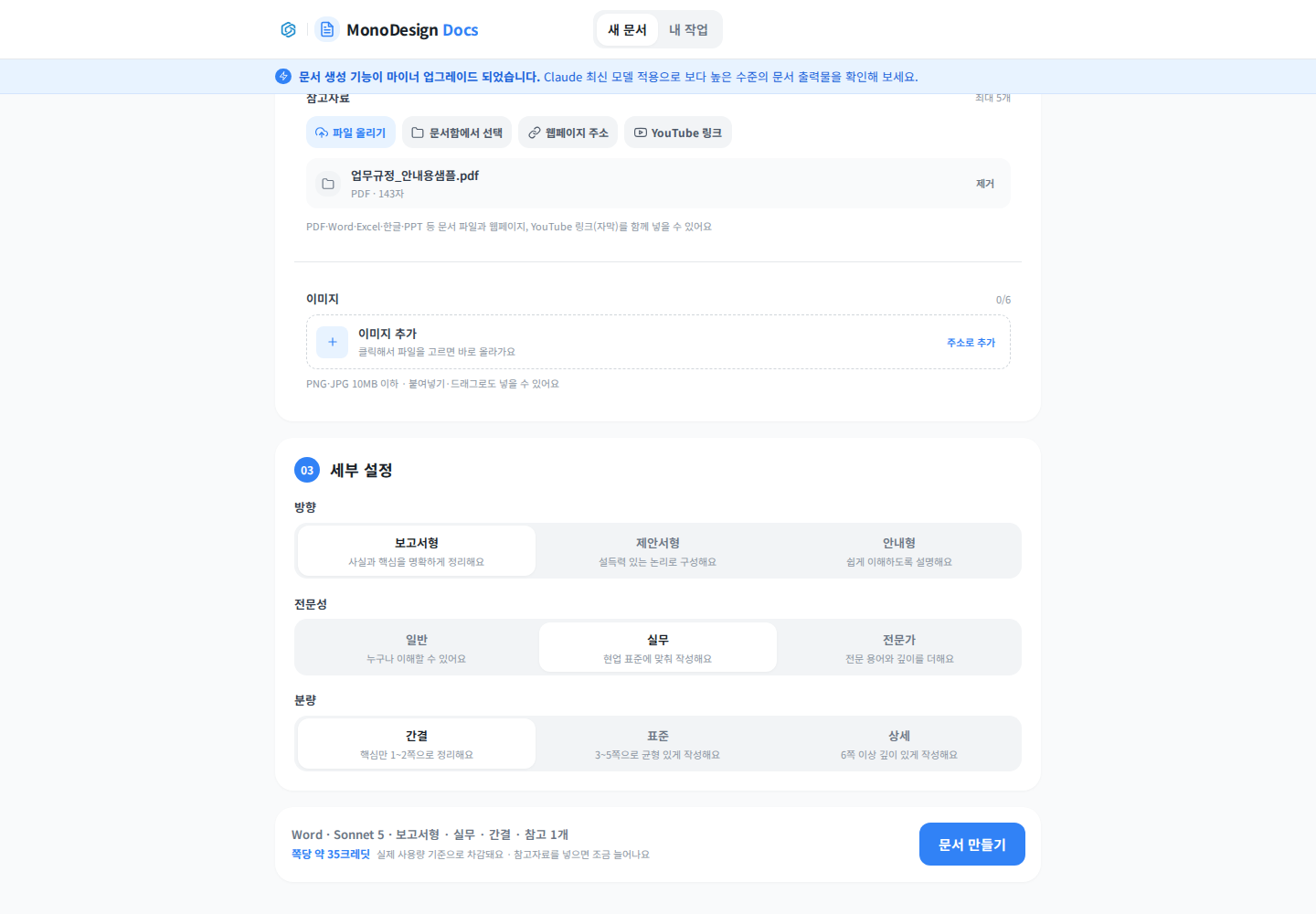
Choose report, proposal, or guide direction; match expertise to the reader; and select a suitable length. Keep the prompt and settings consistent, such as “two pages” with concise length. Check the format, model, and reference count in the summary before Create document. Estimates depend on the selected settings and current pricing.
5. Review, revise and download
Open the completed preview and find saved results in My work. Check headings, dates, totals, tables, page breaks and missing sections. Scope revisions precisely: “Change only the action plan to an owner/action/deadline table.” Download and open the file in its intended Office, HWPX or PDF application.
If creation is disabled, check required inputs. If a source is missing from the result, check attachments and processing status. Review factual content before distribution. See the business writing guide for email and meeting examples.
Was this answer helpful?