Sign up and sign in
Create an account with email or continue with Google.
Updated: September 2026
You can create a MonoGPT account with email or sign in with Google. Use the same method each time so your conversations and projects remain connected to the correct account.
Start with an account
- Choose email sign-up or Google sign-in on the account screen.
- Complete the account verification shown on screen.
- After signing in, start a new conversation from the first page.
If sign-in does not work
First check that the method you selected matches the one used when you joined. If several Google accounts are available, confirm that you chose the correct account.
If you cannot remember your password, follow the reset flow on the sign-in screen and try again.
Follow the screen
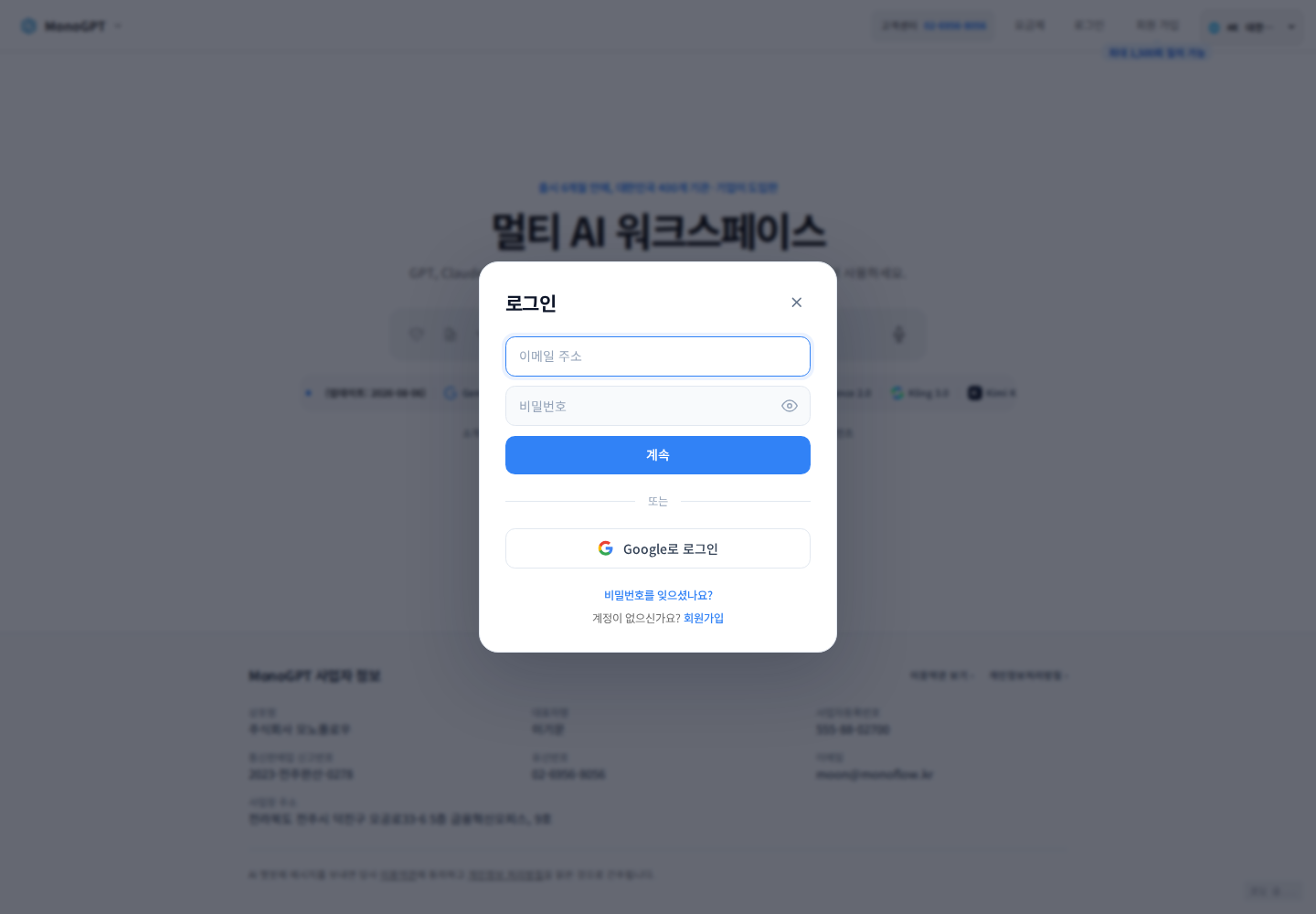
Actual Korean application screen with sample account/data. Available controls depend on permissions and selections.
- Open Sign in and choose Sign in or Register.
- Follow your organization’s login method or dedicated address when provided.
- After signing in, check your account name and email at the lower left. If old work is missing, check whether you used a different account.
Organization enrollment may differ from individual registration; check with your administrator before creating a duplicate work account.
Was this answer helpful?