Contact 1:1 support
Submit a support request and review the response.
Updated: September 2026
If you cannot resolve an issue while using the service, submit a request through Customer support. Describe the task and what happened in enough detail for the issue to be reproduced.
Submit a request
- Open Customer support at the top.
- In 1:1 support, choose a request type and enter the details.
- Include when the issue occurred, the feature used, and any on-screen message.
- Review the information and submit the request.
Check the response
View the request status and response under My inquiries. Before creating another request for the same issue, check whether the existing request already has a response.
Do not include sensitive information such as a password or payment details in the request or attached screenshot.
Follow the screen
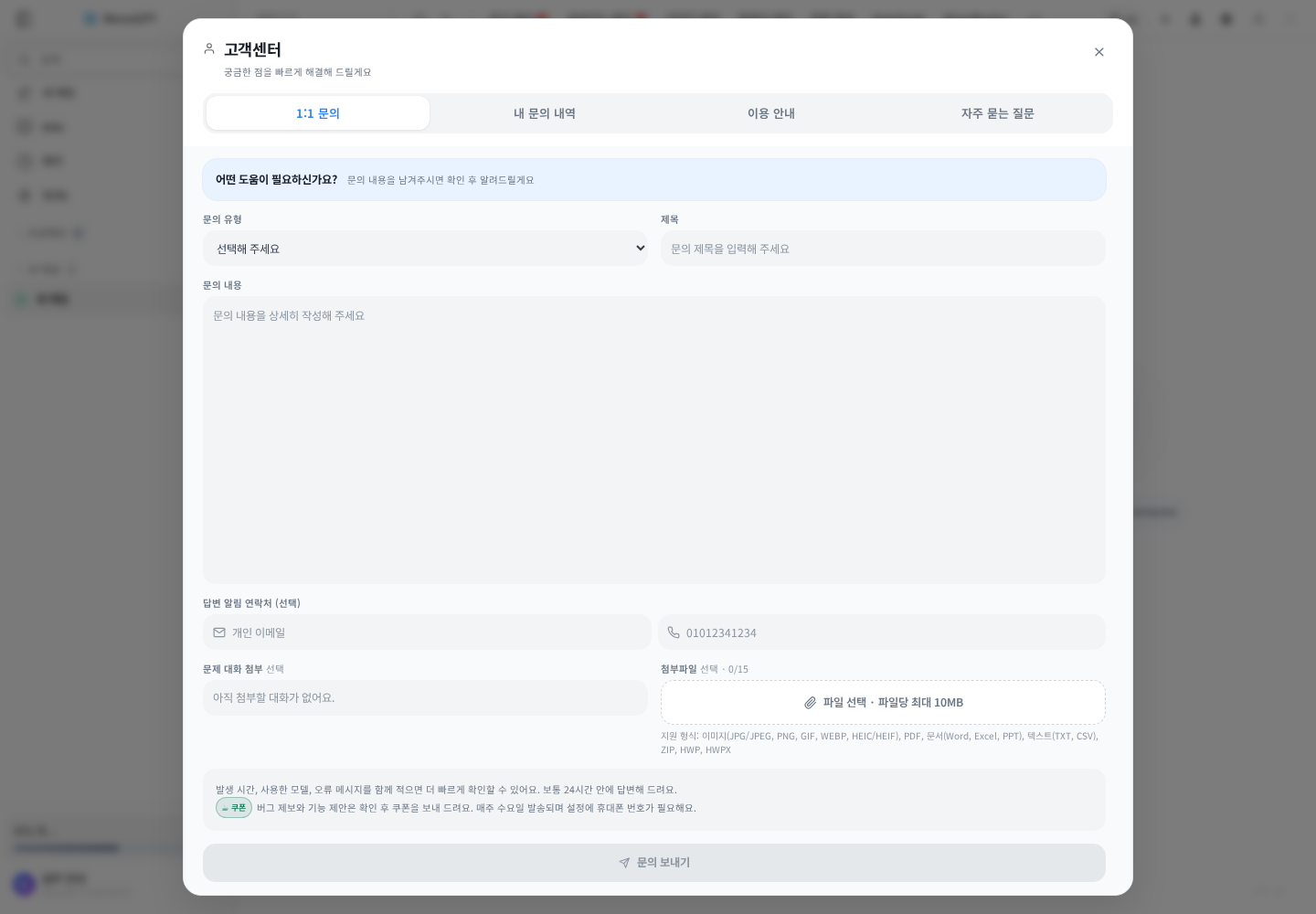
Actual Korean application screen with sample account/data. Available controls depend on permissions and selections.
Open Support and choose a one-to-one inquiry. Put the feature and symptom in the subject. Include the time, selected model, steps, expected result, and actual result. Attach a screenshot with private details and keys removed if useful. Follow replies in the same inquiry.
Example: “Document Translation, 10:20 today, 2MB DOCX, English to Korean, error after Start: …” Check the existing job and usage record before resubmitting failed generation.
Was this answer helpful?