Using ClinicalTrials.gov
Find registered studies for a condition
Updated: October 2026
Find registered studies for a condition with ClinicalTrials.gov. Retrieve relevant information and keep its source and reference date together.
A practical use case
Find registered studies for a condition. Check the registration number and last update date for the selected study.
1. Open MCP connectors in the composer
Sign in to MonoGPT chat and open MCP connectors below the message input. An enabled button may display MCP Auto or a selected count such as MCP 1. Identify it by its name among the other composer tools.

2. Connect and select it for this conversation
- Turn on Use connectors in chat at the top of the panel.
- Find the ClinicalTrials.gov card shown in the screenshot below. Catalog labels currently appear in Korean; match the logo and card name in the image, or search using that displayed name.
- Open Connect, read the external data notice, give consent and connect. Skip this step if already connected.
- Choose Manual selection and check the ClinicalTrials.gov card. Confirm that its name appears above the results.
- Close the panel and enter the sample prompt below.
Personal connections belong to your account. For an organization connection without management controls, ask your organization administrator. To use automatic selection, keep the connection and switch to Automatic selection.
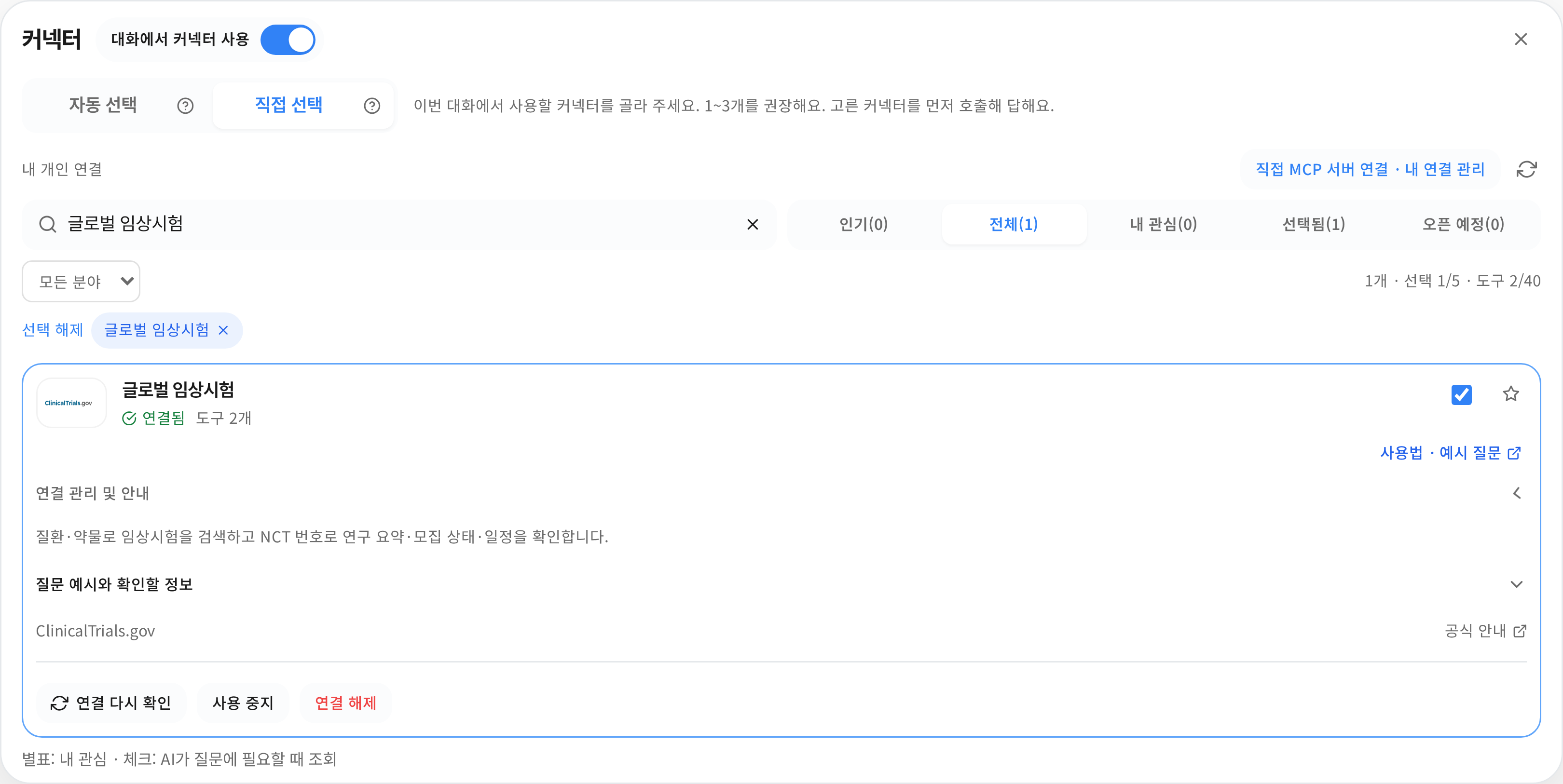
The actual application connector picker, captured at 3x resolution. Connection and selection states are demonstrations, not a real account installation or conversation result. The interface is shown in Korean. Click an image to open it at its original size.
3. Try this prompt
Find migraine studies and list their titles, recruitment statuses, NCT numbers and registry links.
This is a sample question, not a retrieved result. Answers depend on the query date and available data. Adapt the subject and period to your work.
Check the answer
- Check the registration number and last update date for the selected study.
- Inspect the tool activity above the answer to see whether a lookup actually ran.
- Open the source and check values and dates. Ask the assistant to distinguish missing information from the scope it searched.
Recruitment status reflects the latest registry update.
If a lookup fails, check the connection, conversation switch, manual selection and supported model in that order. Being connected and enabling use in a conversation are separate settings.
Was this answer helpful?