Create video with Video Studio
Generate a video from text or a first-frame image.
Updated: September 2026
Use video generation for short training, promotion or work-briefing clips. Start with Seedance 2.0 Mini or Fast and a short duration, then adjust to the required quality and length.
Actual Korean app screens use a demonstration prompt and public sample image. These show configuration before generation, not a generated video. Check the current quote for the selected model, duration and resolution.
1. Start from a template or your own brief
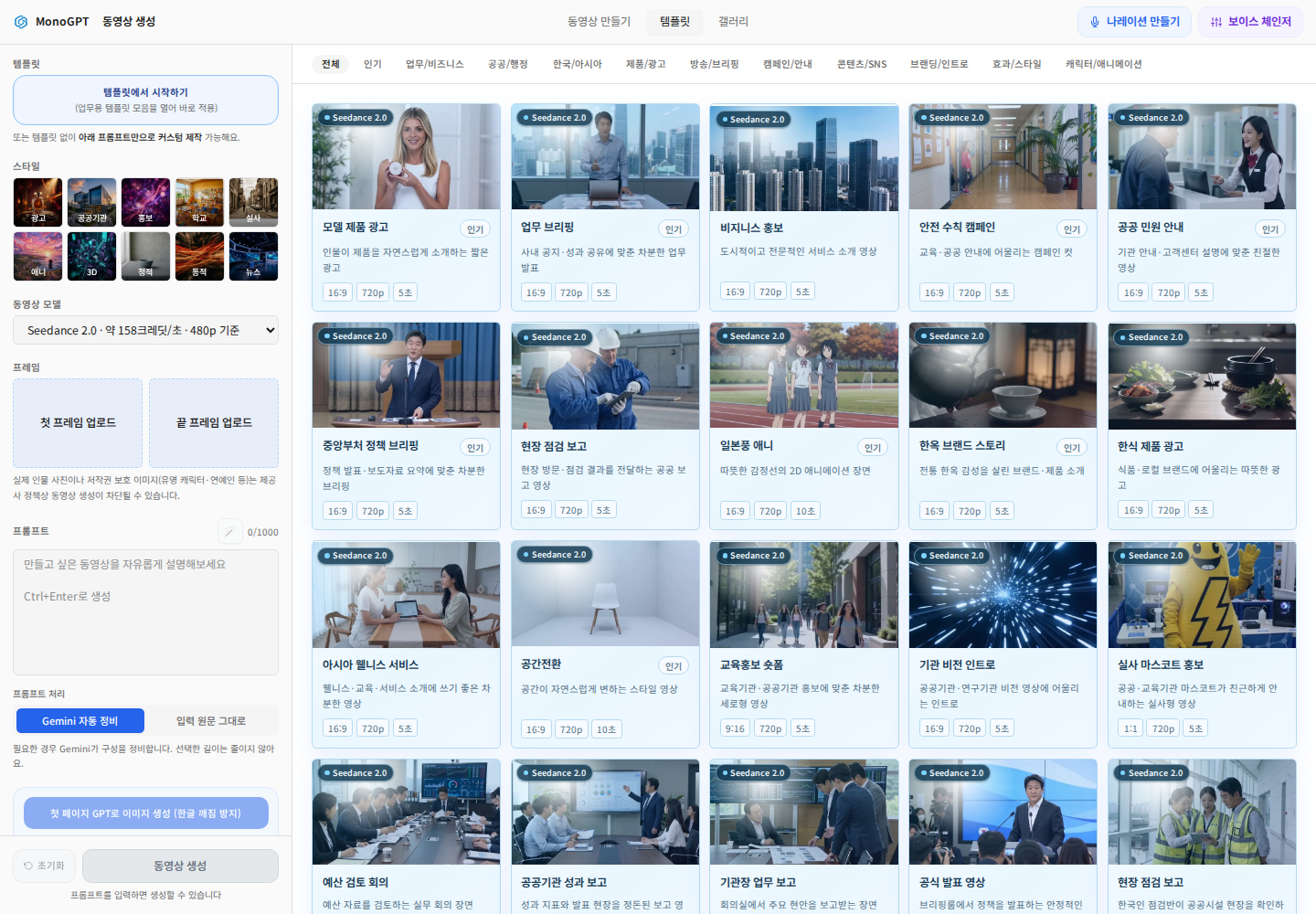
Choose an example in Templates or enter your own brief in Create video. Applying a template can change the model, prompt, duration and resolution, so review them before submitting.
2. Choose a model and describe the scene
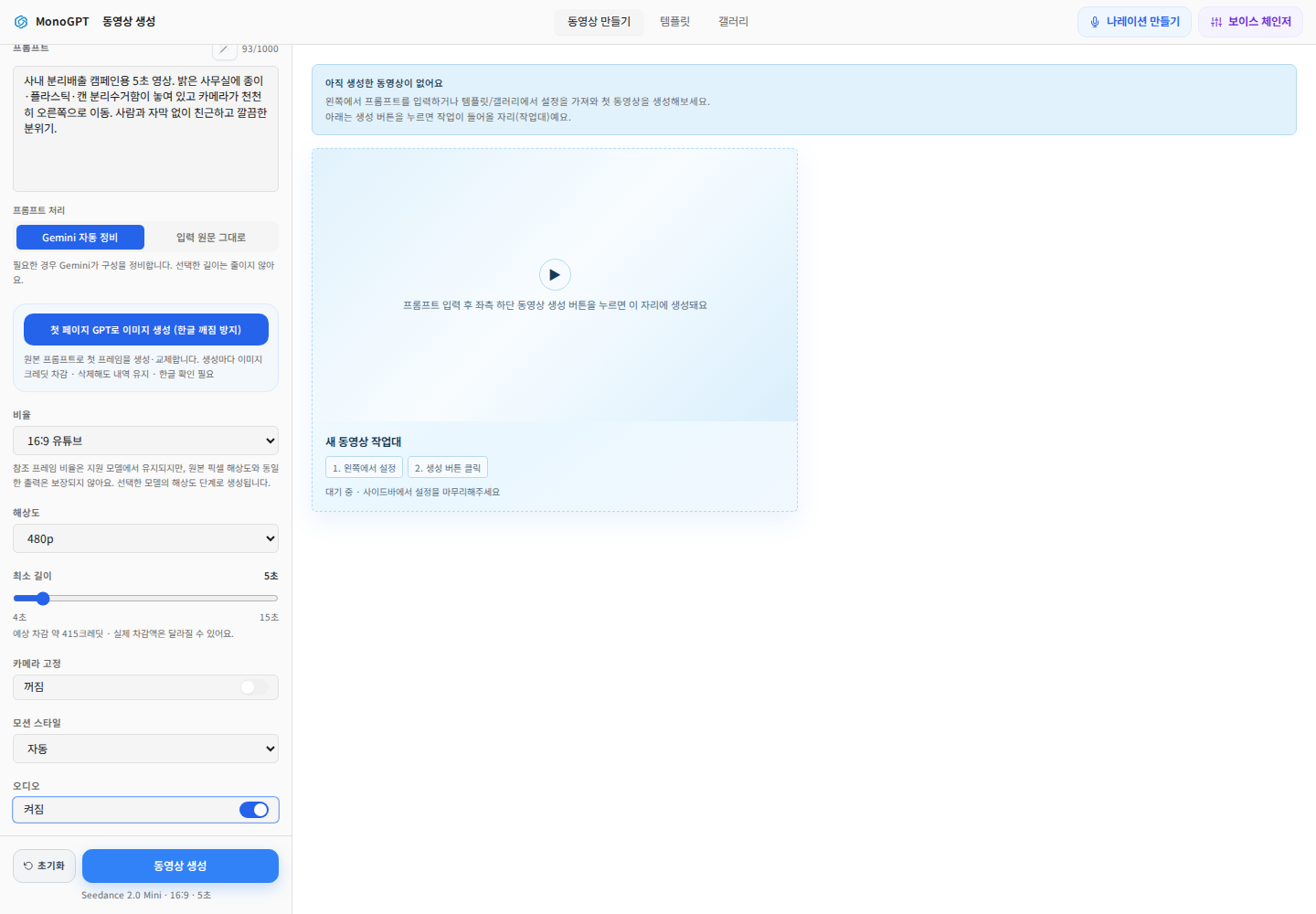
Select Mini, Fast or another permitted model under Video model. Describe the subject, action, background and camera movement. Start with a short single scene.
A five-second office recycling campaign clip. Paper, plastic and can bins in a bright office; the camera slowly moves right. No people or subtitles; a friendly, clean atmosphere.
Check Prompt processing for automatic refinement or use of the original input. Writing a duration in prose does not replace the duration control.
3. Review duration, ratio, resolution and cost
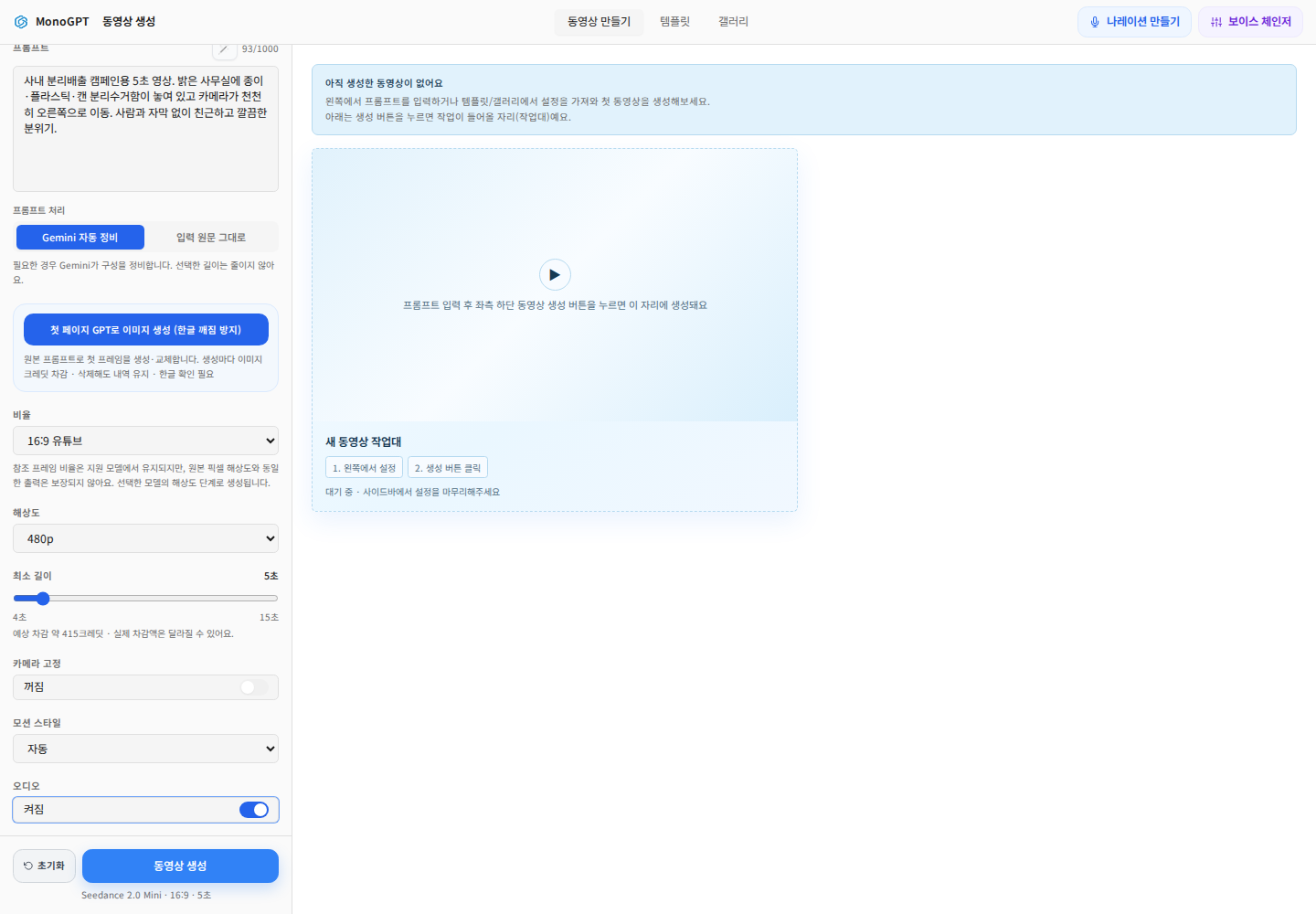
Choose a ratio such as 16:9, 9:16 or 1:1. Set resolution and Minimum duration within the model's supported range. Review camera lock, motion and audio. Read Estimated credits again after changing settings.
The GPT first-frame image option is a separate image-generation action. Use it when needed and read its additional credit notice.
4. Start from a reference frame
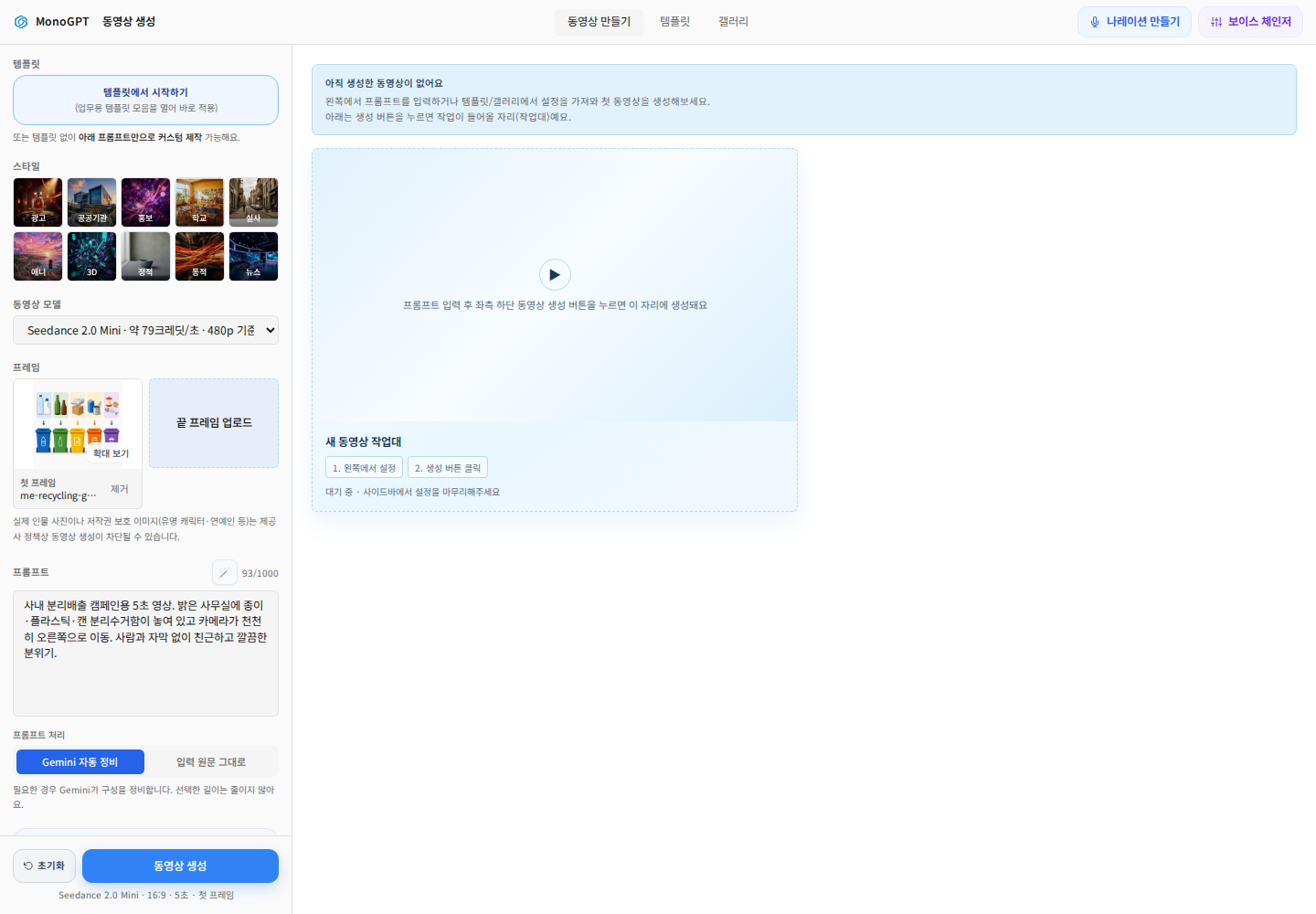
Use Upload first frame and confirm the thumbnail. Specify what to keep, such as “Preserve bin shapes and colors; move only the camera.” Use end-frame or other references only where supported. Original reference pixel dimensions do not guarantee the same output resolution.
5. Generate, play and download
Check settings and estimated cost, then click Generate video. Read any confirmation dialog before continuing. Monitor the job in Create video without repeatedly submitting it. Play a completed clip from start to finish to inspect transitions, shapes, subtitles and audio, then download it. Regeneration can create another charged job.
Troubleshooting
For a disabled button, check the prompt, required frames and model-specific inputs. For rejected frames, check format, size and provider guidance shown on screen. For delays, inspect status first; processing time is not fixed. If the result is too busy, reduce it to one scene and describe subject movement separately from camera movement.
Was this answer helpful?