Create slides
Choose a topic and creation mode to generate a presentation.
Updated: September 2026
Use slide generation to create a PPTX from your presentation purpose and sources. Start with Practical (practical mode) and the required slide count, then compare other modes when design needs differ.
Actual Korean app screens contain a demonstration project, sources and estimate. Screens show configuration through final review; displayed example costs do not replace your current quote.
1. Choose a creation mode

Choose a mode under New presentation. Practical mode suits internal meetings and weekly reports; advanced mode offers deeper composition. Compare Gamma and design modes when presentation style matters. Read each card's model, pricing and description.
2. Set slide count, language, tone and content
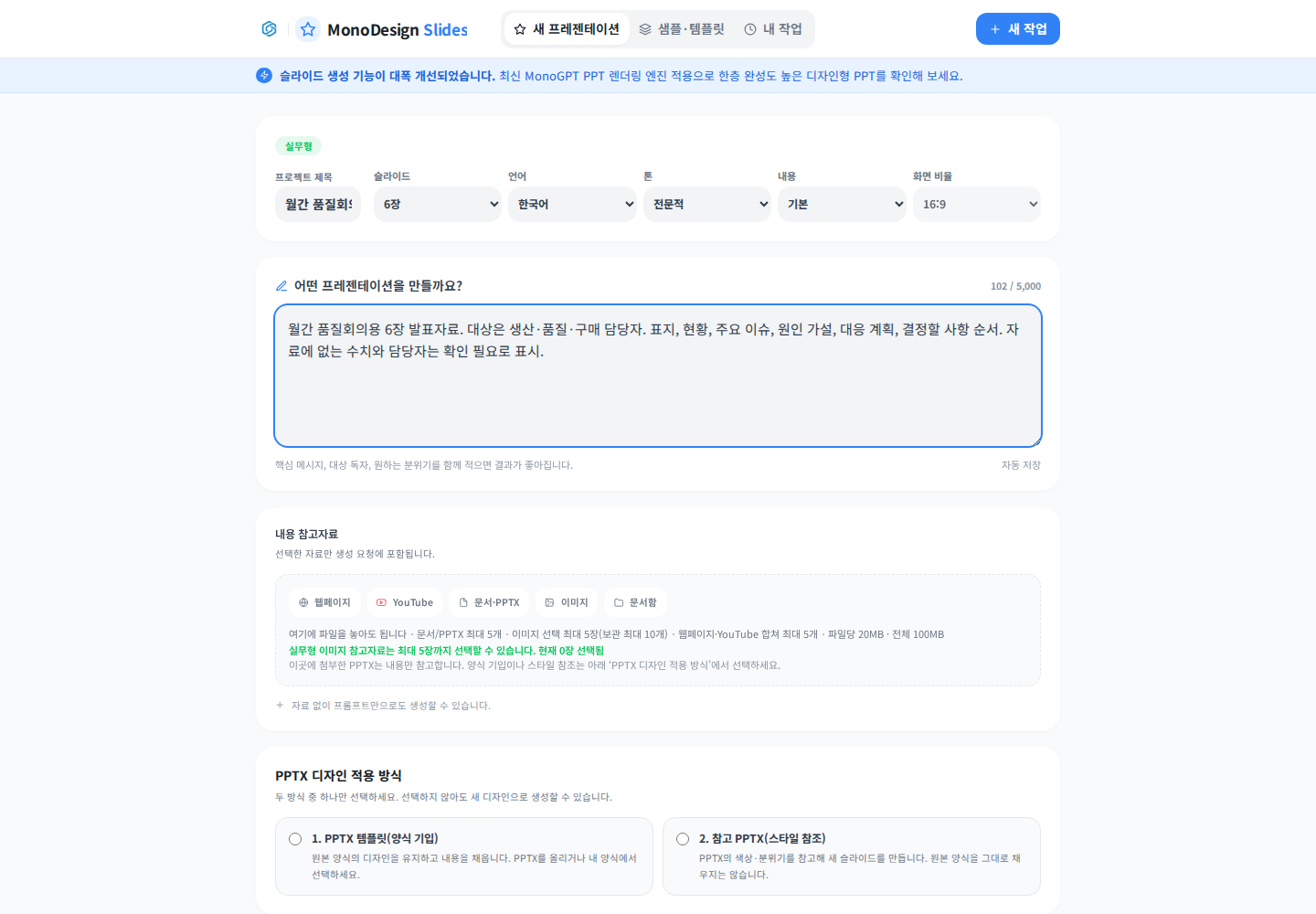
Name the project and set slide count, language, tone and content depth. Describe the audience, purpose and slide sequence. For example:
Create six slides for a monthly quality meeting with production, quality and purchasing staff: title, current status, key issues, hypotheses, action plan, decisions needed. Preserve source figures and flag missing owners or dates.
3. Add content references
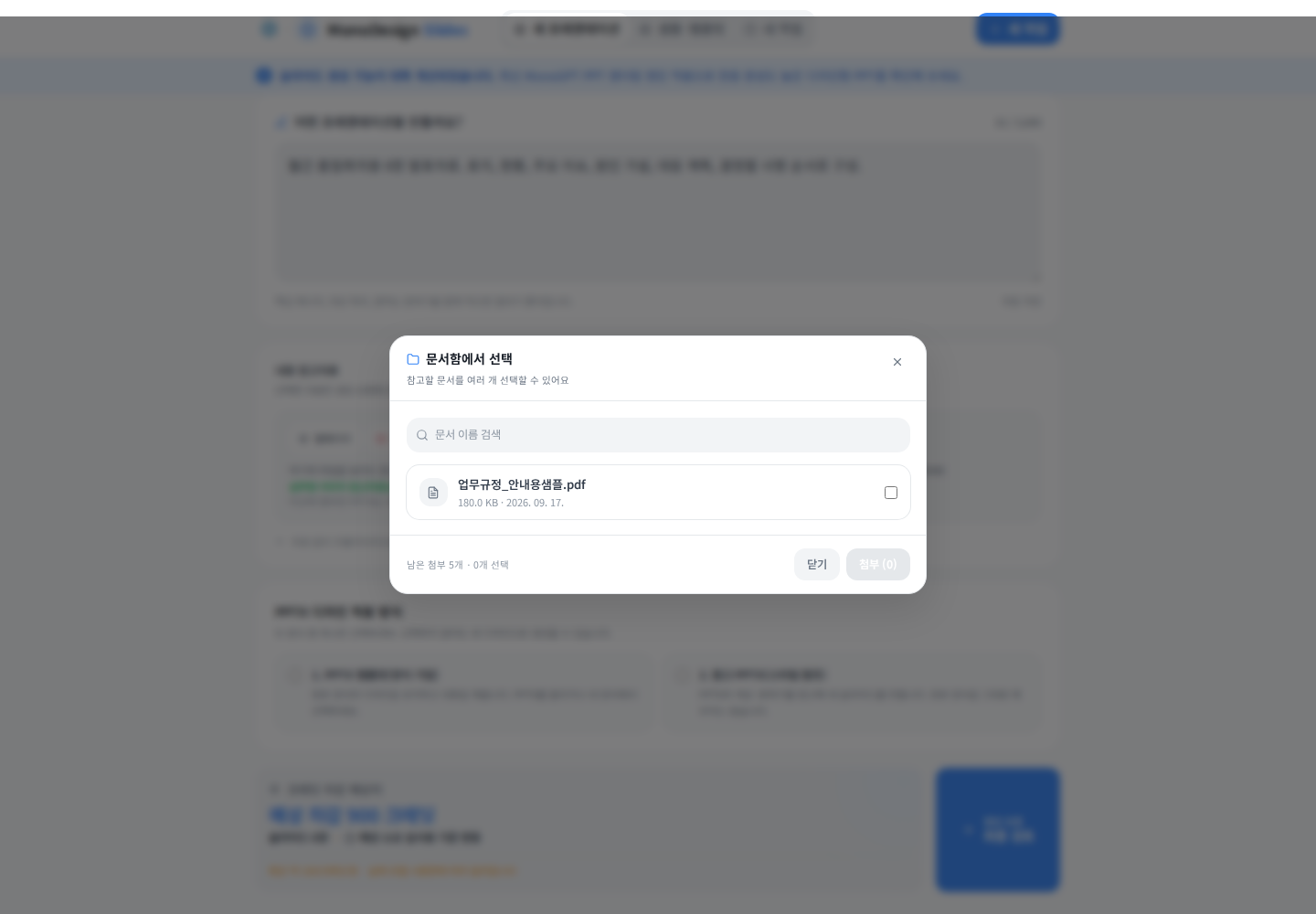
Use Content references for documents/PPTX, images, web pages, YouTube or the document library. In the library, check files and click Attach. Only selected sources are included, so verify filenames and selection state after selection.
If a document is missing, check processing completion, supported format and whether its original file is stored. The regulation file shown is only a picker example.
4. Distinguish content from design references

- A PPTX under content references contributes source content.
- PPTX template (fill layout) fills an existing presentation layout.
- Reference PPTX (style reference) uses colors and visual style to create a new presentation.
Choose one of the two design methods when needed. You can leave both unselected to create a new design.
5. Review before generating
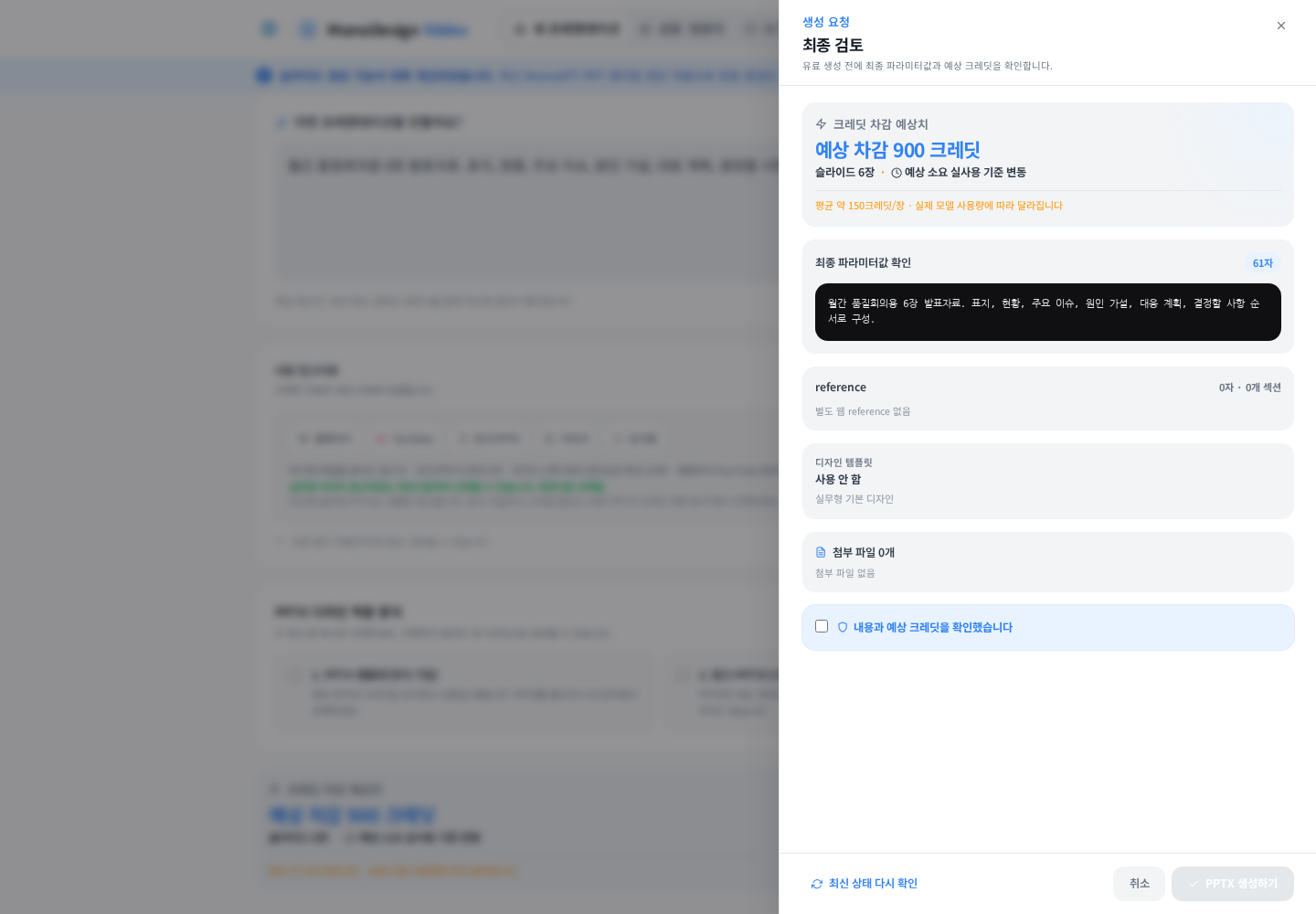
Open Generation request / Final review (generation request/final review). Check the final prompt, attachments, design selection and estimated credits. Confirm the review checkbox, then click Generate PPTX to generate. Avoid submitting the same request again while processing.
6. Check the presentation file
Open the completed result or My work. Review every title, figure, table, chart and text length. Download the PPTX and inspect fonts and wrapping in the presentation application. Scope revisions, for example: “On slide 4, distinguish hypotheses from established facts; preserve other slides.”
Check source selection if information is missing. Ask for one main message per slide if text is too dense. Recheck the estimate after changing the mode, slide count or source material.
Was this answer helpful?