Get started with Image Studio
Create and edit images with a prompt and reference images.
Updated: September 2026
Use image generation for presentation illustrations, notices and promotional drafts. Start ordinary concepts with Nano Banana 2 Lite, then choose the aspect ratio and image count for the intended use.
Actual Korean app screens contain demonstration inputs. The result and enlarged-view screens display an existing public sample image, not a new generation from the example prompt.
1. Open creation and choose a model
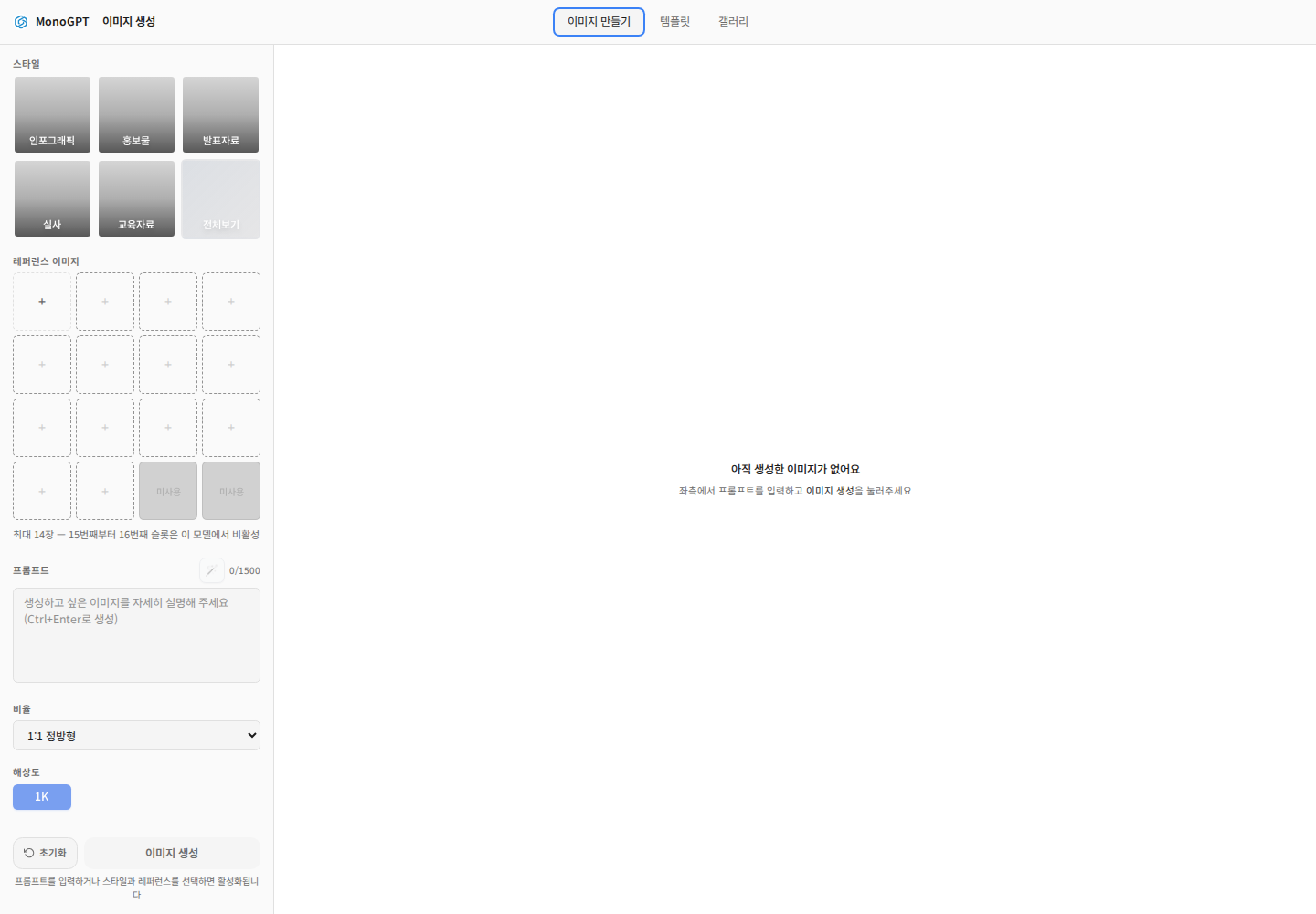
Choose Create images. In the left-side Model selector, choose Nano Banana 2 Lite or another permitted model. Lite displays 1K resolution. Recheck aspect ratios, resolution and reference limits whenever you change models.
2. Enter the prompt and aspect ratio
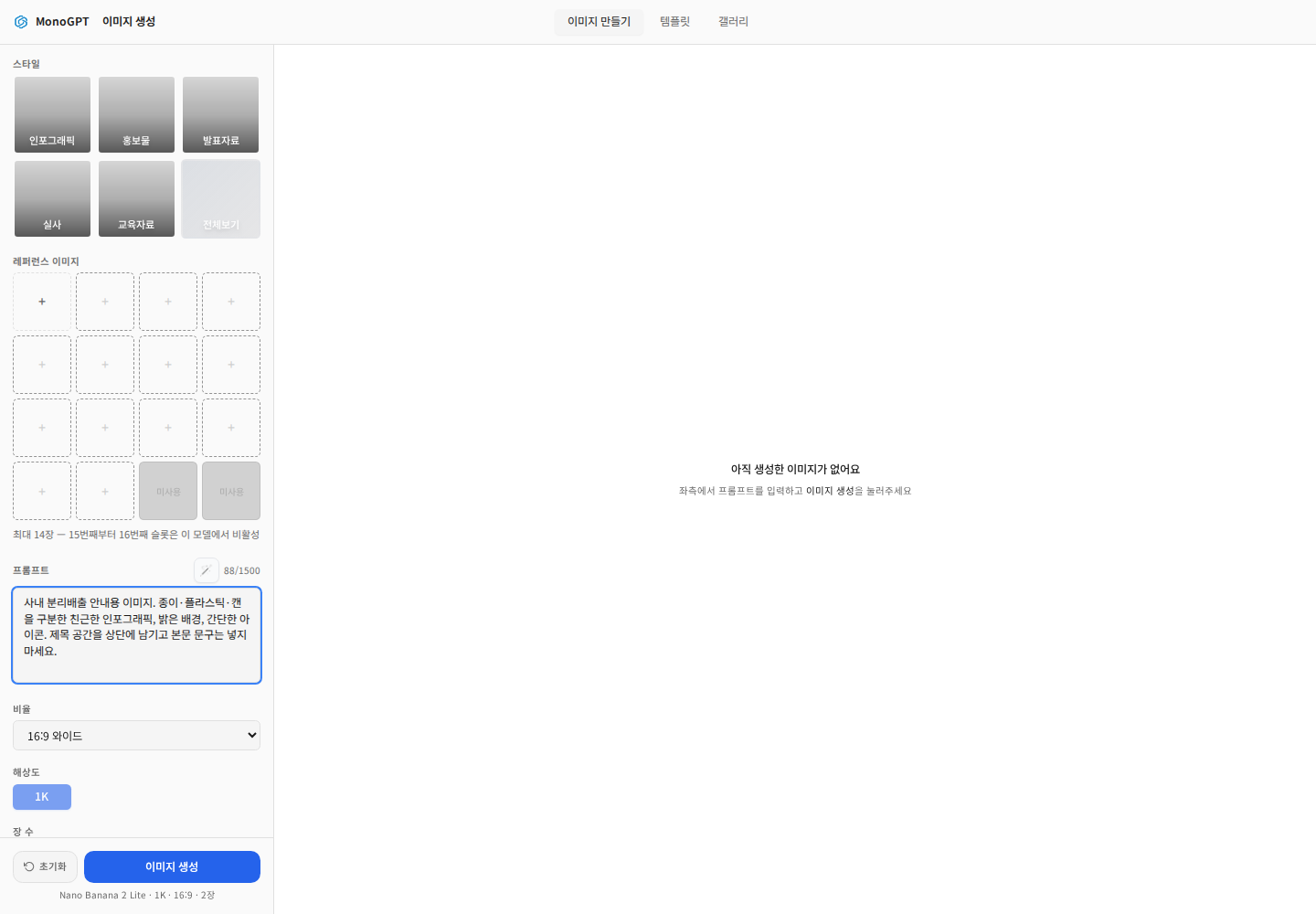
Describe purpose, subject, background, mood and whether text is needed. Set the ratio in the controls as well: for example, 16:9 for a presentation, 1:1 for a square post or 9:16 for a vertical post.
A friendly office recycling infographic separating paper, plastic and cans. Bright background and simple icons. Leave space for a title at the top; no body text.
Start with one image under Image count (count), then increase the count if needed.
3. Add reference images
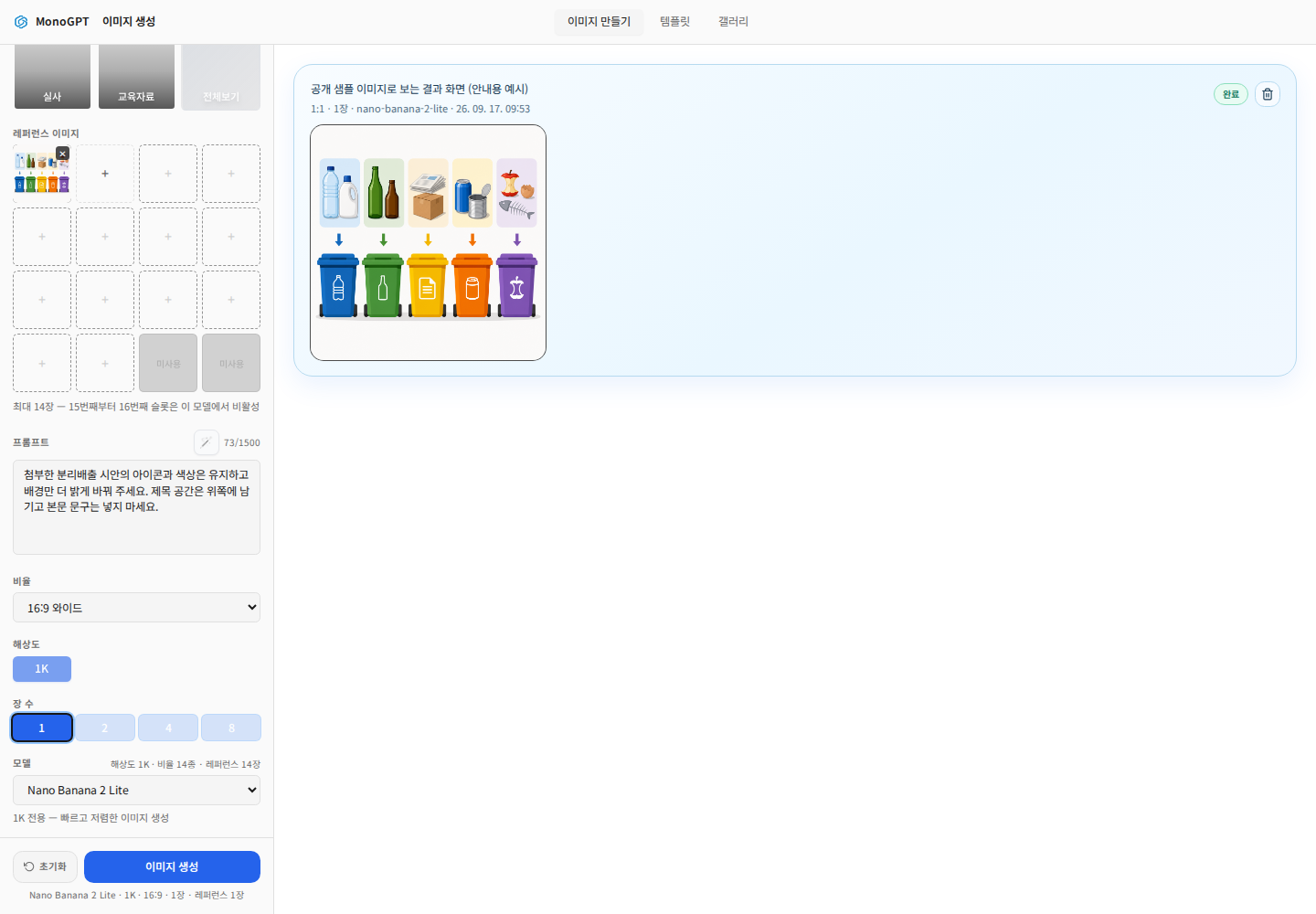
Use a plus slot under Reference images. Check the thumbnail and describe what to preserve or change, such as “Keep the icons and colors; brighten only the background.” Follow the active slots and model limit.
If applying a template, reread its prompt, references and settings before clicking Generate images.
4. Inspect the result card
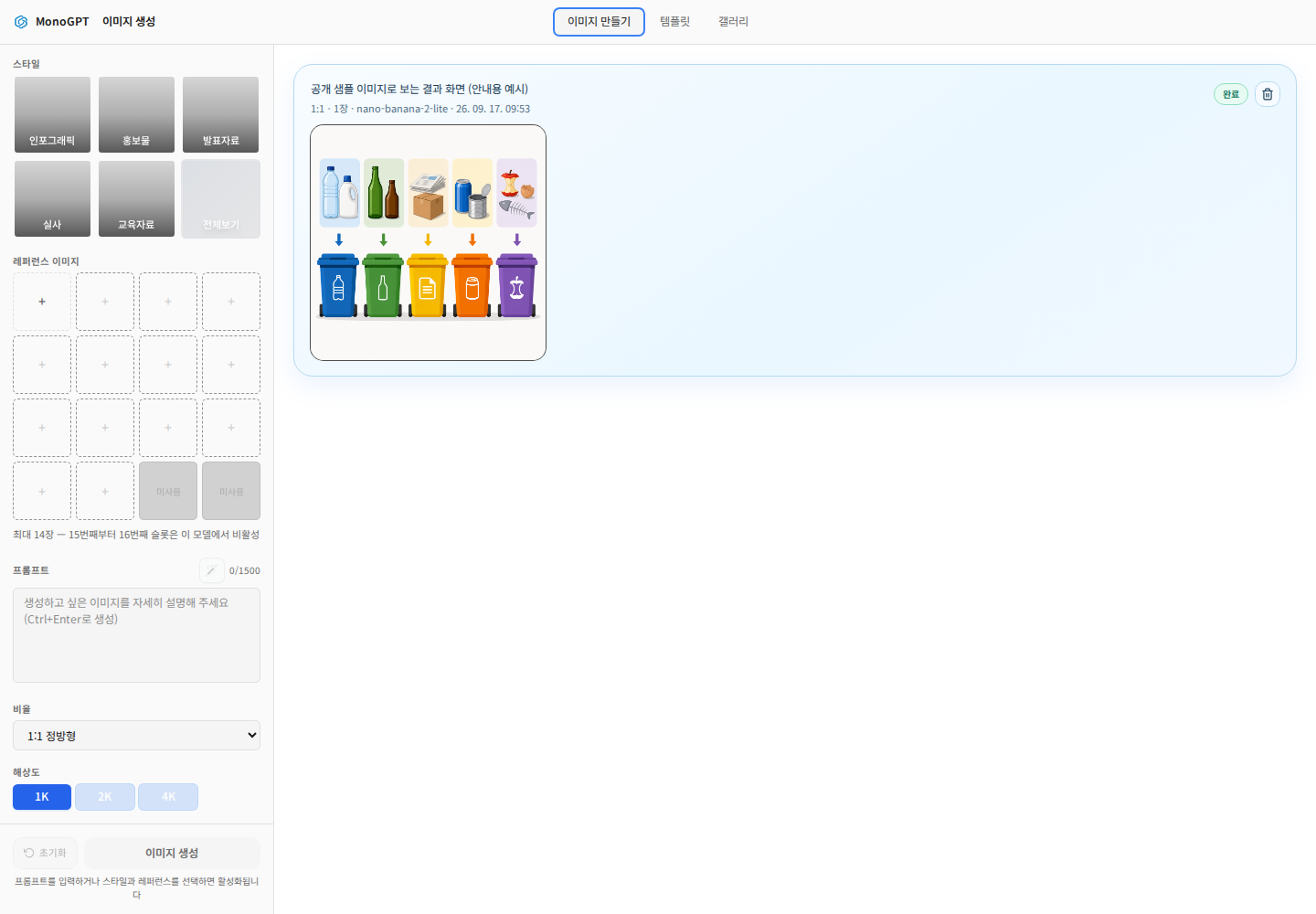
Check the prompt, ratio, count and model on the completed card. Regenerate produces another result; Different model compares using another model; Continue editing starts further editing from the result. Additional generation can incur another charge.
5. Enlarge and download
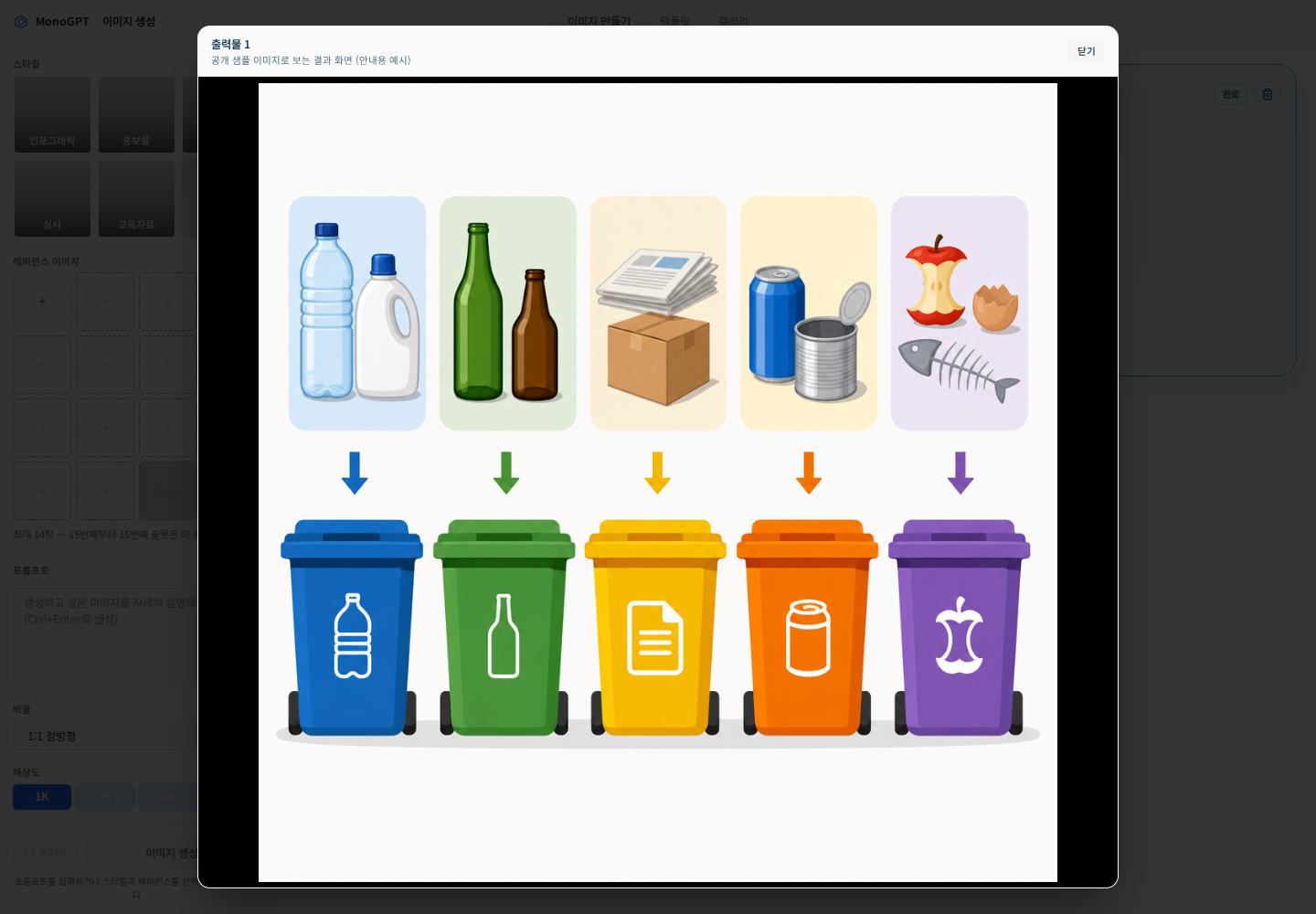
Open the image for a larger view and use its download action. Inspect composition, lettering, numbers and product shapes. If lettering is unreliable, create a text-free background and add reviewed text in a document or slide editor.
For a disabled create button, check the prompt and required inputs. For missing reference influence, check thumbnails and model support. Scope editing instructions clearly. See images in chat for the chat workflow.
Was this answer helpful?