Translate a document
Upload a file, create a translated copy, and download the result.
Updated: September 2026
Use document translation for whole files and Gemini 3.8 Flash in chat for short emails. The document app accepts a file, language pair and translation engine.
These are actual Korean app screens with sample data. The file and completed-result card are demonstrations, not results of a paid translation run. Check current pricing in your own screen.
1. Locate settings and language templates
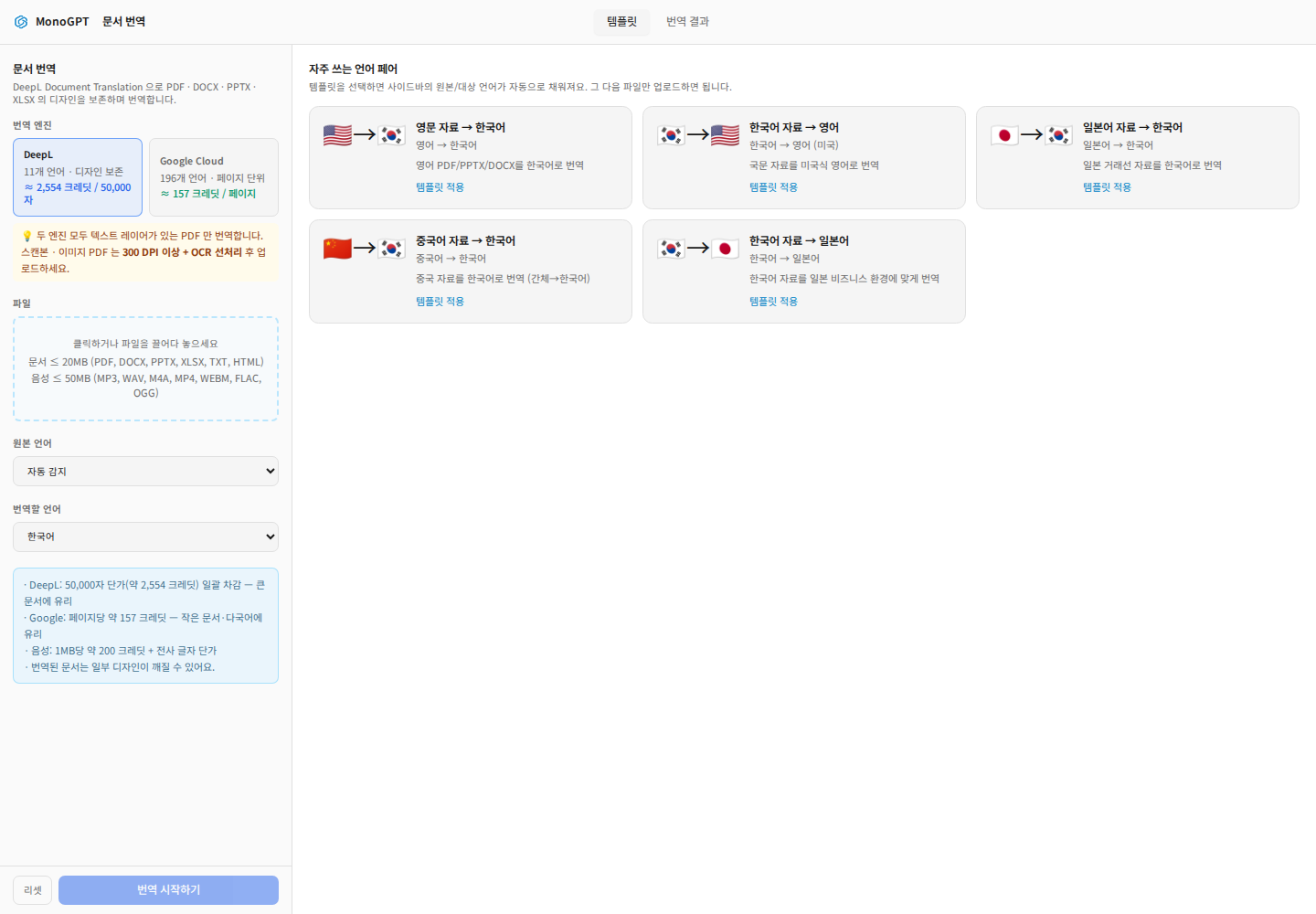
Settings are on the left. On the right, Templates offers language pairs such as English to Korean. Selecting a card fills the languages; still verify the direction and file yourself.
2. Select the file and languages
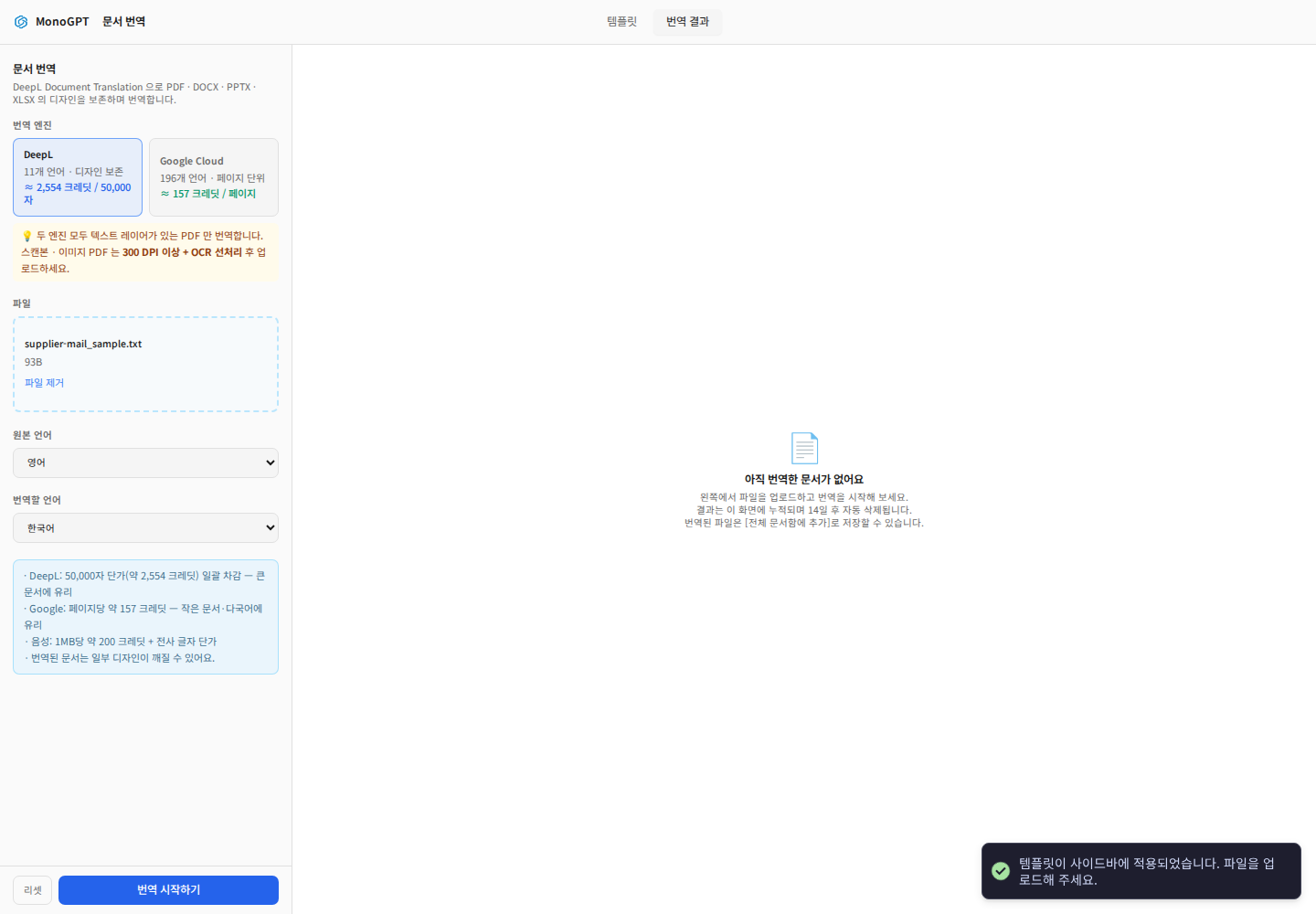
Click or drop a file in the file area. Documents support PDF, DOCX, PPTX, XLSX, TXT and HTML up to 20 MB. Export HWP/HWPX and older Office formats into a supported format using their original applications. Choose automatic detection or a specific source language, then the target language. Double-check the direction.
For scanned or image-only PDFs, first extract text using AI OCR or prepare an OCR-processed PDF. Renaming the extension does not convert the file.
3. Compare engines and cost
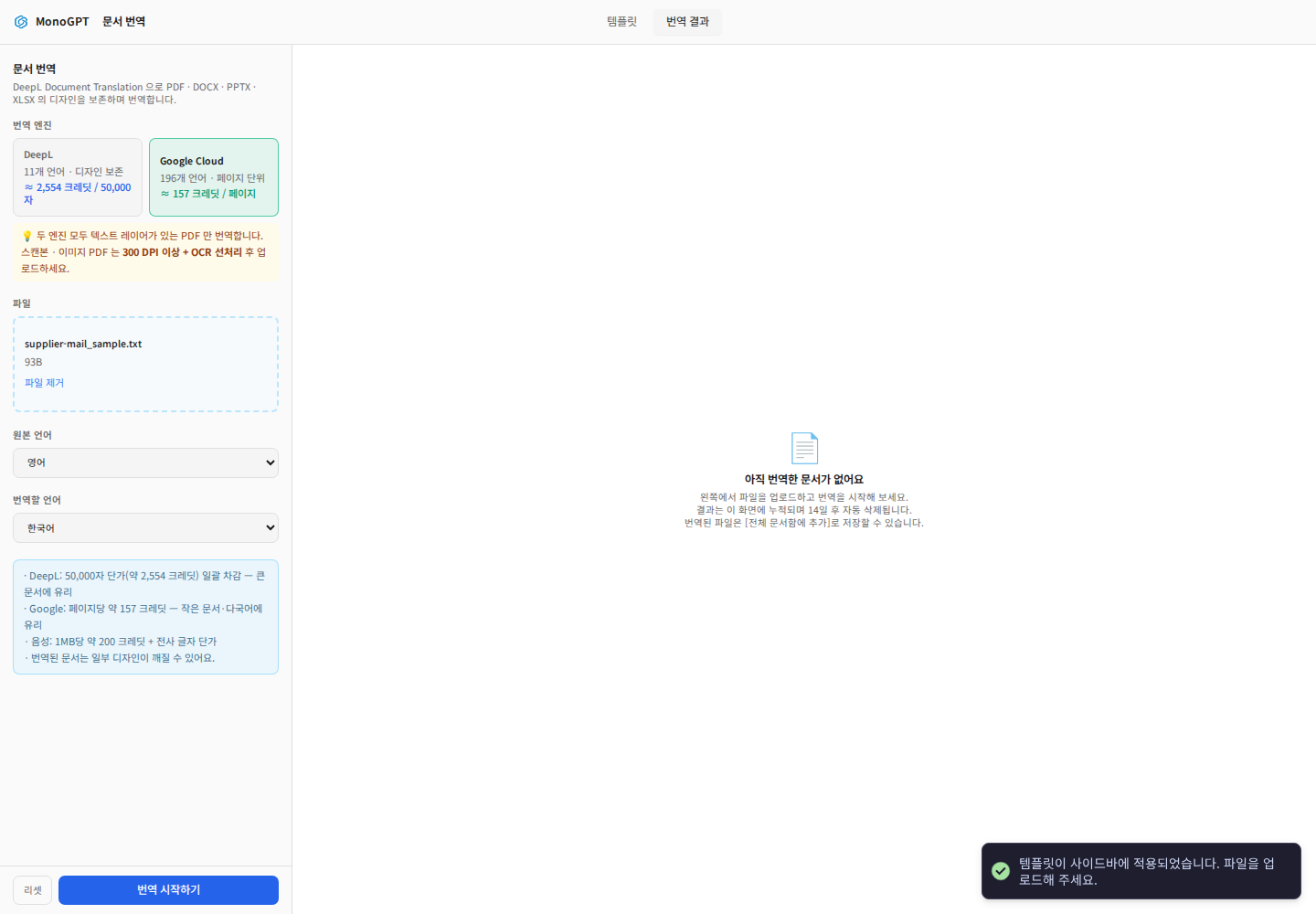
DeepL and Google Cloud differ in supported languages and billing units. Choose for your format, document size and target language, and read the displayed rate. Recheck language choices after changing engines. When ready, click Start translation once.
4. Download or save the result
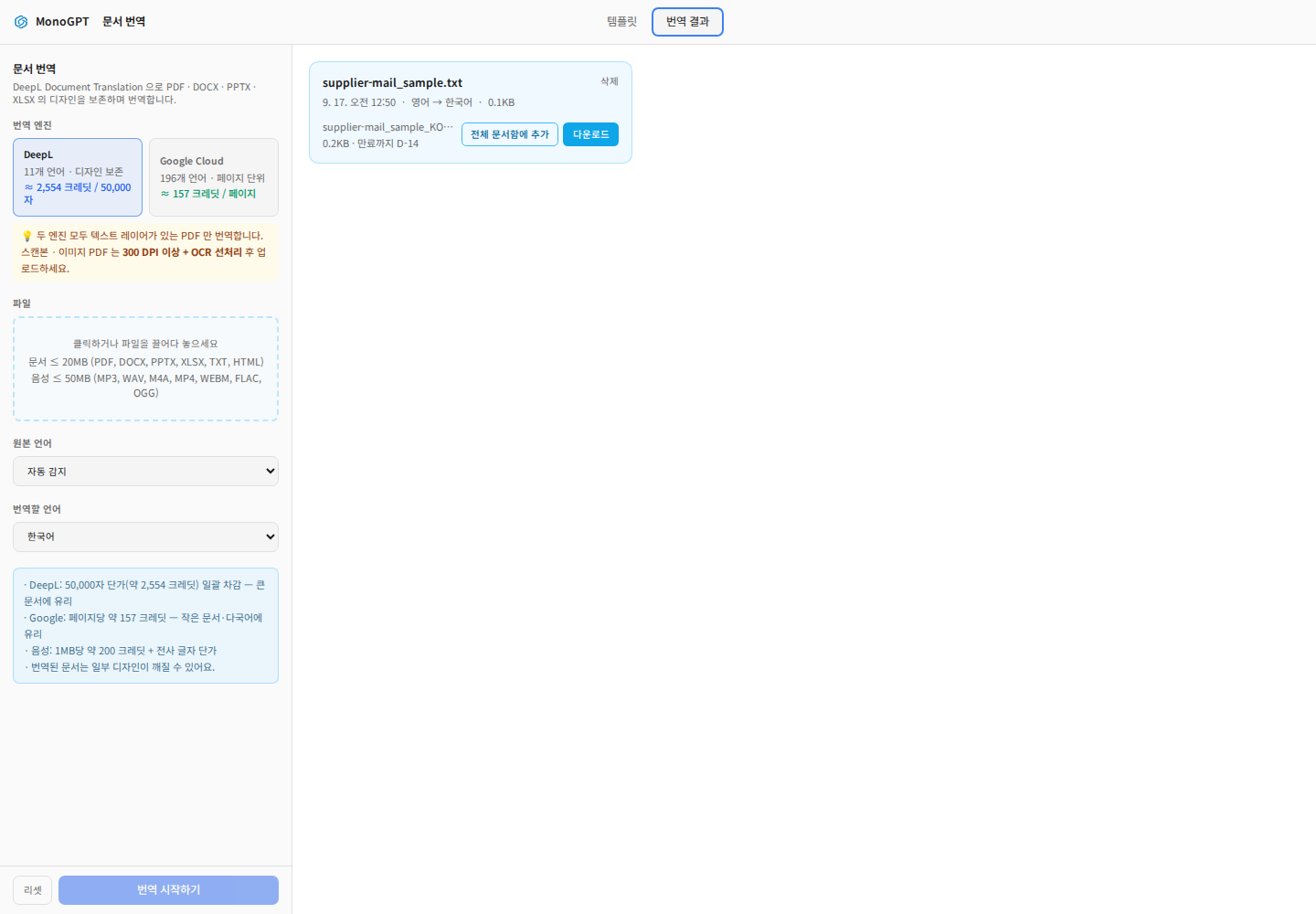
Open Translation results (results) to check status. On completion, use Download. For repeated document questions, choose Add to document library and verify that saving finishes. Check the retention notice and download needed files before expiry. Compare product names, part numbers, quantities, dates, tables and wrapping with the source; layout preservation is not perfect.
Translate emails with tone instructions in chat
Translate this email into polite business English. Preserve part numbers, quantities and dates. Separate subject and body and flag ambiguous wording: [paste email].
The document translation form has no separate tone-prompt field. Use chat to adjust an email's tone and length, review it, then copy it to your mail application.
Troubleshooting
- Disabled start button: check the file and target language.
- Rejected file: check actual format, the 20 MB limit and password protection.
- Missing text: verify that text is selectable; run OCR first for scans.
- Delay or failure: check result status and errors before resubmitting. Give the format, size and time of failure to support if the issue persists.
Was this answer helpful?