Create and edit images in chat
Generate a new image or edit an uploaded image through a chat request.
Updated: September 2026
In chat, describe a scene and mood to create a new image, or upload an image and request an edit. A specific description makes your intended direction easier to understand.
Create a new image
- In a new chat, explain the subject and purpose of the image.
- Add important conditions such as color, composition, mood, and aspect ratio.
- Review the result and describe any change in a follow-up request.
Edit an image
Attach the image you want to edit, then separate the elements to keep from those to change. For example, state that only the background should change or that one object should be removed.
Before using an image that includes a person or brand, confirm that you have the necessary rights and permission.
Follow the screen
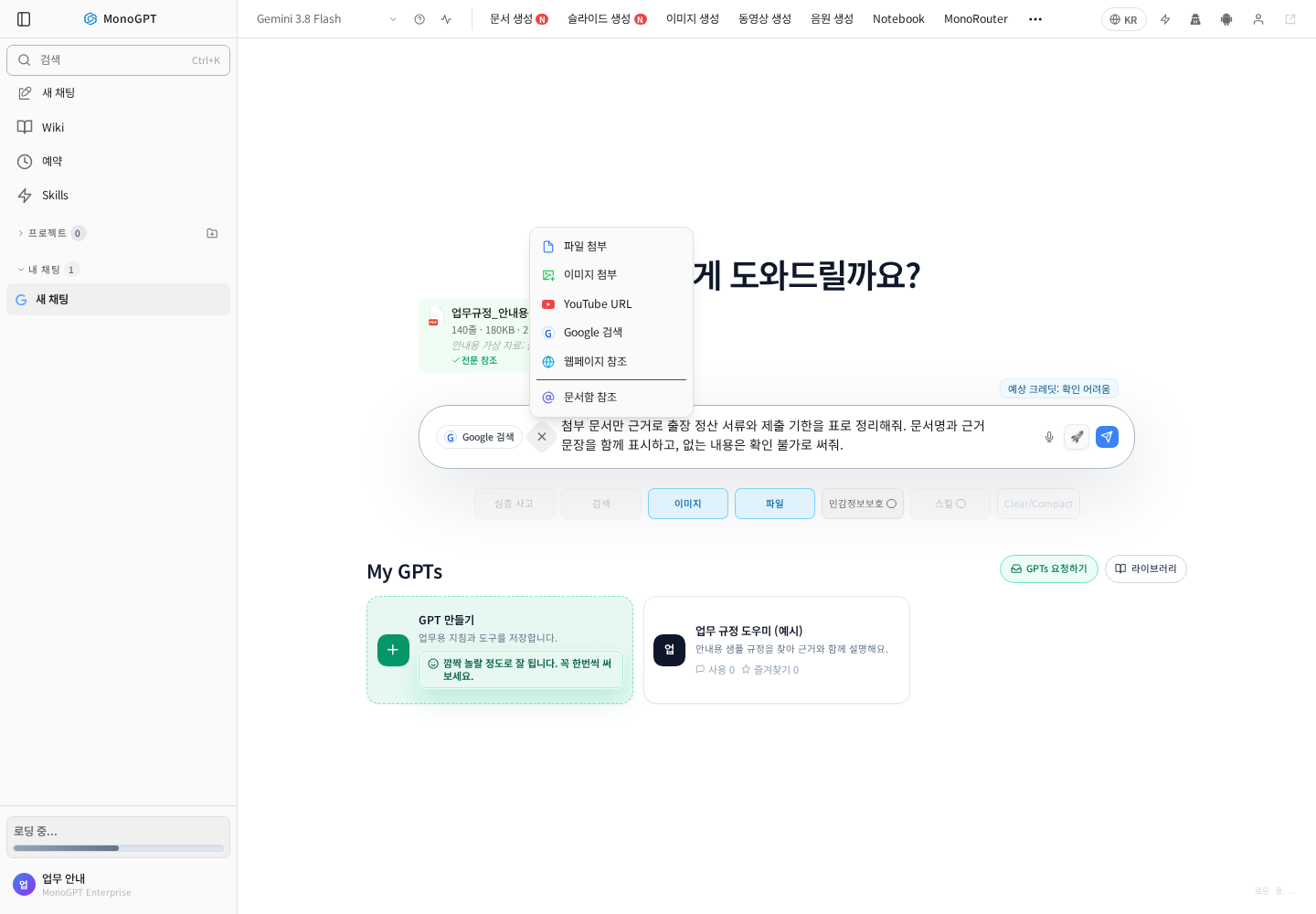
Actual Korean application screen with sample account/data. Available controls depend on permissions and selections.
Choose an image-capable model or image option. For generation, specify scene, ratio, and purpose; for editing, attach a reference and state what to preserve and change. Open the result and inspect lettering and shapes before downloading.
Example: “Create a 16:9 safety-training background with a protected worker inspecting parts. No text; leave title space on the right.”
If you receive only a description, check image capabilities and options or use Image Studio.
Was this answer helpful?