Manage conversations
Rename, delete, and share saved conversations.
Updated: September 2026
Organize saved chats by date and task. Check the contents before renaming, moving, sharing or deleting a conversation.
Find it in the right account
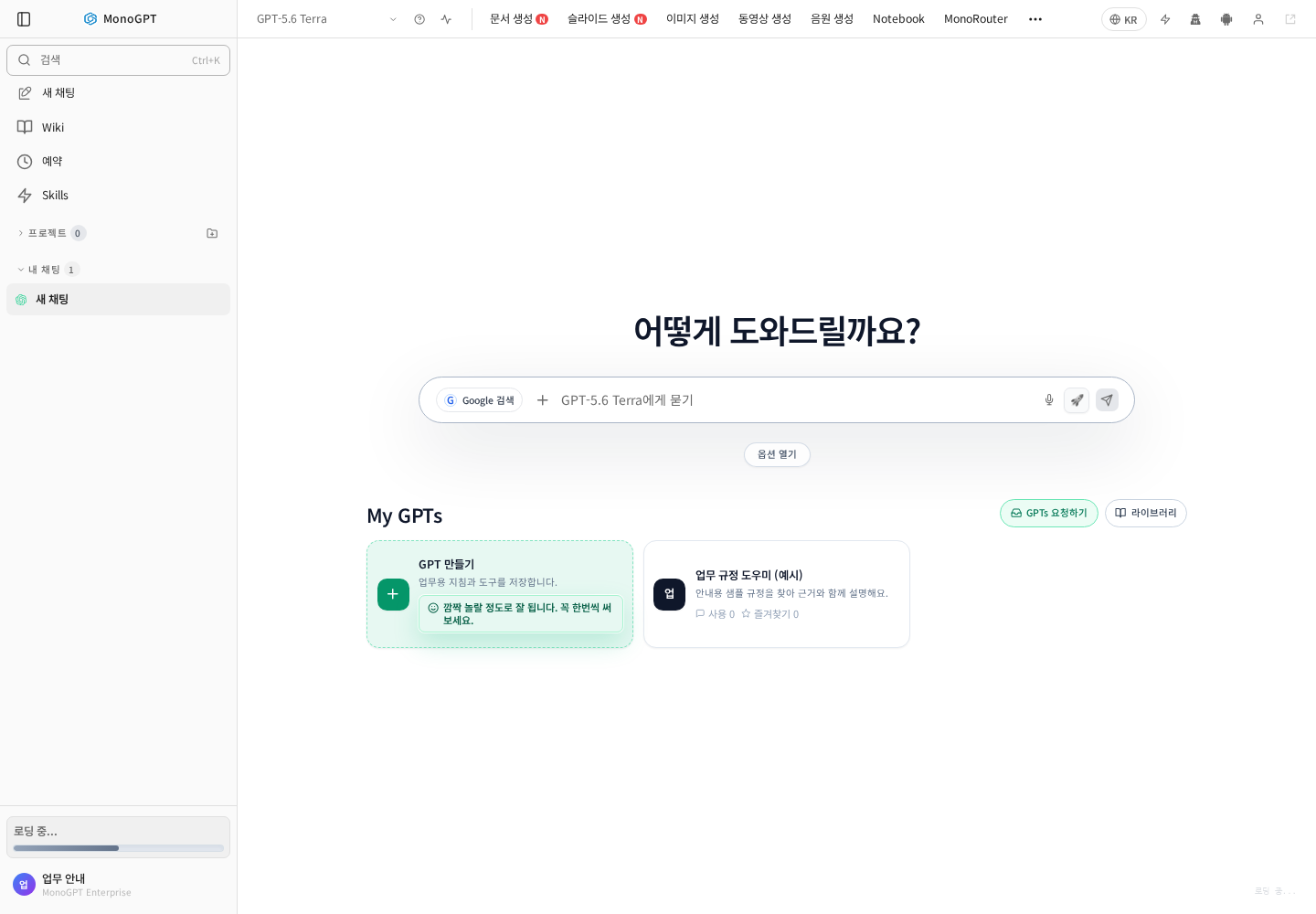
Check the account and sidebar list. A different account or project can explain missing history. Open the conversation and verify its first question and recent response.
Open conversation actions
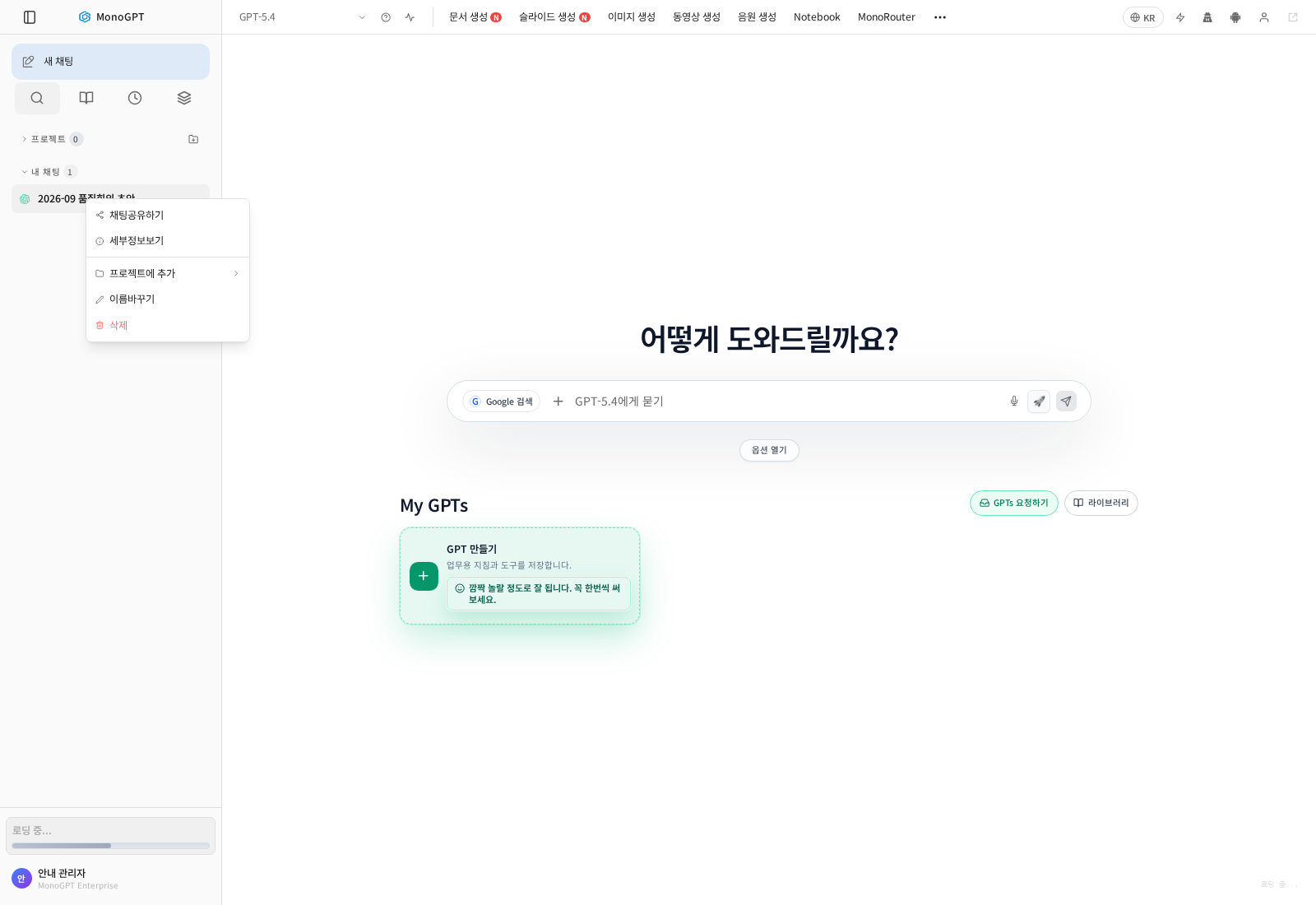
Open the item’s additional actions or right-click menu. Distinguish rename, project assignment, sharing, details and deletion. Opening the menu alone changes nothing.
Rename and organize by project
Use a date, task and status, such as “2026-09 quality meeting draft.” Verify the new title in the list. After moving a conversation, open the destination project to confirm it is there. Moving a conversation does not rewrite its contents.
Review before sharing
Check user messages, assistant responses and the visibility of attachments. Choose Share chat to open the separate conversation view. While signed in as its owner, check the top Share switch and use Copy link. To stop access, turn that switch off; other viewers see a sharing-disabled message while the owner can still view it. A truly deleted source conversation can no longer be retrieved. If you want to retain the record while blocking others, disable sharing rather than deleting it. Follow organizational policy for sensitive material. Deleting a conversation does not recall copies already distributed.
Delete carefully or diagnose missing history
Save required outputs first and verify the target title. For missing chats, check account, project and save status before recreating work. To locate uploaded files, use Document library.
Was this answer helpful?