Review enterprise member, group, and department requests
Review credit and model requests, approve or reject individually, and understand group-manager escalation and final organization approval.
Updated: September 2026
Open Enterprise organization management → Request management to review member requests and, where available, group or department credit requests. Organization administrators review requests within their organization. Group managers are limited to assigned groups and delegated actions; that role does not grant access to other groups or organization-wide allocation. The department-credit workflow also depends on organization structure and feature readiness.
Screenshots use actual v7.1925 components in the Korean interface with the fictional Hanbit Group and sample data. Names, emails, and amounts are not real customer records. No real approvals, credit allocations, permission changes, or emails were made to create these examples. Each procedure is a separate example. Menus and buttons depend on your role and organization settings; labels in your selected language may differ.
Process member requests one at a time
Read the request list
Click Request management at the top to open Pending by default. Each request card shows its type, requester, requested amount or model, a summary of the request message, and the request time.
| Request type | What approval does | What to check |
|---|---|---|
| Model access request | Updates the available model scope | Check whether the preview applies to the requester only or the whole group |
| Additional credit request | Adds credits to an individual allocation or group limit | The target differs between isolated and shared spending |
| Other request | Marks the request approved and delivers an optional note | Approval alone does not automatically change credits or model settings |
Click All to see pending, approved, rejected, and canceled requests together. Processed requests show the processing time and entered note. Use Load more to continue through a long list. Click the refresh icon on the right to check for changes.
The list currently has only Pending / All filters. It has no request-type filter, name search, date search, Excel export, multiple selection, bulk approval, or bulk rejection. There is also no separate full-text details button for processed history, so read long request messages in the approval or rejection card before processing.

Example screen: pending request types and processing buttons. This is an actual component with fictional data. Match the target and controls to the steps above.

Example screen: all requests, their status, and processing notes. This is an actual component with a fictional organization and sample data.
Approve an additional credit request
- Click Approve on the request.
- Read the requester's full message in the expanded Review approval details card.
- Check which amount applies to the group or individual and whether the Organization allocation headroom is sufficient.
- Check Credits to approve. If needed, change it to a whole number of at least 1.
- Add an explanation under Note (optional · delivered to requester) if needed.
- Click Confirm approval, then check the success notice and refreshed list.
For shared spending, the preview shows Group limit increase → shared by all group members. For isolated spending, it separately shows Group limit increase / Member allocation increase. Read the target carefully so that you do not increase a whole shared group's limit while intending to fund one person.
If you change the approved amount, the original calculation is hidden and a notice appears because that preview was based on the requester's original amount. Eligibility is checked again when you approve. If an insufficient allocation-headroom notice appears, review the amount and current budget. Cancel closes the open confirmation card; it does not cancel the request itself.
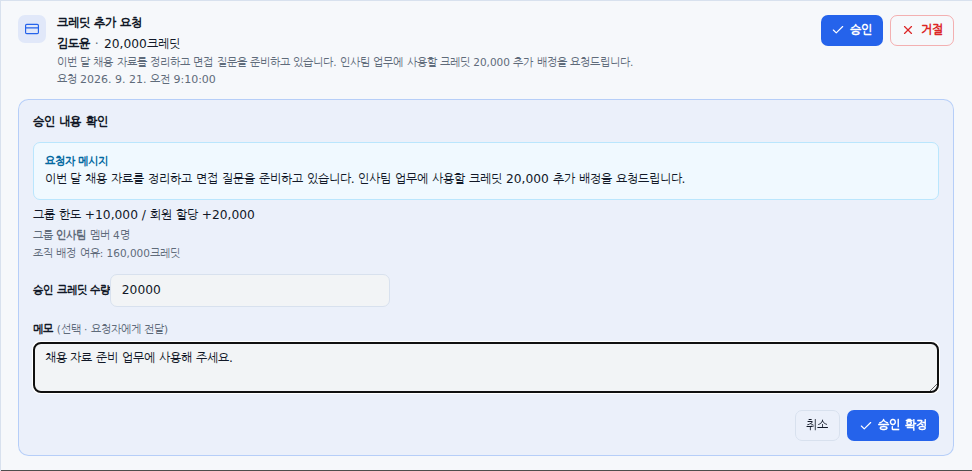
Example screen: additional-credit approval details. This is an actual component with fictional data. Check the affected target and amount before confirming.
Approve a model access request
- Click Approve on the model request.
- Check the model name and whether it applies to the Requester / All group members.
- If additional models will be enabled together, check those too.
- Enter an optional note and click Confirm approval.
If the model is already available, the request may be closed as approved without another settings change. If approval is unavailable, such as for a model outside the organization's allowed scope, you cannot force approval from that card.

Example screen: group-wide scope for a model request. Before approval, check whether it applies to just the requester or the whole group.
Reject a request
- Click Reject on the request.
- Read the requester's full message and enter a Rejection reason. A reason is required.
- Click Confirm rejection.
- Under All, check the Rejected status and processing note.
Requests from inactive members, departed members, or members whose roles have changed display status badges and have restricted approval. Do not try to approve a request marked Rejection only. If another administrator has already processed it, reload the list to check its current state.
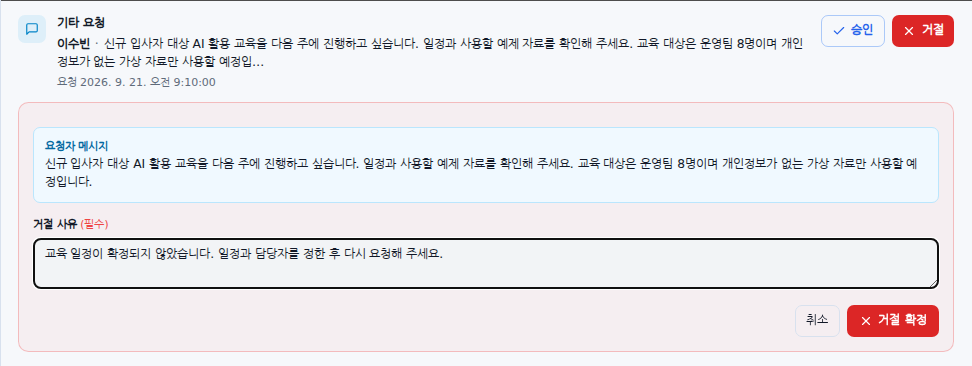
Example screen: requester message and required rejection reason. This is an actual component with a fictional organization and sample data.
What group managers can process
In the group manager's request screen, select an assigned group under Managed group at the top. Approval and rejection in Member requests · credits, models, and other follow the procedures above.
For requests beyond your direct authority or available group funds, click Escalate to organization administrator and enter the required reason. The request is then marked Awaiting organization administrator review. Group managers should not continue approving or rejecting it in that state. Direct approval of ordinary member credit requests is available only within an isolated-spending group's available funds.
The separate Request shared group credits / Review individual allocation requests area provides the following actions:
- Shared spending: Enter the additional credits requested and click Request from organization administrator. While your own request is awaiting approval, you can Cancel request.
- Isolated spending: Check the amount to approve for each request, then choose Approve / Escalate shortfall. If group funds suffice, the change applies immediately. Otherwise, the shortfall is escalated to the organization administrator and the full approved amount is allocated after final approval.
- Cancel escalation may appear for a pending request you escalated.
- You cannot review your own request; another administrator must review it.
- This separate inbox may be locked depending on organization structure and permission readiness. Ask the organization administrator to check any readiness notice.
Group-management permission does not extend to other groups' inboxes or organization-wide allocation. These requests are also processed one at a time; there is no bulk approval.
Department manager credit requests reviewed by the organization administrator
Organizations with this feature see a second list below request management. The top shows the organization's total, group allocations, reserved amounts, delegated amounts, and headroom. These are budget figures for reviewing additional allocations, not payment amounts.
For individual allocation requests under No department manager available for initial review:
- Click Review.
- Check the approved amount. This workflow allows amounts from 1 up to the requested amount.
- Select Approve review or Reject.
- If a notice says the shortfall was escalated, also check the final-approval card below.
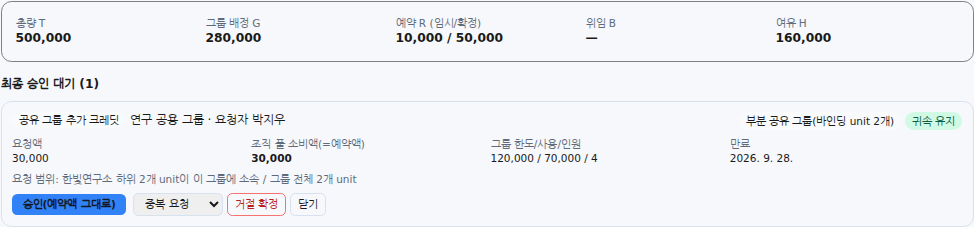
For requests under Awaiting final approval:
- Check the request type, group, requester, target, and reviewer.
- Read the requested amount, manager-approved amount, local funding, Organization pool consumption (= reserved amount), group limit/usage/member count, and expiry information.
- If correct, click Approve (reserved amount unchanged). This final stage has no amount field.
- If adjustment is needed, select Reject, choose a reason, and Confirm rejection. Have a new request submitted with the revised amount.
The available rejection reasons are Insufficient justification / Budget exhausted / Duplicate request / Policy conflict / Other. Assignment changed indicates a change in organization/department links or permissions. A locked button means the request cannot be approved in its current state. If the organization's state is not ready, rejection to release the reservation may be the only available action.
This second list has no separate completed-history filter, search, download, or bulk approval button. All in the ordinary request list above does not include the full processing history of these separate department requests.
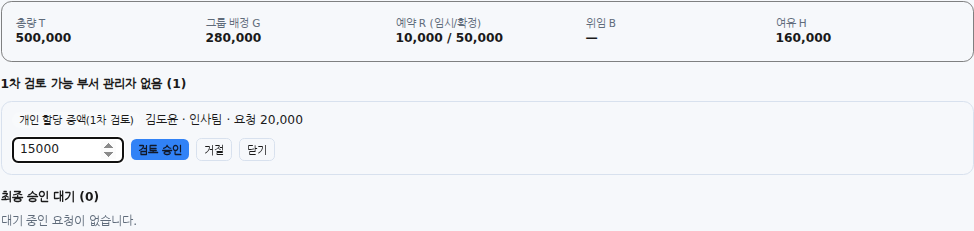
Example screen: initial review with an approval amount no greater than requested. This is an actual component with fictional data. Review the amount before confirming.
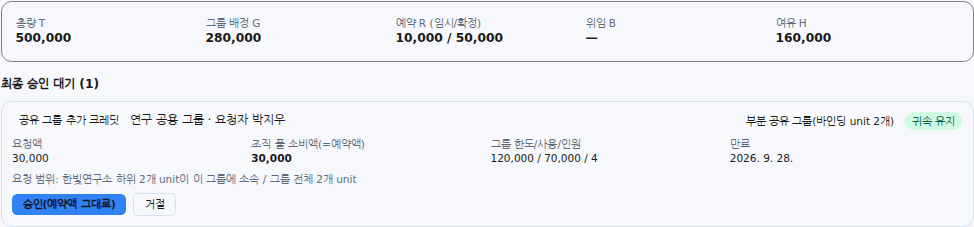
Example screen: final approval at the reserved amount. Final approval applies the amount reserved at the preceding stage without changing it.
Example screen: rejection reasons for a final-stage request. This is an actual component with a fictional organization and sample data.
Was this answer helpful?