View monthly usage and manage accountant access
Compare monthly company, department, and member usage, export Excel reports, and grant or revoke company-scoped accountant access.
Updated: September 2026
Use Enterprise organization management → Usage for monthly statistics and Excel exports. Organization administrators can manage accountant assignments. Accountants can view and export only their permitted companies; an accountant assignment does not grant credit allocation, request approval, or organization-editing permissions.
Screenshots show actual v7.1925 components in the Korean interface with the fictional Hanbit Group and sample data. Names, emails, and amounts are not real customer records. No real allocations, account or permission changes, or emails were made to produce these examples. Each procedure is a separate example, so members and amounts may differ between screenshots. Menus depend on your role and organization settings; labels in your selected language may differ.
View monthly usage by company, department, or member
Set the reporting options
As an organization administrator, open Usage at the top, then select the inner Usage tab. The defaults are All permitted companies / Last 6 months / KST (Korea Standard Time) / By company / Credits.
| Option | Available values | How to use it |
|---|---|---|
| Company | All permitted companies or one company | Accountants see only companies they are permitted to access |
| Reporting period | Last 3 / 6 / 12 / 24 months | Whole-month periods including the current month; there are no custom start/end date fields |
| Month boundary | KST (Korea Standard Time) / UTC | Keep KST for Korean monthly closing |
| Group by | Company / Department / Member | Compare the same usage records at the desired level |
| Metric | Credits / Requests (estimated) | Compare credit consumption or estimated request trends |
| Refresh | Reload the latest records | Recheck reporting permissions and data |
For example, choosing Last 6 months in September 2026 displays April through September. September 1 at 00:00 KST is August 31 at 15:00 UTC, so records near the start of a month can fall in different months depending on your KST/UTC selection.
Requests (estimated) is not exactly the number of chat messages users sent or billable API calls. Supplemental deductions tied to the same request are counted once, but the ledger also includes free, bonus, and refund events.
Company usage follows active members' current company and department assignments. Deleted users use their preserved assignments at the time of use; their names appear as Deleted user and their emails are hidden. Records without a known assignment may appear as Unassigned. This screen has no separate Show deleted users switch.
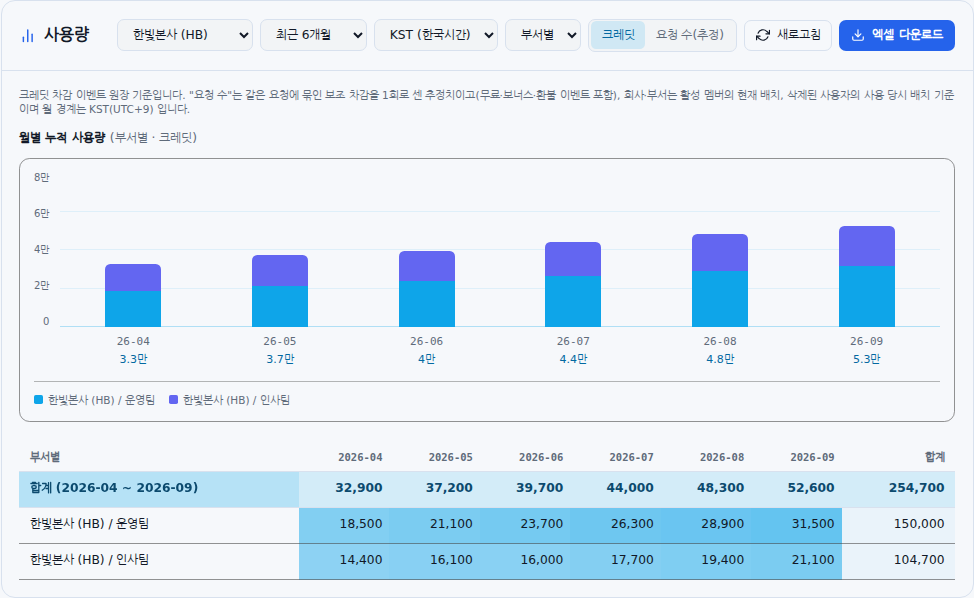
Example screen: department usage for Hanbit Headquarters. This is an actual component with a fictional organization and sample data. Check the selected reporting options.
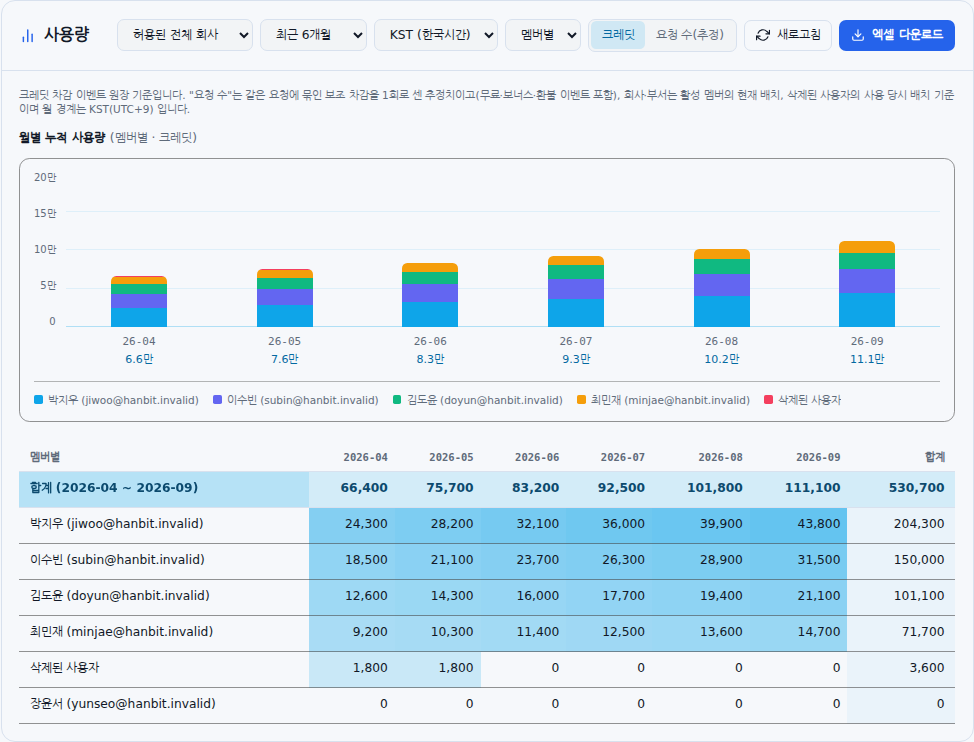
Example screen: monthly member usage and deleted-user labels. This is an actual component with fictional data. Check the selected grouping and period.
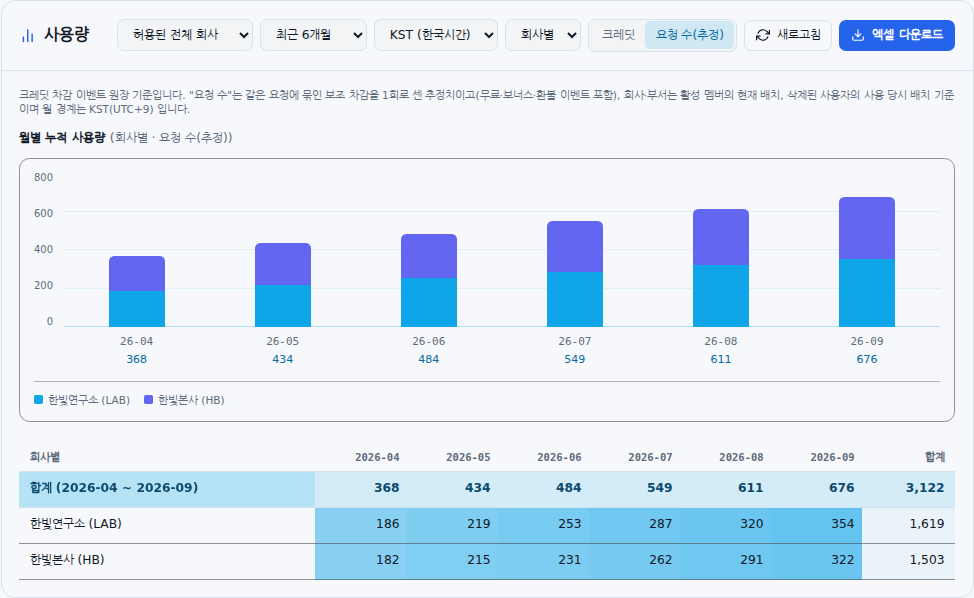
Example screen: estimated request counts. This is an actual component with a fictional organization and sample data.
Read the bar chart and table
Each bar represents that month's usage; colors represent companies, departments, or members. The chart title's stacking or accumulation refers to components stacked within each monthly bar. It is not a remaining balance or a running sum carried forward from April. Hover over a colored segment to see its component name, month, and value.
The chart separately shows the top eight components with positive totals and groups the remainder as N other components. Components with zero usage may remain in the table even when absent from the chart. Use table and Excel values when checking exact figures, including negative refund amounts.
The table has months across the columns and the selected companies, departments, or members down the rows. Darker cell backgrounds indicate greater positive usage. The first Total row gives each month's overall total, while the rightmost Total column gives the total for the selected period. It is neither a lifetime total nor a current credit balance. Scroll horizontally when there are many columns.
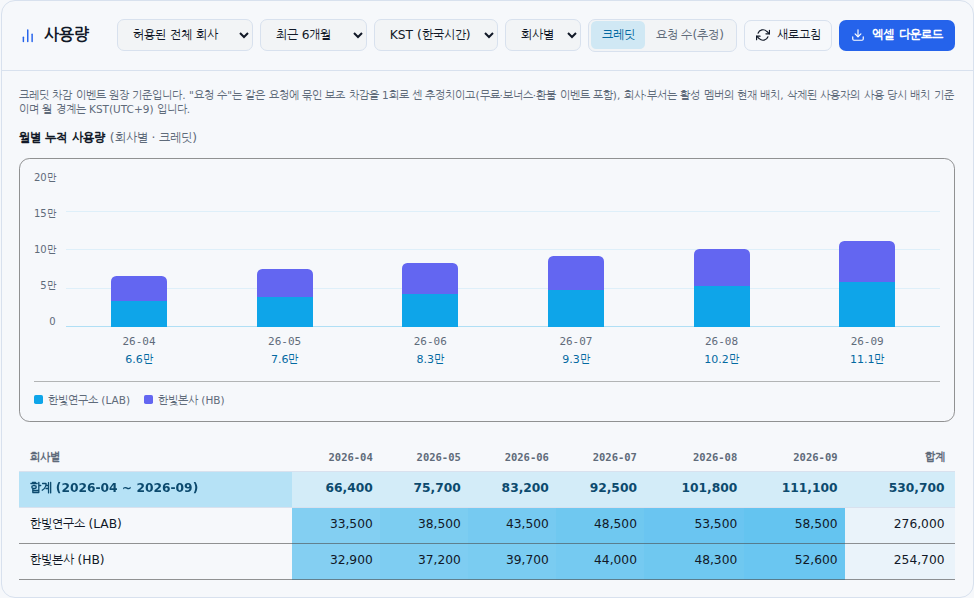
Example screen: monthly bars and a company heatmap. Bars show monthly scale, colors show components, and the rightmost table total covers the selected period.
Download an Excel report
- Set the company, period, time zone, grouping, and metric you need.
- Click Download Excel.
- Check both sheets in the downloaded .xlsx file.
| Sheet | Contents |
|---|---|
| Selected grouping + selected metric, such as Company credits | Monthly values and period totals for that grouping |
| Member details | Month, company, department, member, email, credits, and estimated requests |
The filename includes the organization name and the first and last reporting months. Permissions and current data are checked again at download time, so values may differ from a screen left open for a long time. Both sheets downloaded by an accountant contain only permitted companies. Revoked access cannot be used for a new export merely because an old screen remains open.
Download may be disabled when the view is empty, data is loading, or a download is already in progress. If the file cannot be created, check the reporting options and permissions, then refresh. The top total row on screen is not copied unchanged into Excel. The first sheet contains each component's monthly values and its total on the right.
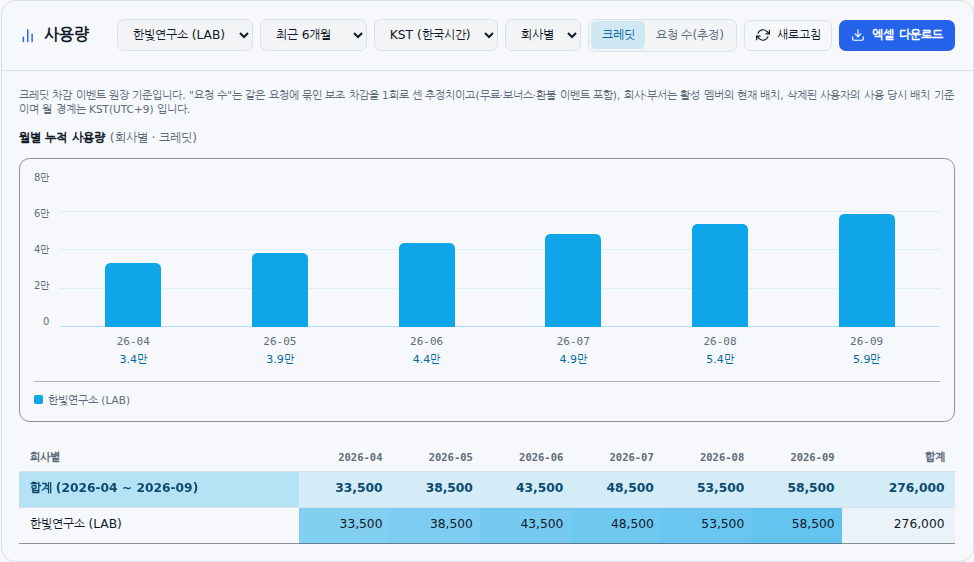
Example screen: downloading Excel after selecting reporting options. The sample export flow has been performed. Check both sheets in the file.
Assign, verify, and revoke accountant access
Assign a new accountant
As the organization administrator, open Usage → Accountant management.
- Enter a name or email in Search members for accountant access.
- Select the exact person in the Accountant member selector immediately below. Use email to distinguish people with the same name.
- Under Permitted companies (multiple selection), check the companies they will cover.
- Click Save.
- Check the Accountant permissions saved notice and the Accountant assignments list below.
Assign one member at a time. If more than 20 people match, only the first 20 appear; enter more of the name or email. Without a search term, the full staff list does not automatically open. Company access cannot be assigned if there are no active companies.
This adds accountant permission to an active ordinary member. It does not promote them to organization administrator or create and invite a new account. There is no separate save-confirmation dialog, pending-approval stage, or automatic invitation-email button. Save is the action that actually applies the permission change.
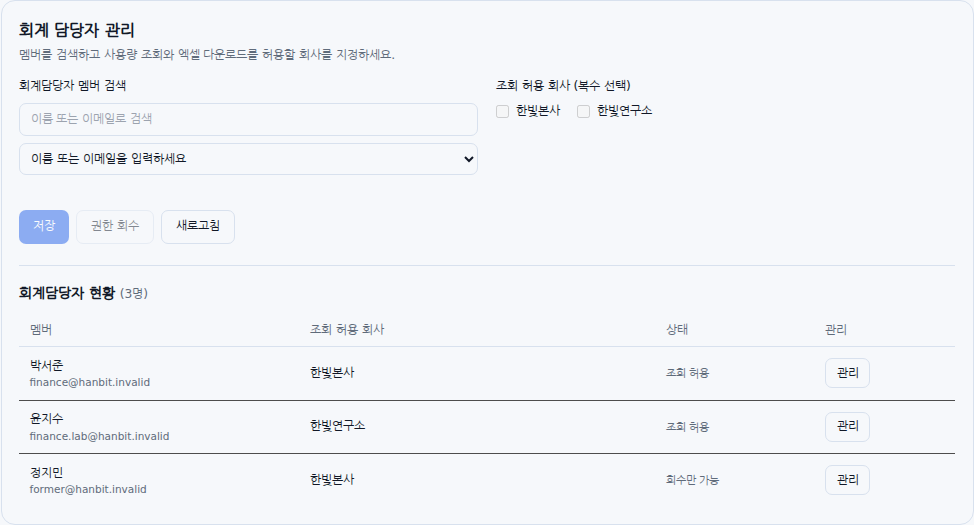
Example screen: accountant assignments and permitted companies. This is an actual component with fictional data. Check the exact member and company scope.
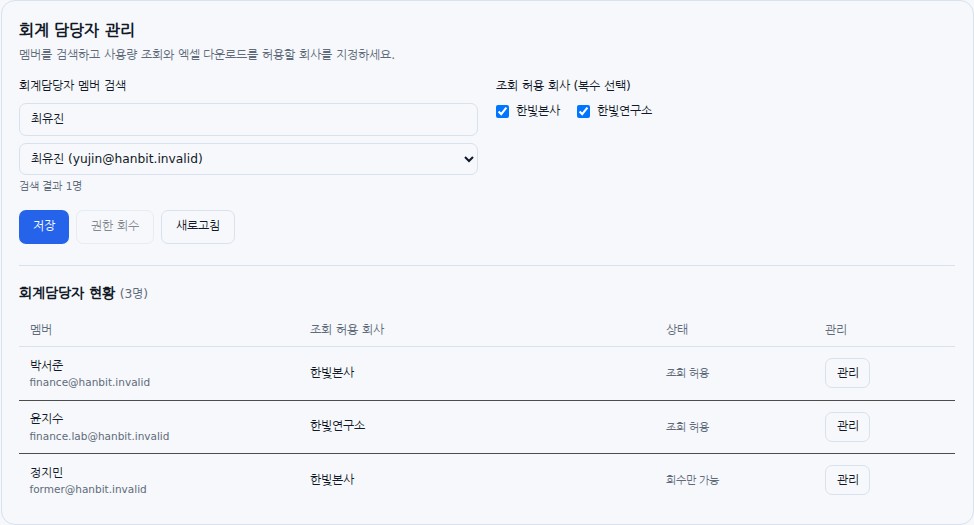
Example screen: member search and multiple-company selection. This is an actual component with a fictional organization and sample data.
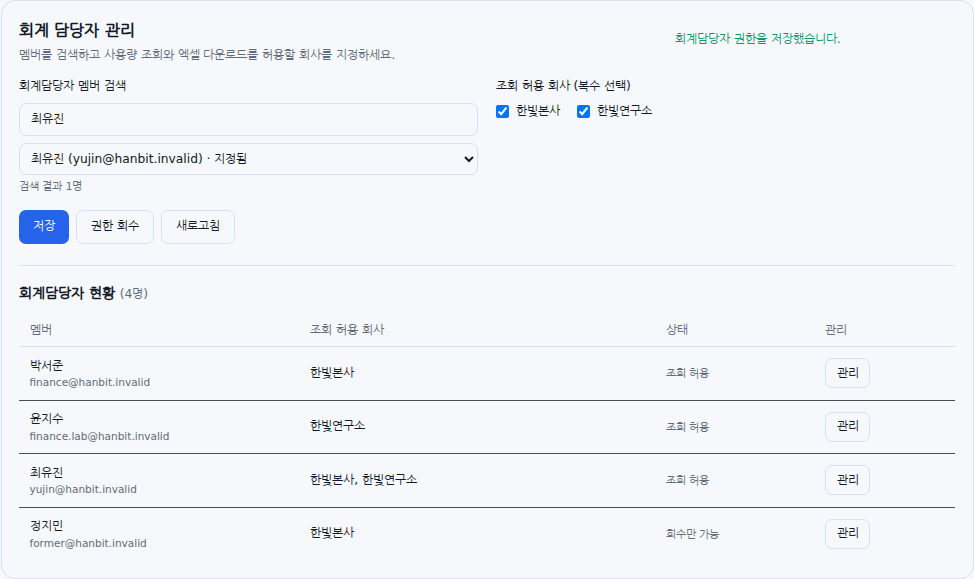
Example screen: permissions saved and reflected in the list. After saving, recheck the target member and permitted companies in the assignments list.
Verify the assignment
The assignments table shows Member / Permitted companies / Status / Manage.
- Access permitted: There is at least one currently permitted active company.
- No reporting scope: Permissions are stored, but none of the permitted companies are currently active.
- Revocation only: Only cleanup of existing permissions for an inactive or suspended member is available.
Click Manage on a row to select that person and populate their existing company selections. Edit the companies and save to replace the permitted scope with that selection. Previously assigned companies that have become inactive may appear as N inactive companies.
Check using the accountant's own account
- Sign in with the accountant's own account.
- Open Enterprise organization management from the user menu.
- Check that the role indicator at the top says Accountant and the Usage screen is available.
- Check that the company filter contains only the permitted companies.
- Try changing the company and period. If needed, also verify that both Excel sheets contain only permitted companies.
If already signed in, refresh or return focus to the window to recheck permissions. Accountant access is reloaded when the screen first opens and when the window regains focus. If access is still missing, check the signed-in email, organization, and company scope in the administrator's assignments list. An accountant-only view has no Accountant management tab and cannot assign other accountants.
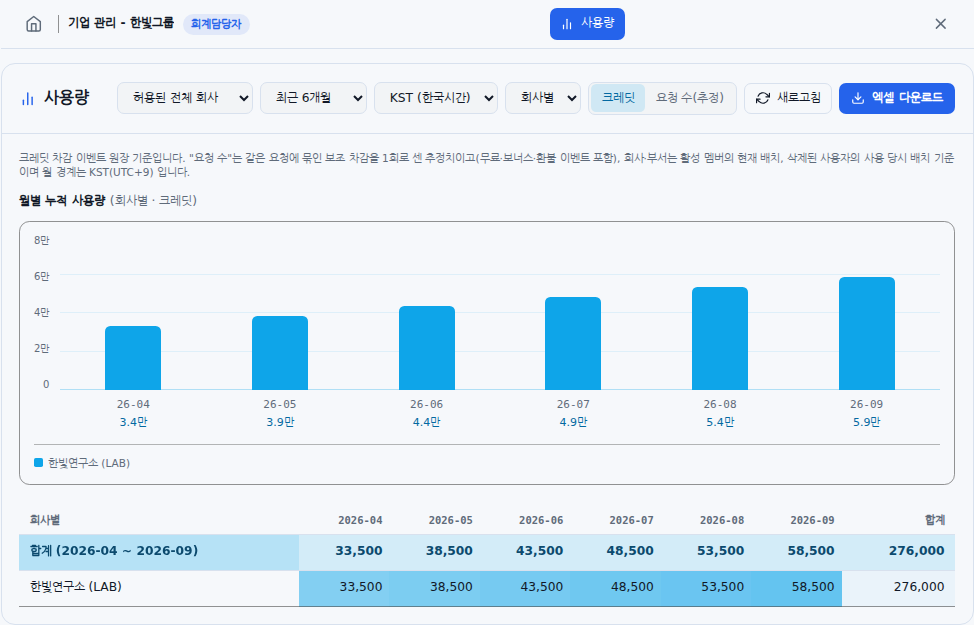
Example screen: an accountant can view only the permitted Hanbit Research company. This is an actual component with a fictional organization and sample data.
Revoke access
- Click Manage for the target person in the assignments list.
- Recheck the name and email.
- Click Revoke access.
- Check the Accountant permissions revoked notice and confirm that the assignment is removed from the list.
Clearing every company checkbox disables Save, so use the separate Revoke access button to remove all access. This also revokes permissions retained for inactive companies. It does not delete the member's account or past usage records. It also does not remove separately held group- or department-management permissions.
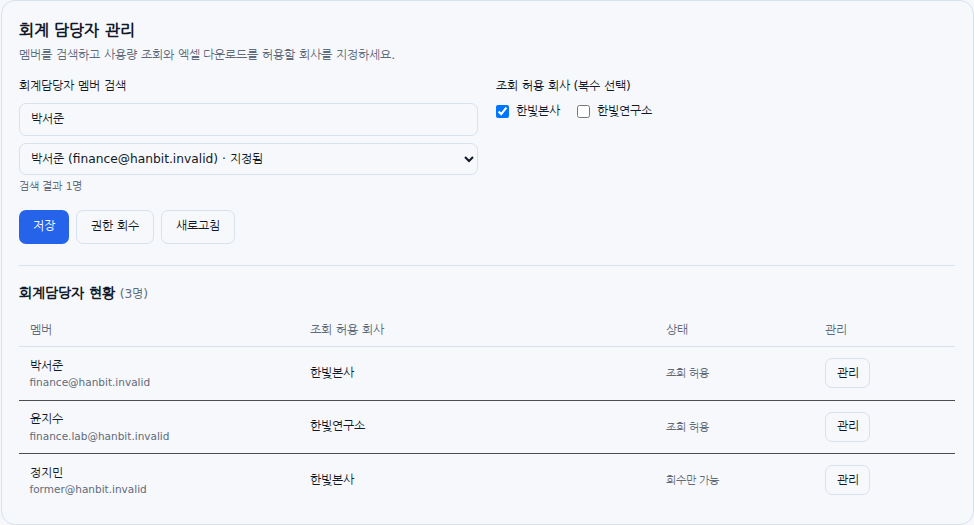
Example screen: selecting an existing accountant and locating the revoke-access button. This is an actual component with a fictional organization and sample data.
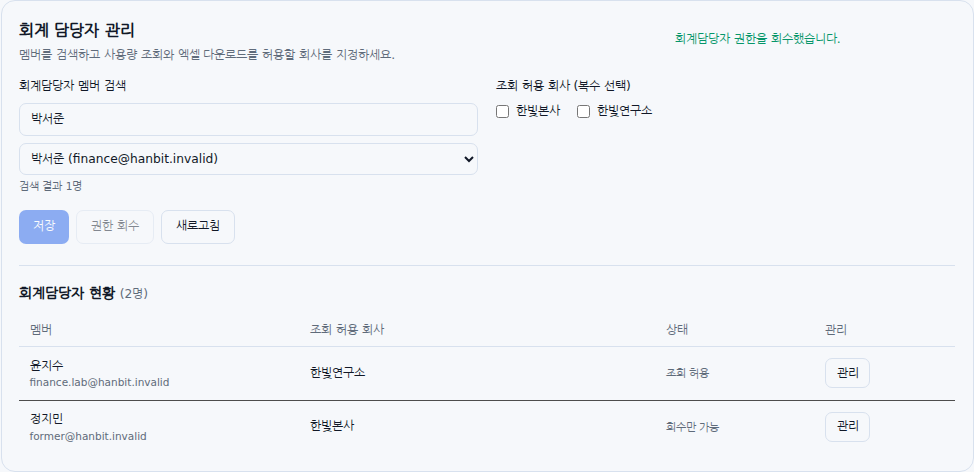
Example screen: Access revoked. Check the list to confirm that accounting access was removed from the intended member.
Respond to notices
| Notice | What to check |
|---|---|
| You do not have usage-reporting access, or it has been revoked | Ask the organization administrator to check your company assignments |
| The accountant feature is being prepared or reporting is temporarily unavailable | Retry shortly; if it persists, send the notice to the service administrator |
| Could not load information or the request list | Refresh or retry. Do not interpret an empty result as zero usage or no requests |
| N organization-mismatch requests hidden | This is separate data requiring operator review. Do not create replacement approval requests just because the records are hidden |
When the numbers differ between screens
- Credit usage status uses currently active groups and shows members' current allocations alongside usage recorded for each group. Bonus grants are excluded from usage.
- Usage aggregates the deduction-event ledger for the selected period by company, department, or member. It includes free, bonus, and refund events, using active members' current assignments and deleted users' preserved assignments.
- These screens can differ in scope, assignment basis, and included records. Do not treat one screen's figure as the other screen's balance. Compare scope and period first.
- Credit top-up history is a separate menu for credits added to the organization and their top-up records. It is distinct from usage tables and monthly member-allocation records.
After assigning accountant access, verify both the permitted companies in the assignments list and the scope visible in the accountant's own account. After exporting, check the period, KST/UTC setting, company scope, and both sheets. If a menu is unavailable, verify the signed-in account's organization, role, feature availability, and assigned scope. For support, provide the menu path, attempted action, complete notice, occurrence time, relevant company/department/group, and expected versus actual results. Do not include API keys or real temporary passwords in screenshots.
Was this answer helpful?