Group mode with secondary memberships: add and deactivate members
Register members, review invitations, and distinguish deactivation from removing a group assignment.
Updated: September 2026
Screens show real UI components with fictional training names, emails and values. No accounts were changed and no emails were sent. Select an image to open it at full size.
Check your role and the scope of the change
This guide applies to group credit mode with multi-group membership enabled, rather than the Enterprise organization-chart workflow. Organization masters open Member management from the account menu. Group managers use Secondary membership management for their own groups. Group managers can add a new member with no current assignment to their own group and remove a member whose only assignment is that group. Secondary assignments use Secondary membership management; moving someone from another group, changing the primary assignment of a member with secondaries, and appointing group managers stay with the master.
| Goal | Action | Scope |
|---|---|---|
| Register a new person | Member management → Add members | Organization membership and assigned group |
| Add an existing person to another team | Target group → Members → Add secondary membership | Adds that assignment; retains the primary group |
| End a secondary role | Remove secondary membership in that group | Removes only that secondary assignment |
| End organization access | Remove the member from organization member management | Deactivates organization membership |
1. Confirm the destination group
Check the group's name, remaining credits and allowed models. Shared groups use a common budget; isolated groups also require individual allocations. To add another assignment for an existing user, follow secondary membership management.
2. Enter names and emails with Easy Add
- Open Add members → Easy Add.
- Select the destination group and enter email, name, one person per line.
- Enter individual allocations for isolated groups; check the common balance for shared groups.
- Review spelling, names, group and count in the preview.
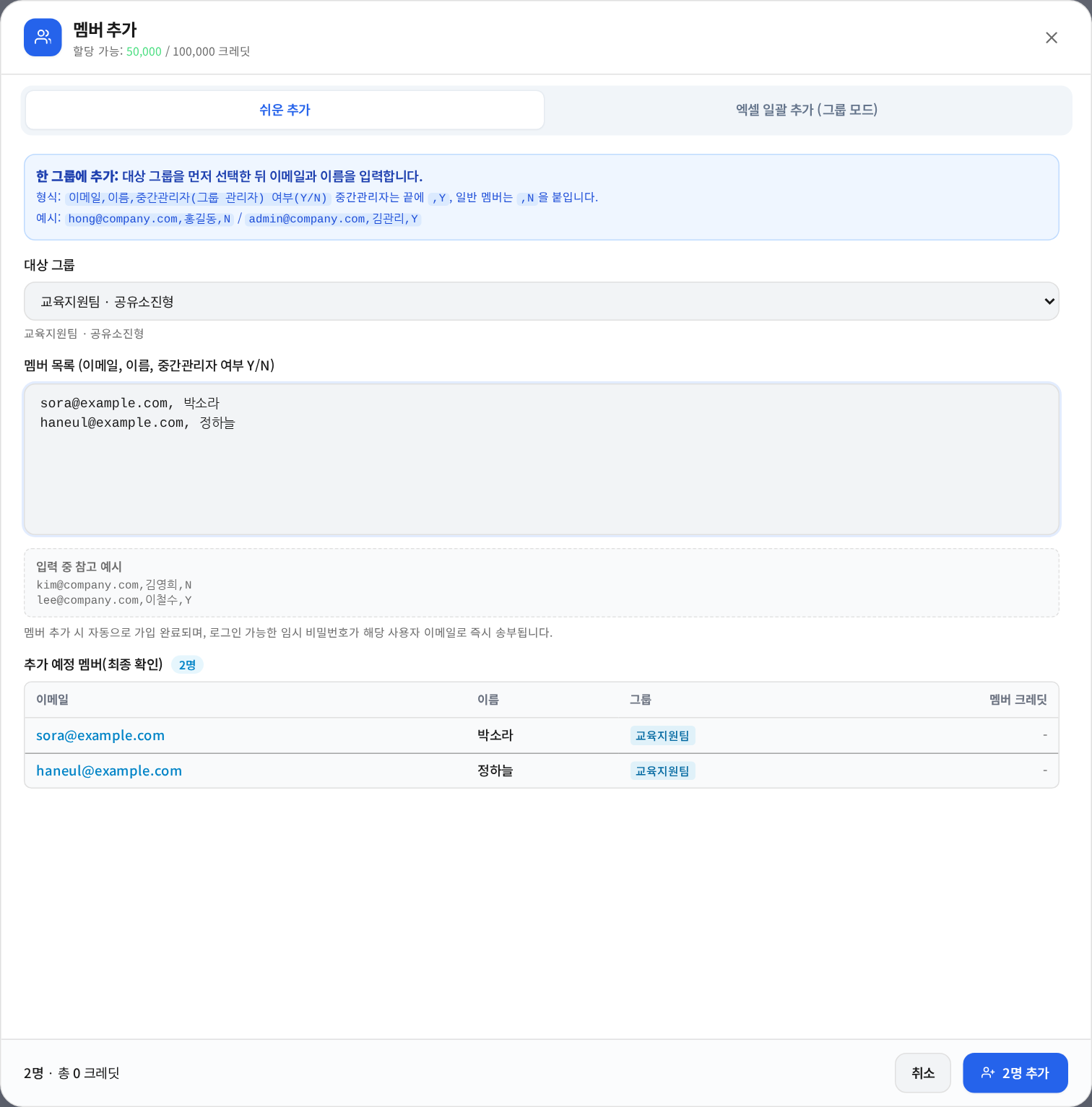
Only previewed valid rows are candidates for registration. Correct duplicate or invalid addresses first.
3. Review larger batches with the Excel template
Download the current template from Excel bulk add (group mode). Match existing group names exactly. Assign manager permissions only intentionally. Do not use this as a replacement for adding secondary assignments.
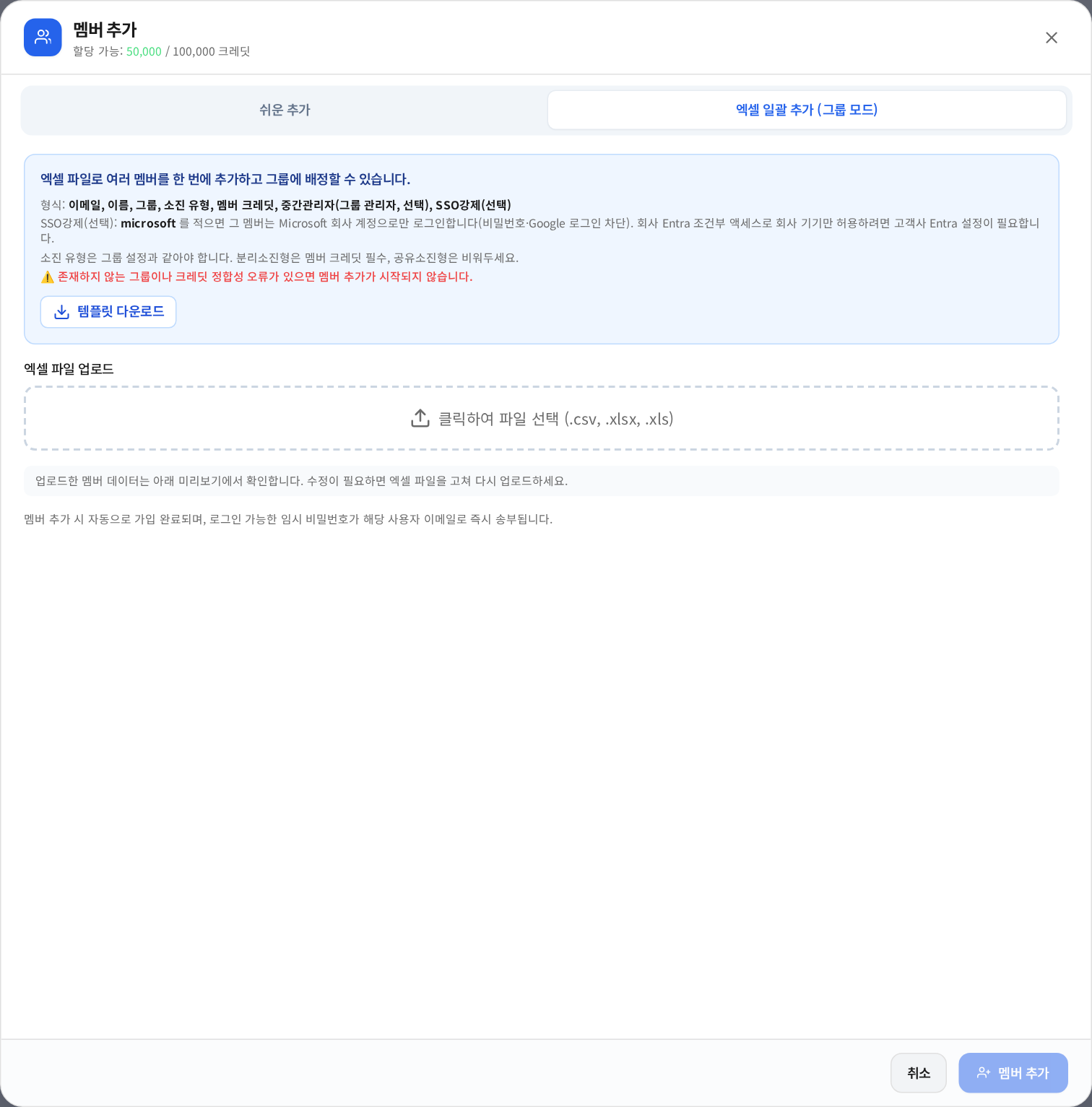
4. Check registration and notification separately
Review the invitation email option before submitting. Check success and failure counts and email delivery status separately. Successful registration does not prove receipt of an email. Retry only the failed rows after reviewing their errors. Never share temporary passwords or registration result files with the entire audience.
Search the registered email, confirm the group, then have the person sign in with that exact email.
5. Before removing someone, identify the scope

- Search the email and check assignments and active group.
- If only a secondary role is ending, use Remove secondary membership in that group.
- If organization access is ending, select the member's remove/trash action and read the confirmation.
- Confirm removal from the active list and the inactive status in the inactive-members view.
Deactivation preserves usage and assignment history. Permanent deletion of an inactive member is restricted and needs separate review. Do not follow older instructions to delete an inactive member again as a routine operation. For reactivation, the master should check available controls and verify restored assignments and permissions.
Troubleshooting
| Symptom | Check |
|---|---|
| No add button | Confirm master access or group-manager access for that group; ask the master to move members from other groups |
| Email already exists | Inspect active/inactive status and existing assignments |
| Allocation error | Check shared/isolated policy, remaining budget and allocation totals |
| History remains after deactivation | History is retained; verify active status separately |
| Partial batch failure | Review errors and retry only the intended failed entries |
Completion check: Explain the different entry points for registering Sora and adding a secondary assignment for an already registered Sora.
Was this answer helpful?