Configure default protection and usage hours
Set sensitive-data and harmful-content protection plus organization and group usage schedules.
Updated: September 2026
This guide covers personal/group modes. Screenshots use the real Korean UI with fictional people and amounts. No account changes or emails were executed for the captures. Click an image to enlarge it.
Open default protection
Go to Member management → Default protection to review sensitive-information protection and harmful-content blocking. Distinguish saving defaults from applying them to existing people. The enterprise workspace is covered in Enterprise organization management.
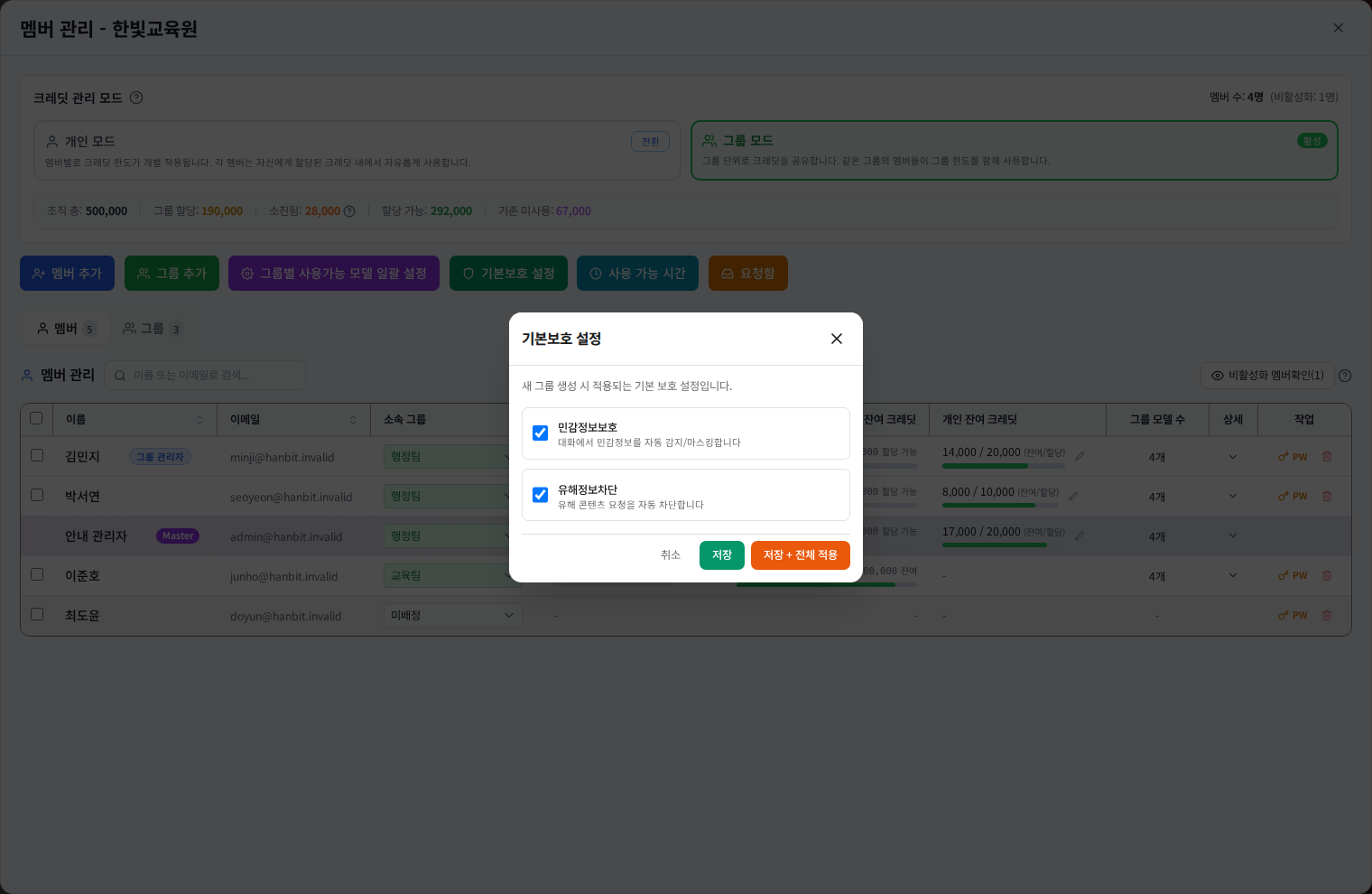
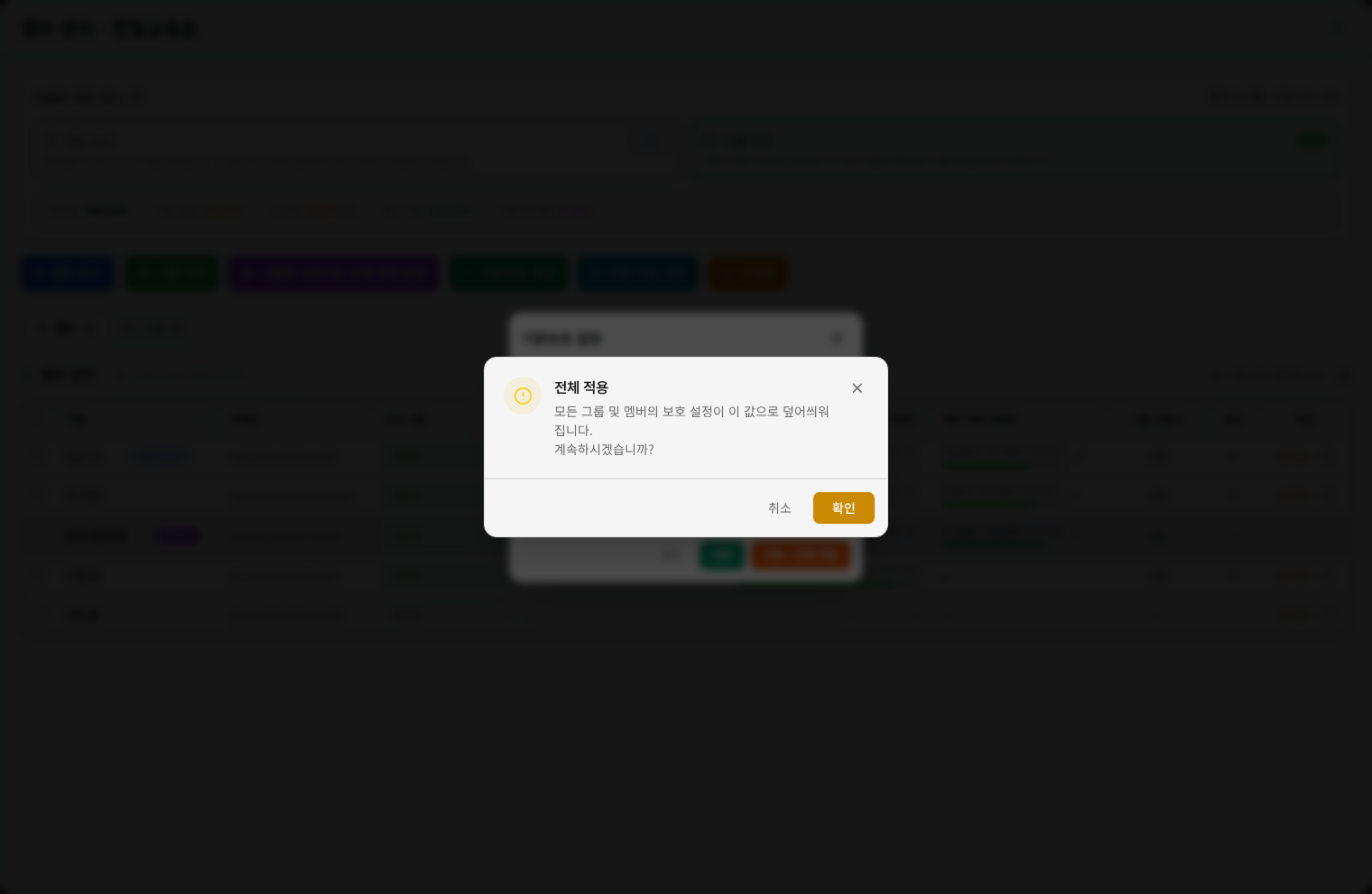
Review exceptions before applying globally
Save stores defaults; Save + apply to all also changes existing targets. Read the confirmation scope. Inspect group policies under Groups → Properties and personal bundles under Personal templates. Protection settings do not replace organizational approval for handling or sharing data.
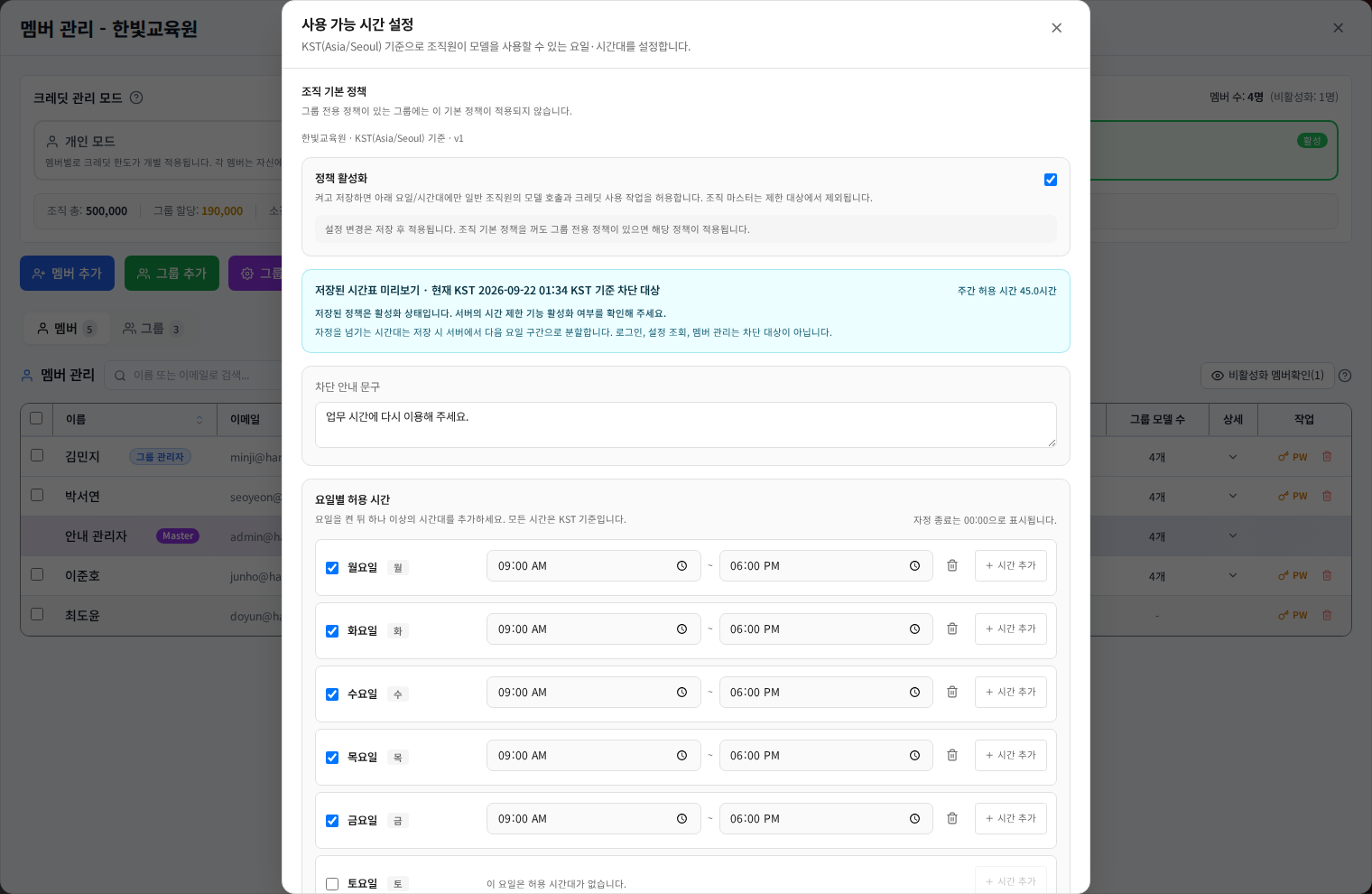
Set organization usage hours
Open Allowed usage hours, enable the policy and choose weekday/time windows. Times use KST (Korea time). For example, weekdays 09:00–18:00 restrict use outside those windows. Enter an appropriate denial message and verify the saved settings.
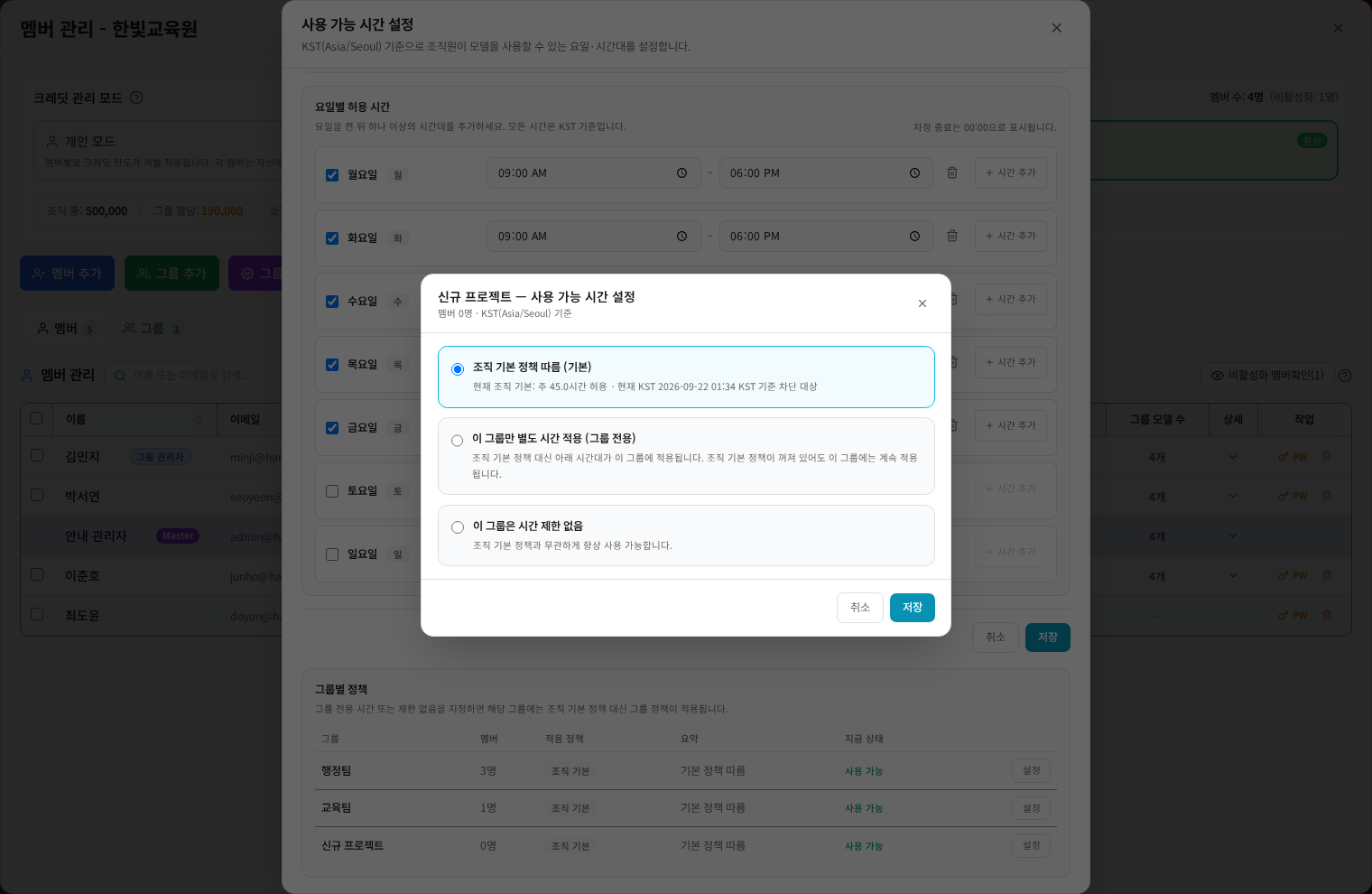
Give a group different hours
Where group-specific scheduling is available, open Settings on its row. Organization default inherits the base policy, Group-specific uses separate windows and Unrestricted removes the time restriction for that setting. Turning off the base policy does not necessarily remove custom group policies; inspect each group.
Verify and diagnose access
Reopen both the base policy and exception groups to check saved days, times and messages. For a blocked member, compare the current KST time, active group and any group-specific policy. Credit exhaustion and model restrictions are separate causes. Disabled controls may require the feature to be enabled or additional management access.
Was this answer helpful?