Manage member details and account status
Find members, update details, reset passwords, and check account activation status.
Updated: September 2026
For Group mode with secondary memberships ON, start with the current operating guide. Primary/secondary memberships and organization account deactivation are separate operations. The earlier screens below can differ depending on this setting.
This guide covers personal/group modes. Screenshots use the real Korean UI with fictional people and amounts. No account changes or emails were executed for the captures. Click an image to enlarge it.
Find the right member
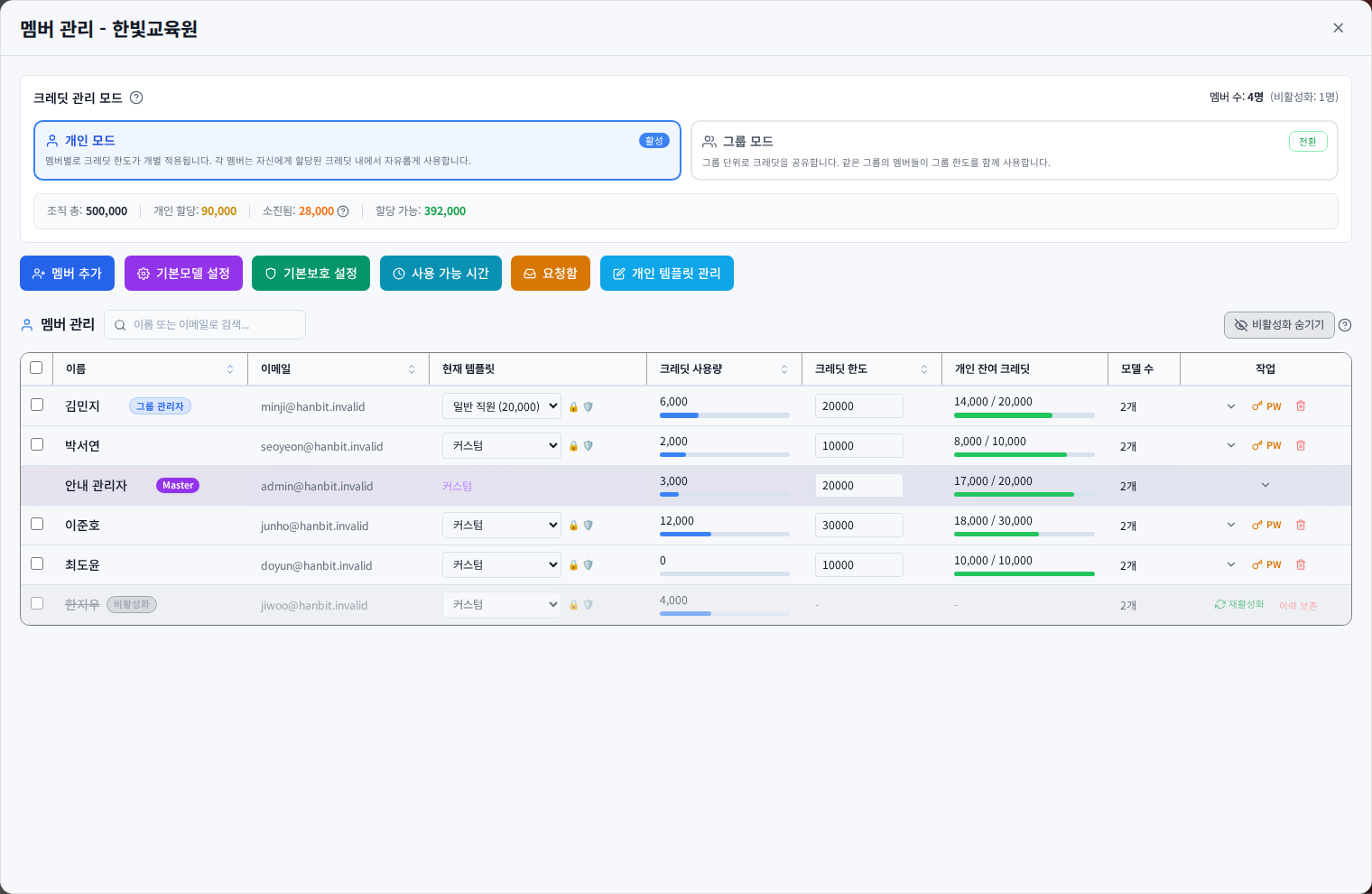
Open Member management from the account menu. Match both name and email; email distinguishes people with the same name. Use sortable columns and the group search where available. Inactive members have a separate visibility control. The Enterprise members screen has its own guide.
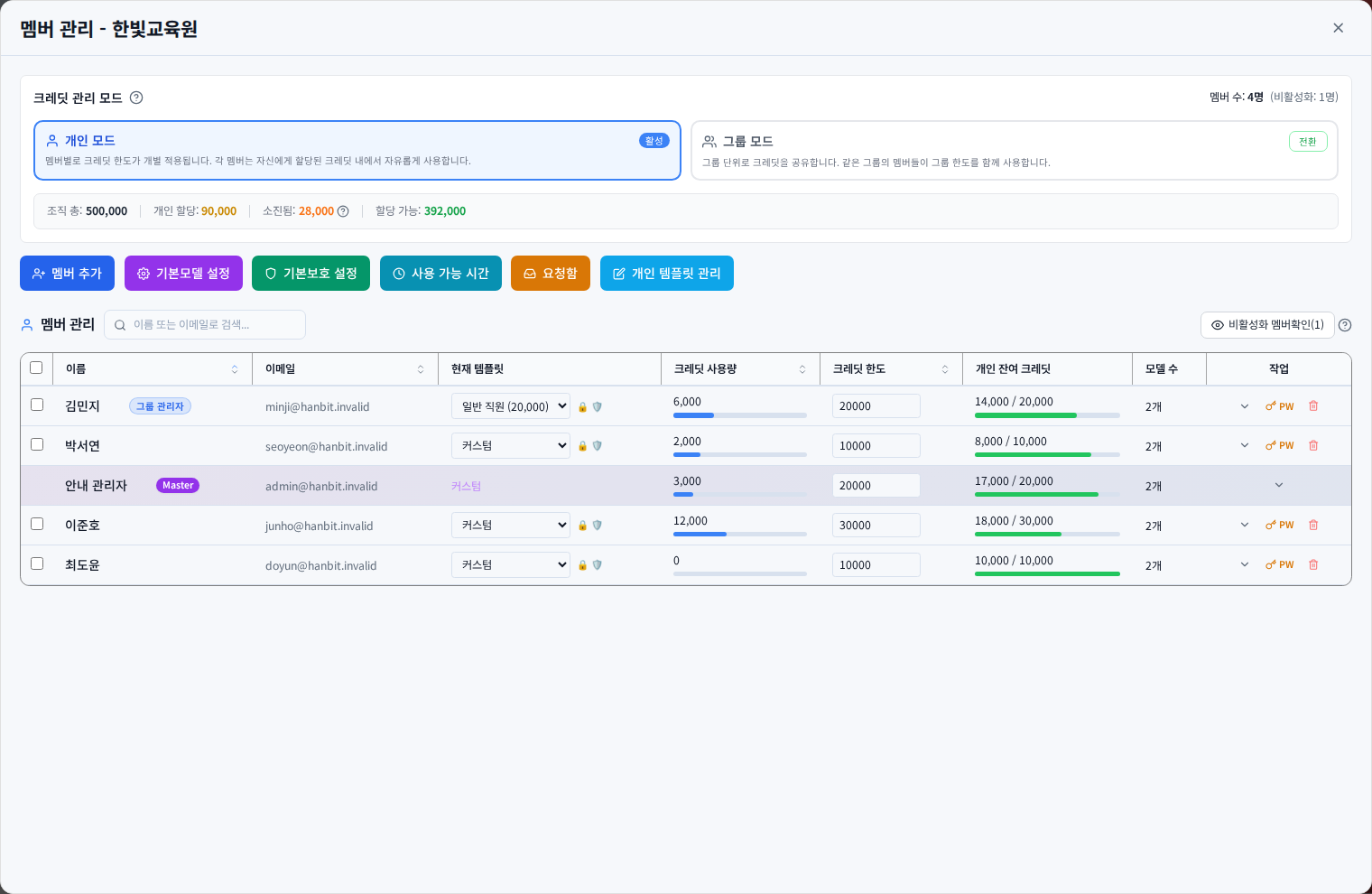
Change personal limits, models and templates
Edit the member row. When changes are staged, click Apply all changes to save them, or Cancel changes to discard them. Reopen the list to verify the limit and model count. Check the organization budget and the constraints imposed by credits already used before reducing a limit.
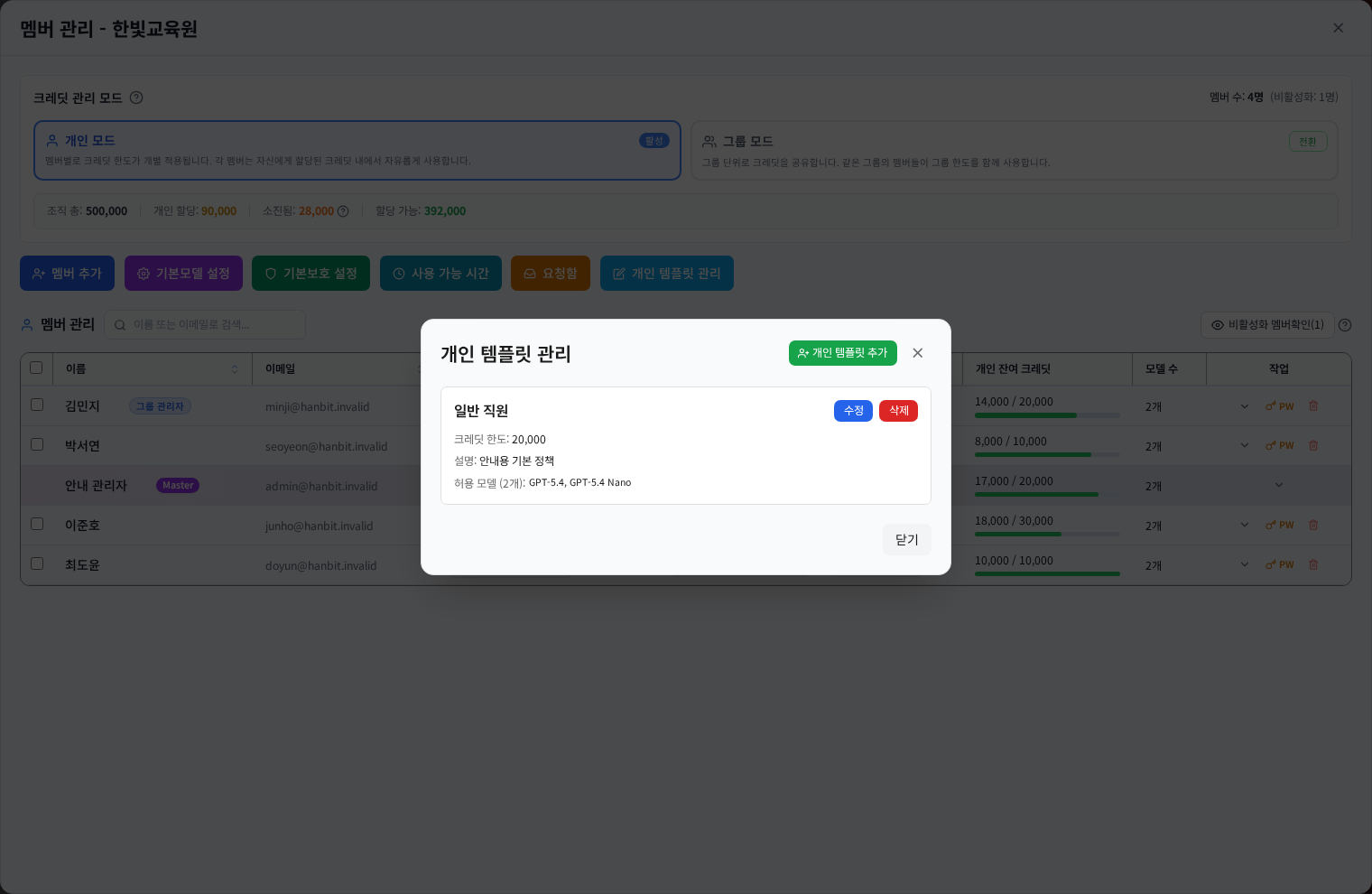
Manage personal templates
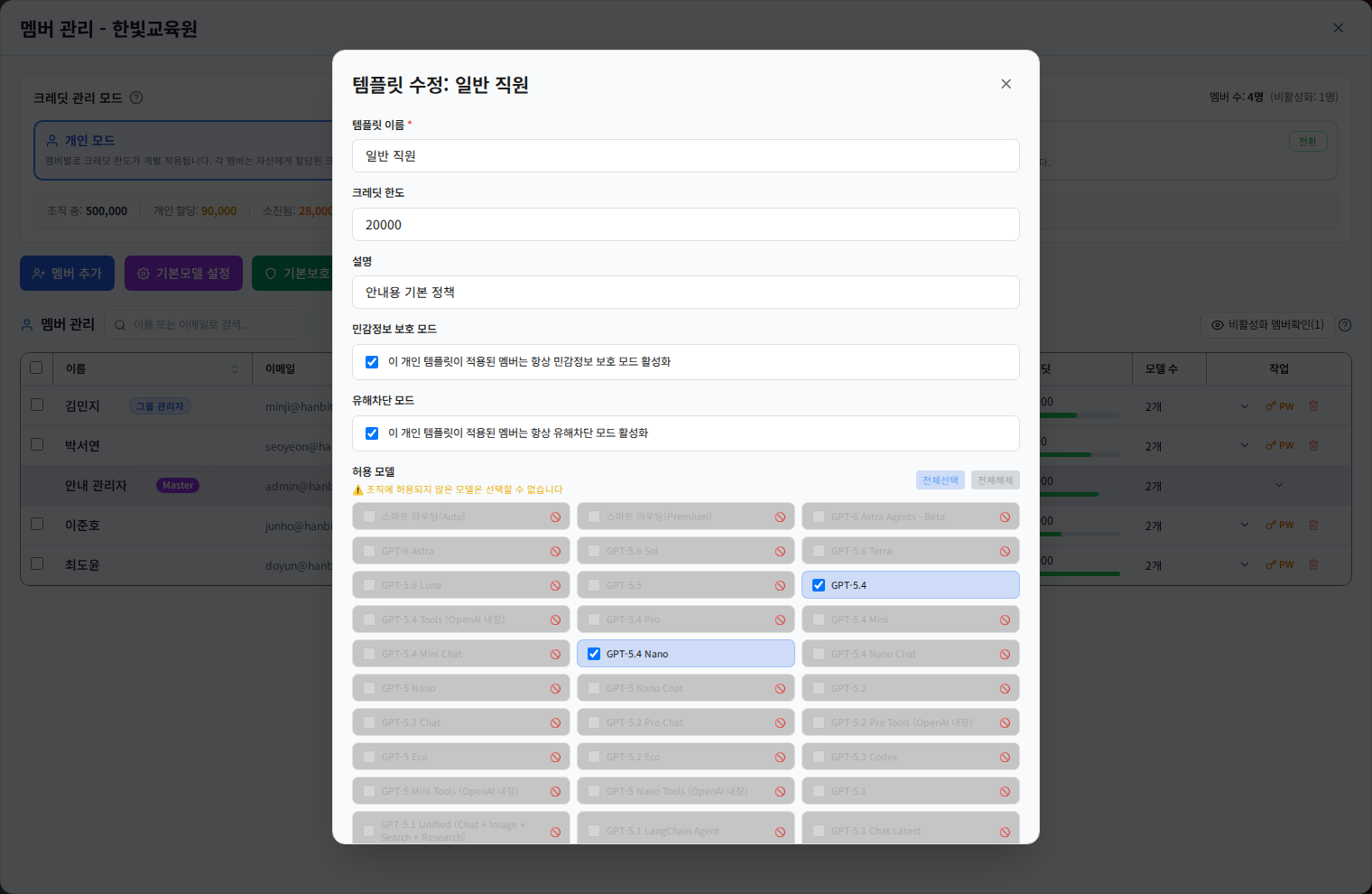
Open Personal templates to bundle a name, description, credit limit, allowed models and protection options. Follow restrictions on system templates. Saving a template and assigning it to a member are separate actions. Compare the settings it will replace before applying it.
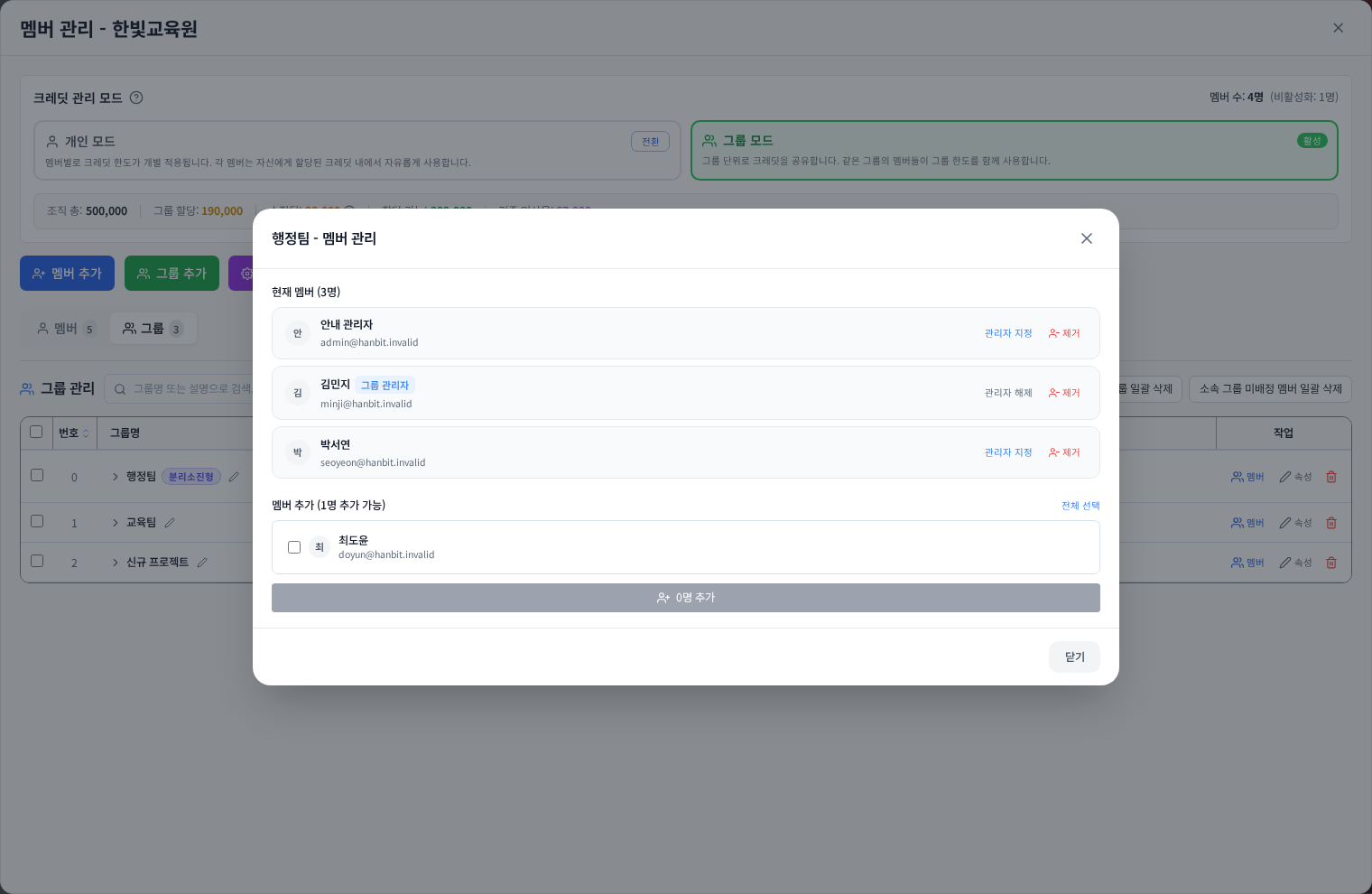
Check group membership and roles
The group-mode table shows the assigned group, spending policy and group/member balances. Shared-group funds and isolated-member funds are different. Open Groups → Members to inspect group administrators. Moving a member can change their model, protection and credit policies.
Reset a password
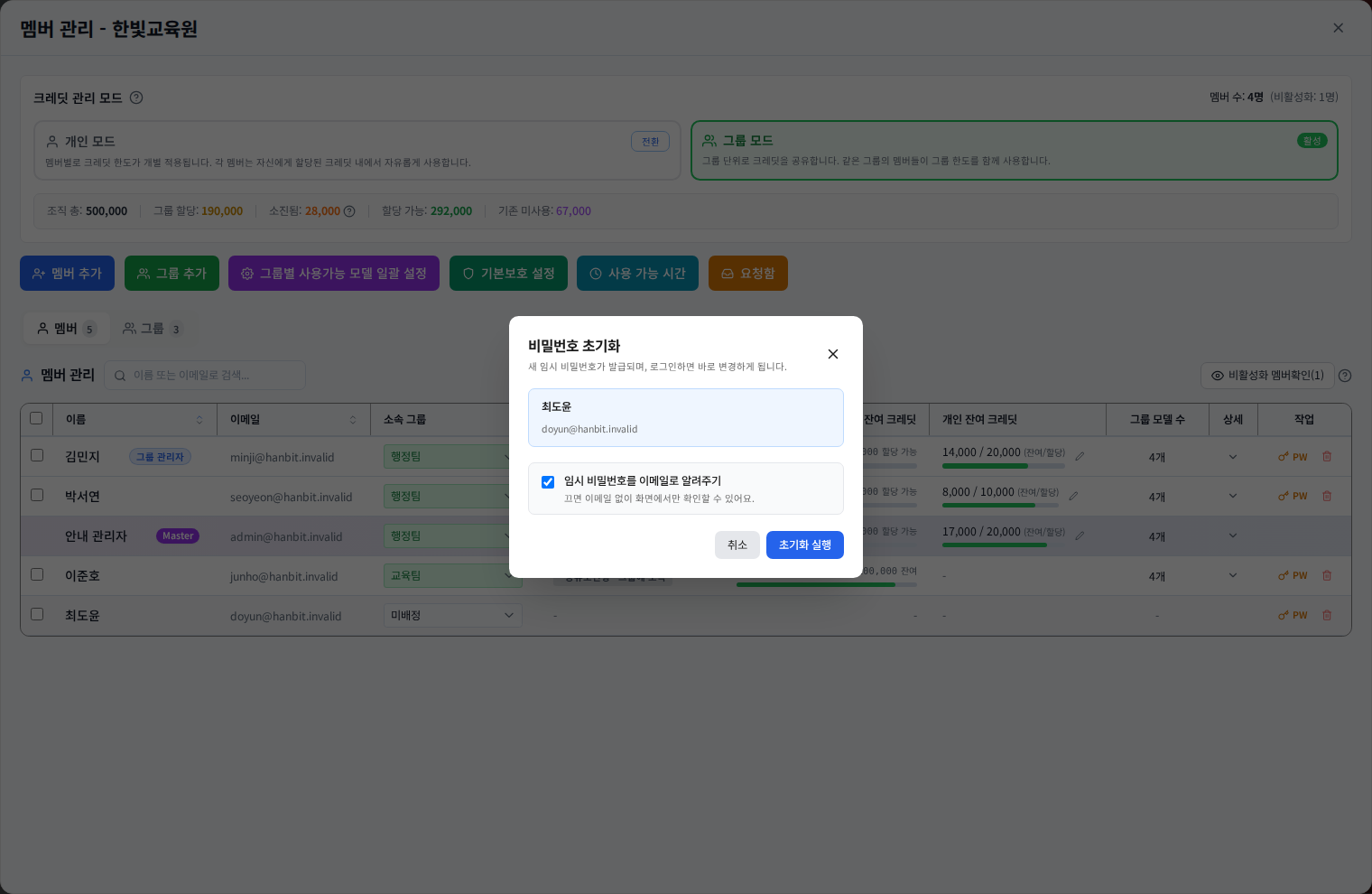
Click PW on the correct member row and verify the email in the dialog. Follow the available reset method and confirmation, then privately deliver any temporary password or email instructions. Account creation state and external sign-in methods can limit the operation; follow the message shown.
Deactivate, reactivate and review deletion
Removing an active organization member deactivates the account. Show inactive members to inspect their status. Before reactivation, check membership, limits and permissions. In the current member-management screen, deleting an inactive member again does not permanently purge the account; this operation is restricted. Contact Support for a separate review. Confirm the target email and action. Removing a secondary membership and deactivating an organization account are different; neither refunds past usage.
When changes do not appear
Finish Apply all changes if the staged-changes bar remains. Avoid repeated clicks while saving. After an error, reload the saved state before retrying. Employees without the management menu should contact the organization master. Verify identity before changing passwords or access rights.
Was this answer helpful?