Manage model access for members and groups
Save defaults and group-specific allowed models within the organization model range.
Updated: September 2026
This guide covers personal/group modes. Screenshots use the real Korean UI with fictional people and amounts. No account changes or emails were executed for the captures. Click an image to enlarge it.
Find the policy that applies
In personal mode, inspect member/template models; in group mode, inspect group models. A lower-level setting cannot grant a model the organization does not allow. See Enterprise organization management for the enterprise workspace.
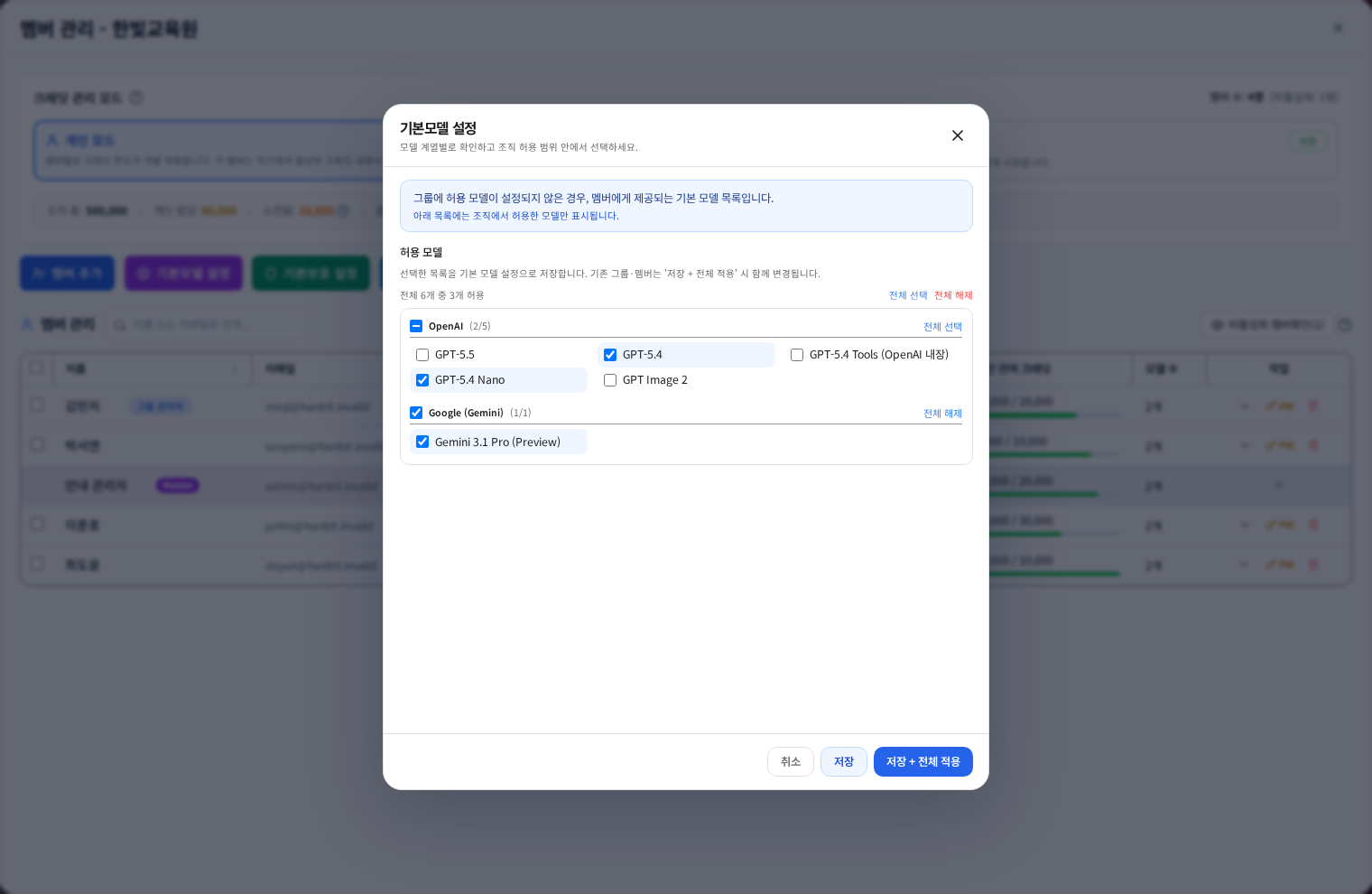
Save defaults only
Open Default models or Bulk group allowed models. Select the models and ensure a usable selection remains after select-all/clear-all operations. Save stores the default selection. Review the next step if you intend to replace existing member/group exceptions.
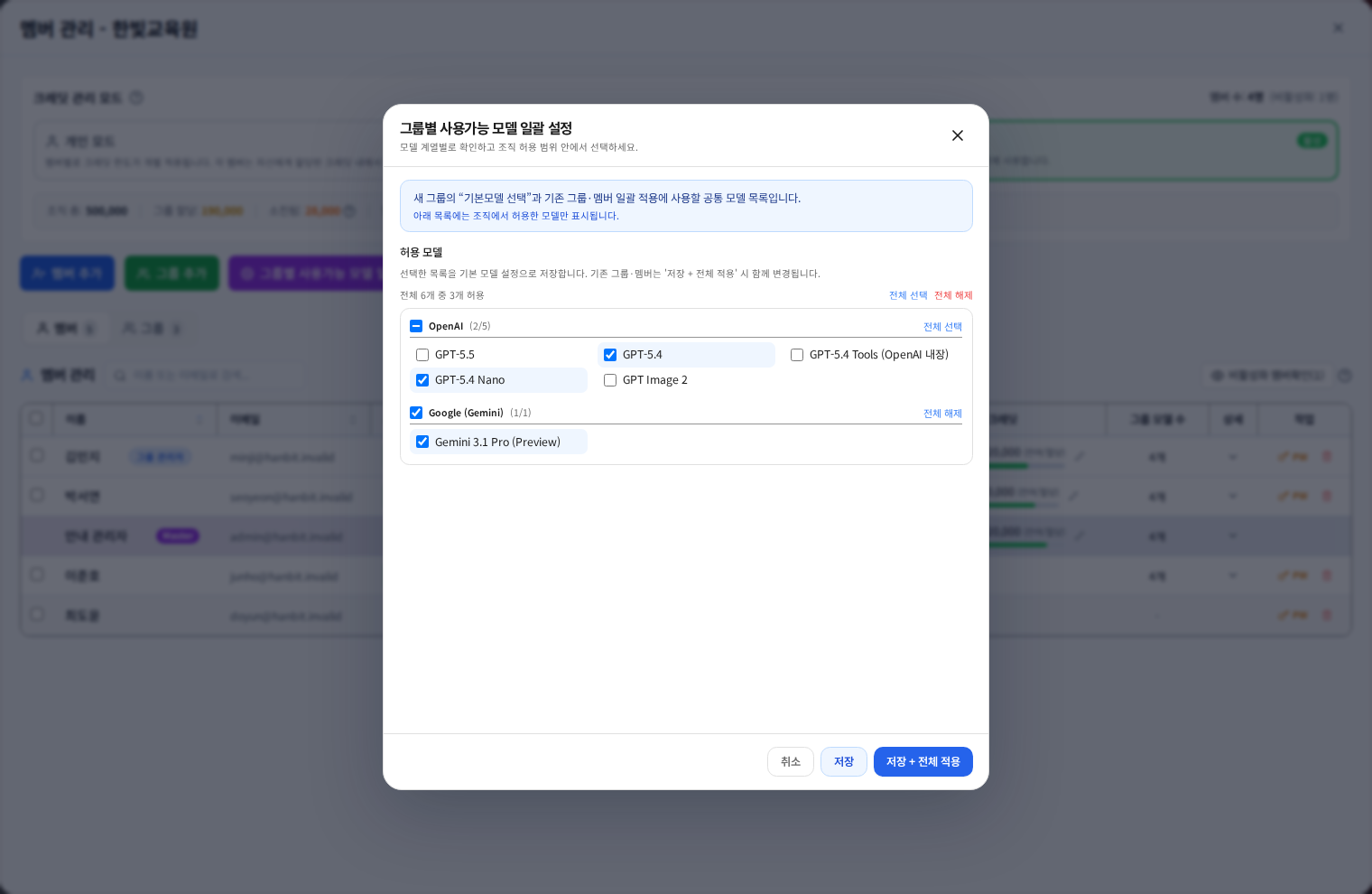
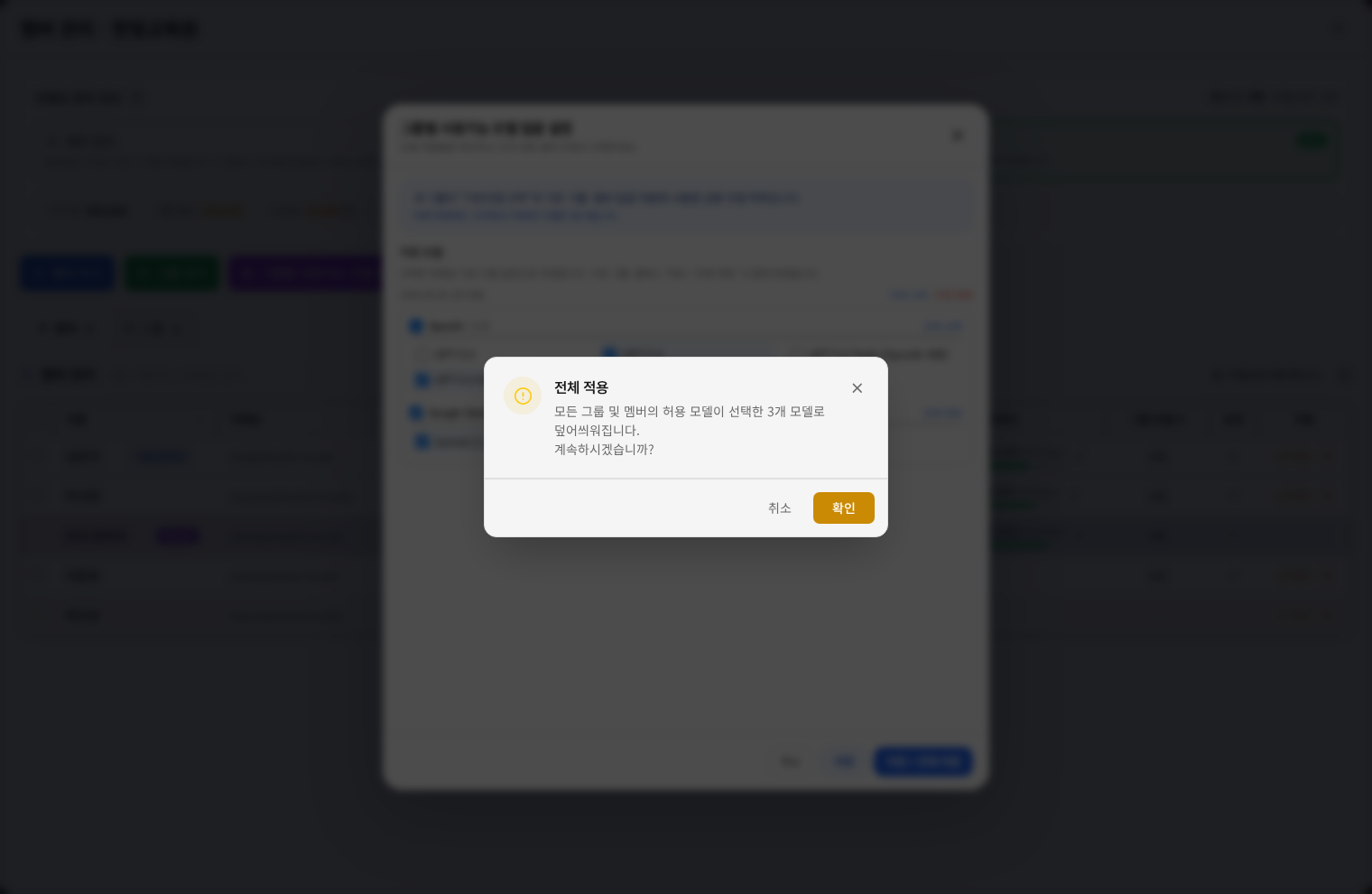
Apply to existing targets
Save + apply to all opens a confirmation. Read which existing settings will be replaced and the affected count. Department-specific exceptions may be overwritten. After applying, reopen representative groups and members to verify their permitted models.
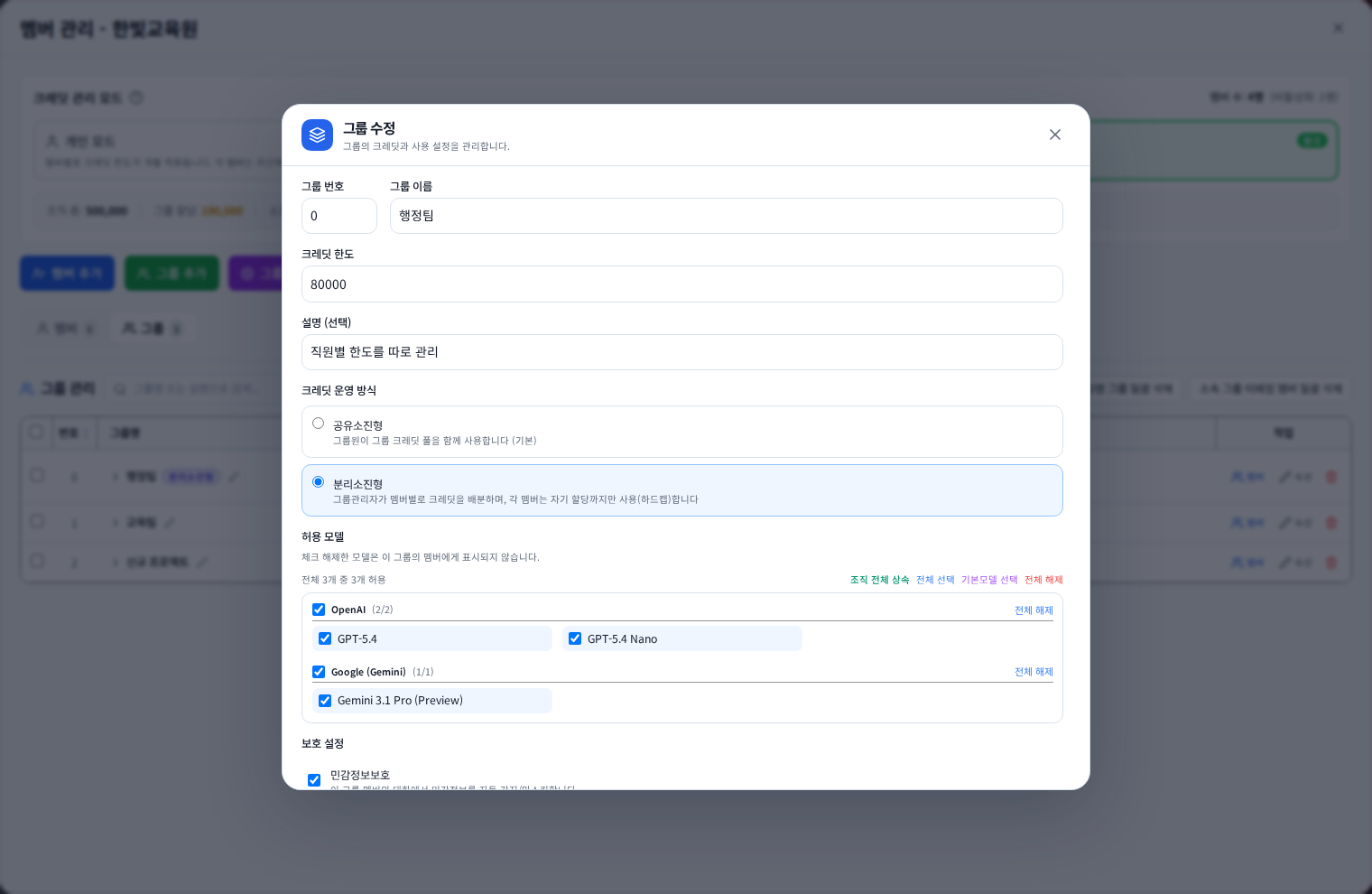
Configure just one group
Open Groups → Properties → Allowed models. Check whether you are inheriting organization models or selecting an explicit set. Moving a member may change the effective model policy.
Configure one person or template
Use the member row or Personal templates. Disabled models may be outside the organization allowance. A template can also change credit and protection settings, so review all fields. Finish Apply all changes if edits are staged.
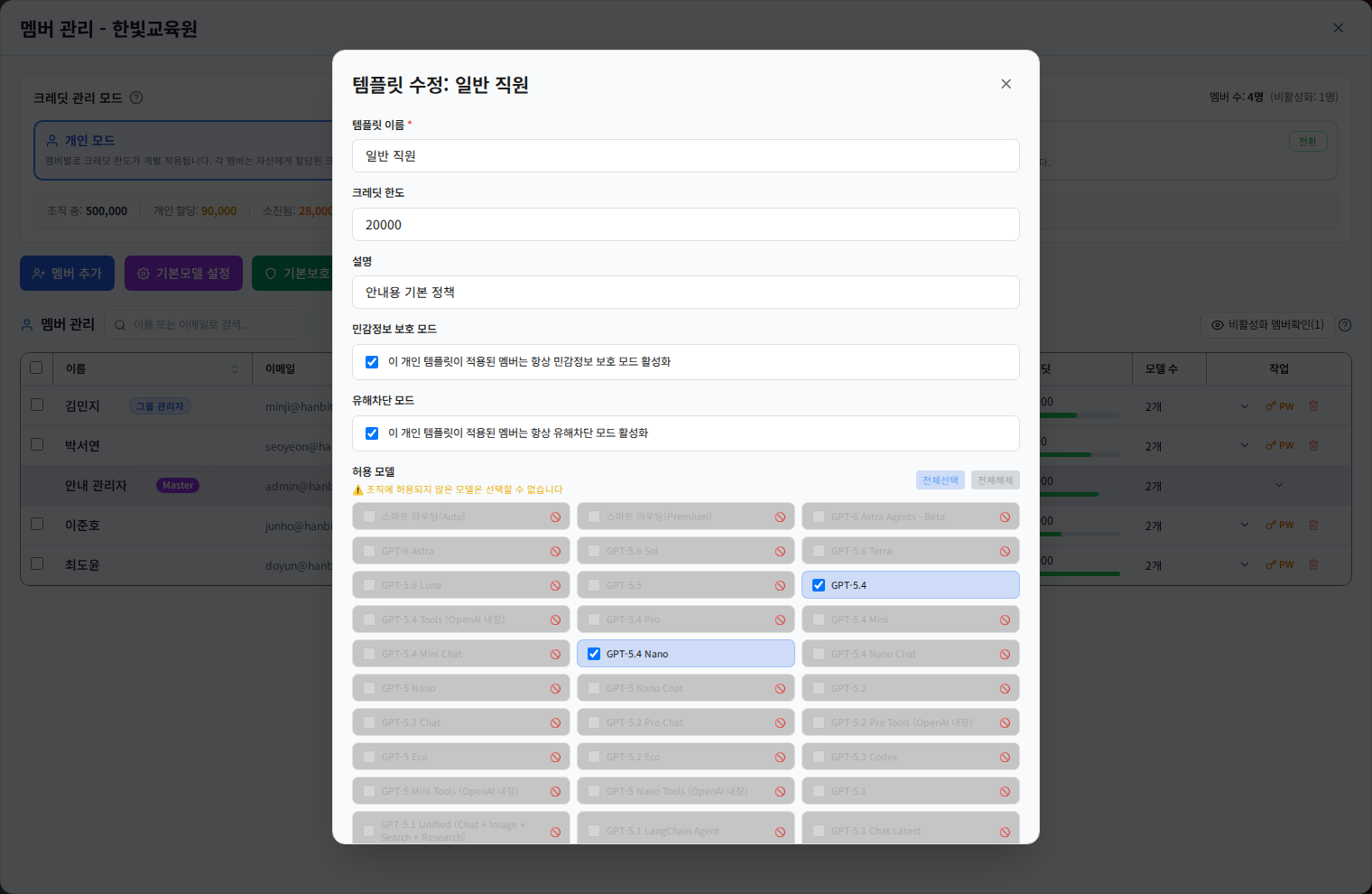
When a selected model is missing
Check that changes were saved, then confirm the operating mode, current group and organization allowance. Ask the member to reopen the model list. Report the exact model and membership if the issue remains. Model permission and connector enablement are separate settings.
Was this answer helpful?