Add organization members
Add members to groups with Easy add or an Excel upload and control invitation delivery.
Updated: September 2026
For Group mode with secondary memberships ON, start with the current operating guide. Primary/secondary memberships and organization account deactivation are separate operations. The earlier screens below can differ depending on this setting.
This guide covers personal/group modes. Screenshots use the real Korean UI with fictional people and amounts. No account changes or emails were executed for the captures. Click an image to enlarge it.
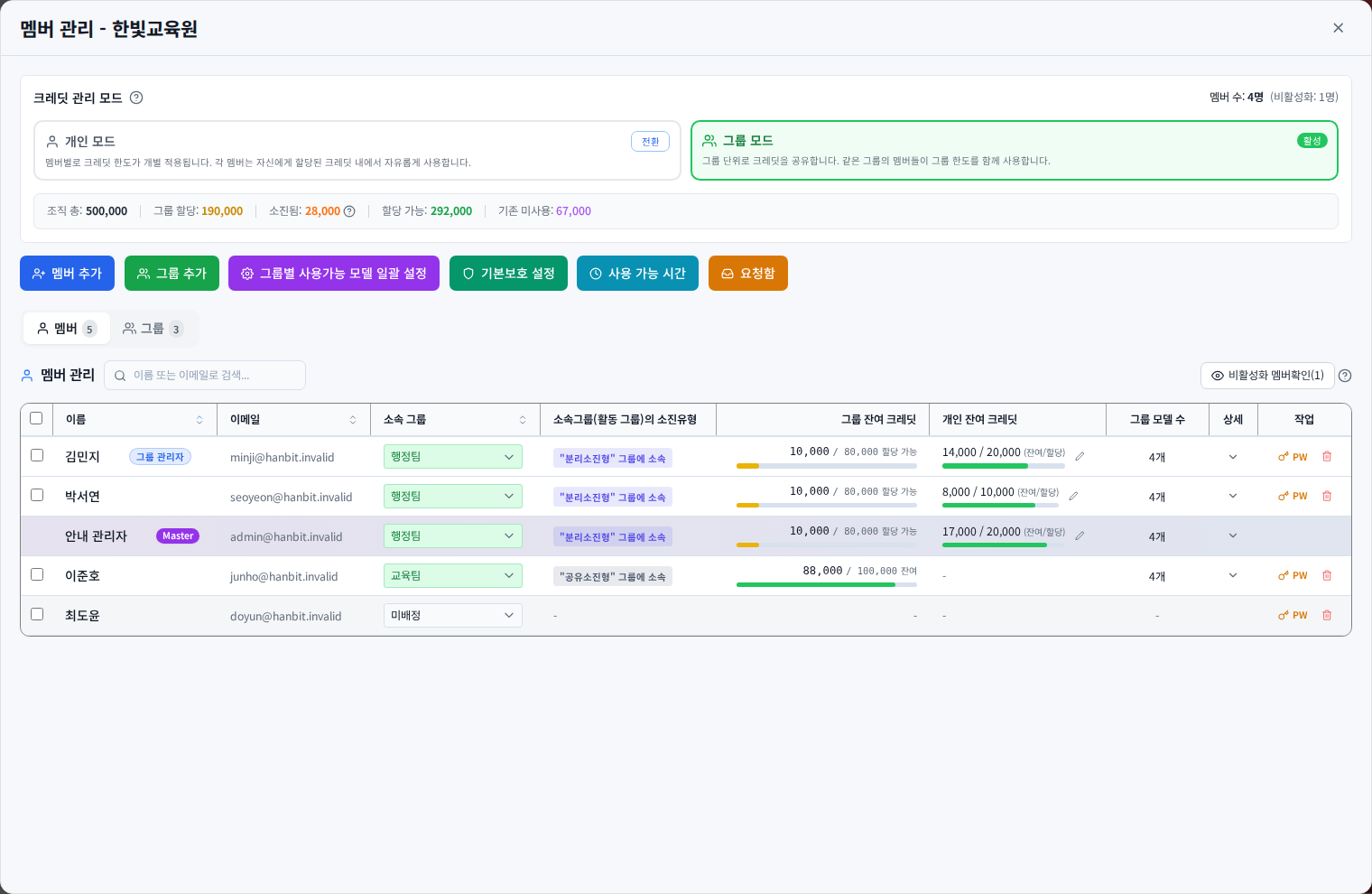
Check the operating mode first
Open the account menu → Member management, then check the active Credit management mode. This guide covers personal/group modes. An Enterprise plan label alone does not identify the operating mode. For the enterprise workspace, use Enterprise members.
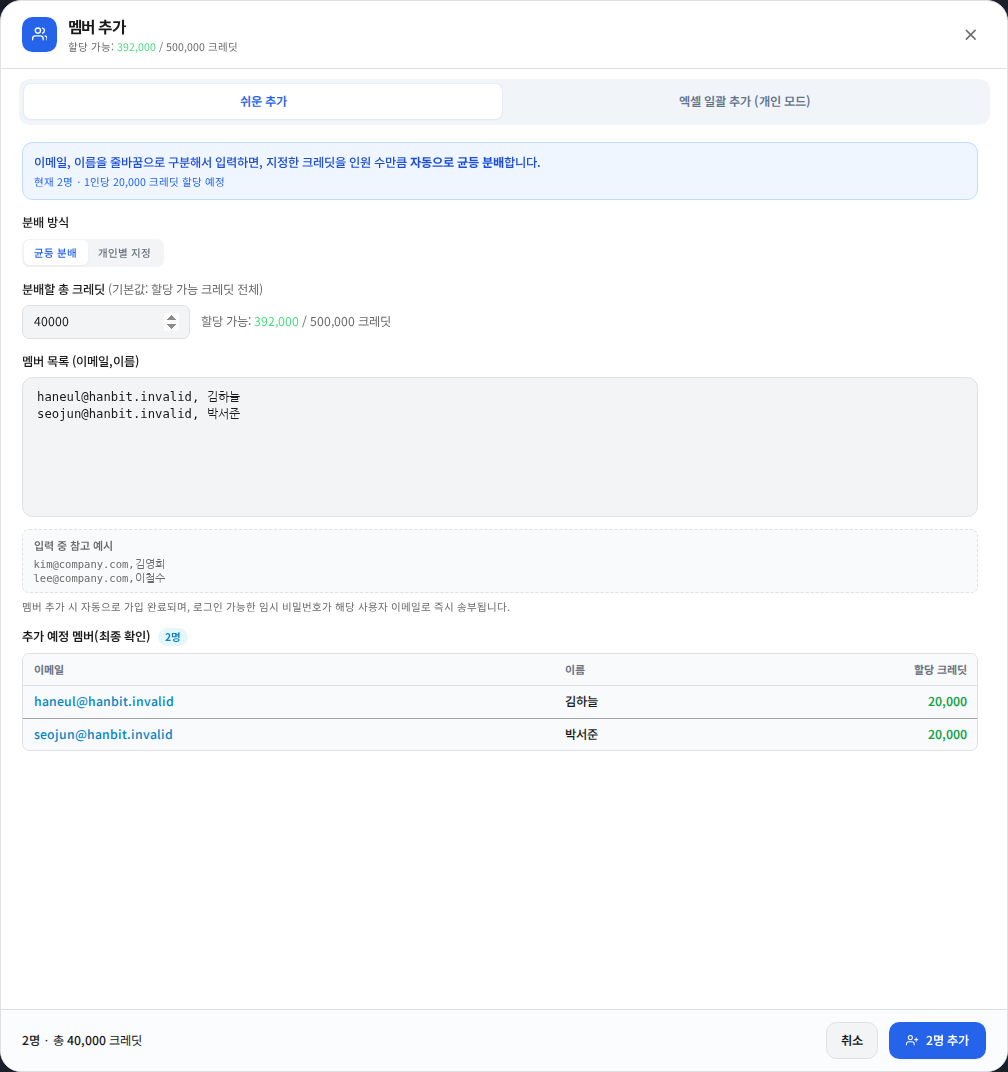
Personal mode: distribute an equal amount
- Open Add members → Easy add → Equal distribution.
- Enter one
email,nameper line. - Specify the total credits to distribute: 40,000 across two people means 20,000 each.
- Check the preview. Leaving the total blank can use the available allocation budget, so enter the intended budget explicitly.
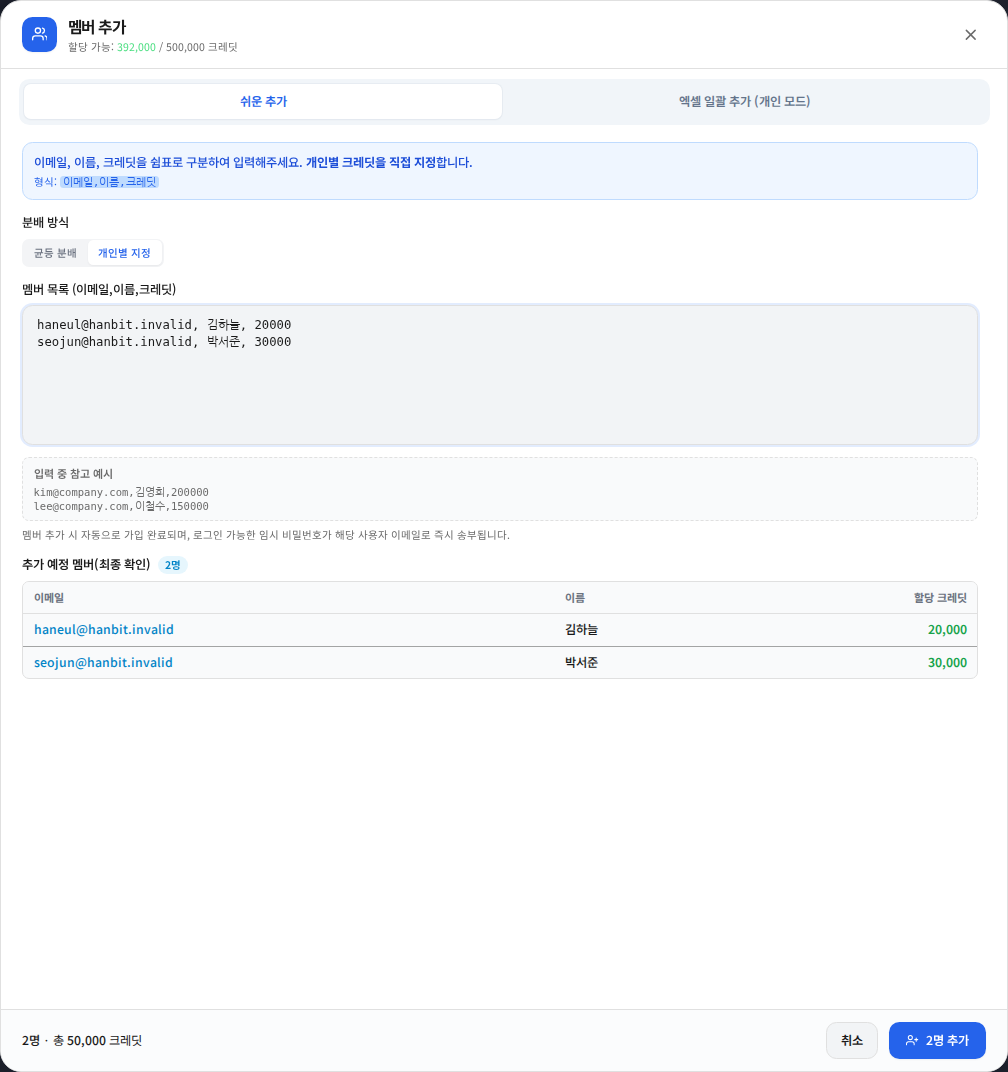
Personal mode: enter individual amounts
Choose Individual amounts and enter email,name,credits per line. Two entries of 20000 and 30000 total 50,000. Do not put thousands separators in the input. Check each amount and the total below. Registration starts only when you click Add N members.
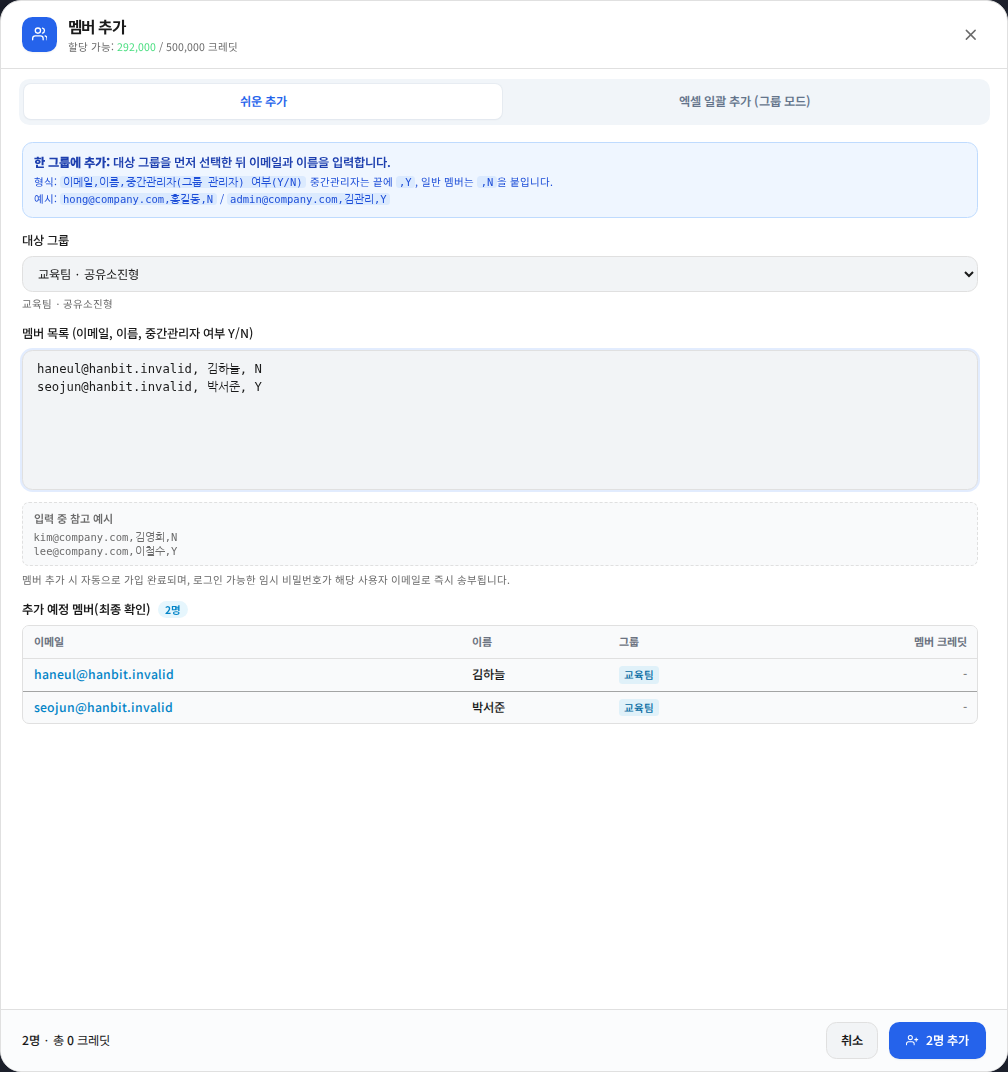
Group mode: add to a shared group
- Select the destination group.
- Enter
email,name,Nper line. N is an ordinary member; Y grants group administrator access. - Shared groups use a common balance rather than separate member allocations.
- Review every Y entry before adding members: it grants management rights as well as membership.
Group mode: add to an isolated group
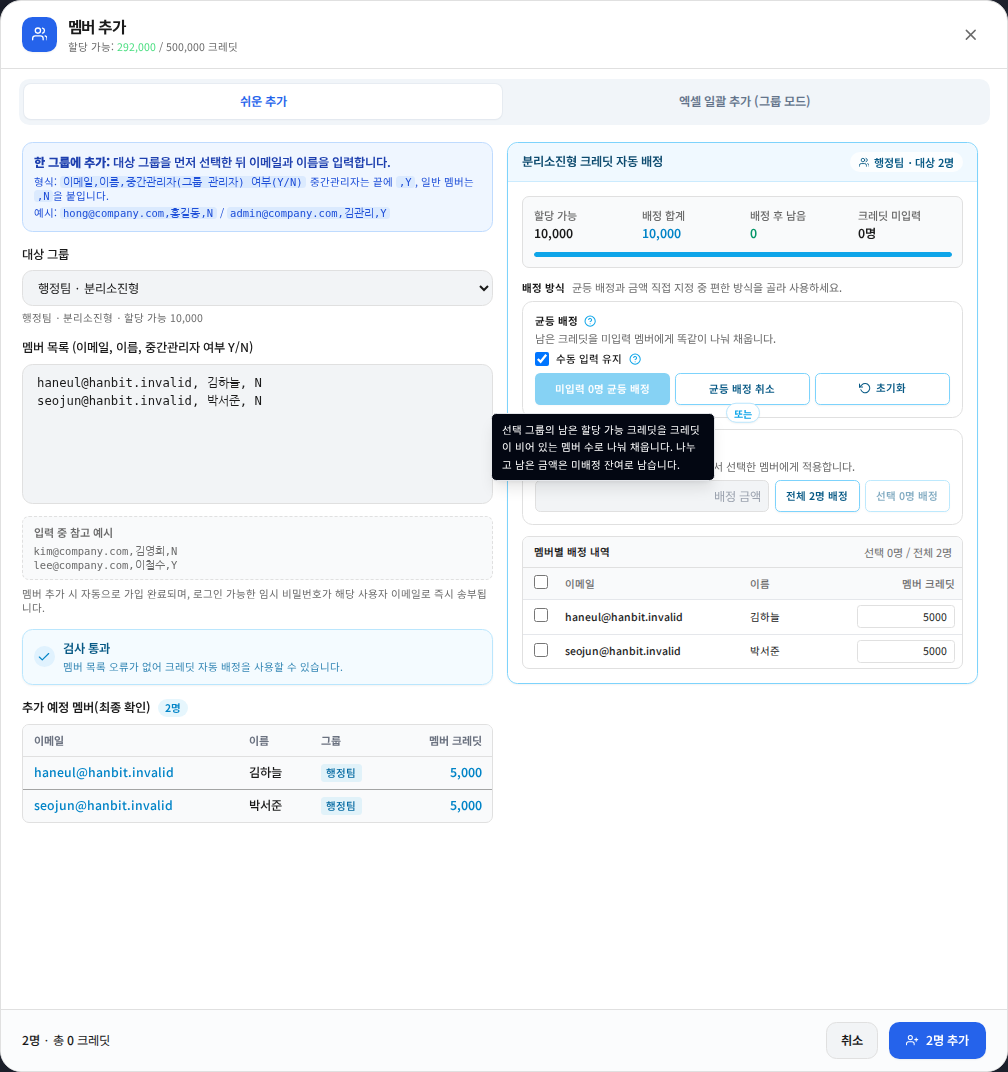
An isolated group shows automatic allocation controls and a per-member table. Fill empty amounts equally or enter individual values. In the example, 10,000 available credits split between two new members gives 5,000 each. Check Keep manually entered values, the allocation total, remaining budget and missing amounts. A funded group does not make a member usable without a member allocation.
Import members from Excel
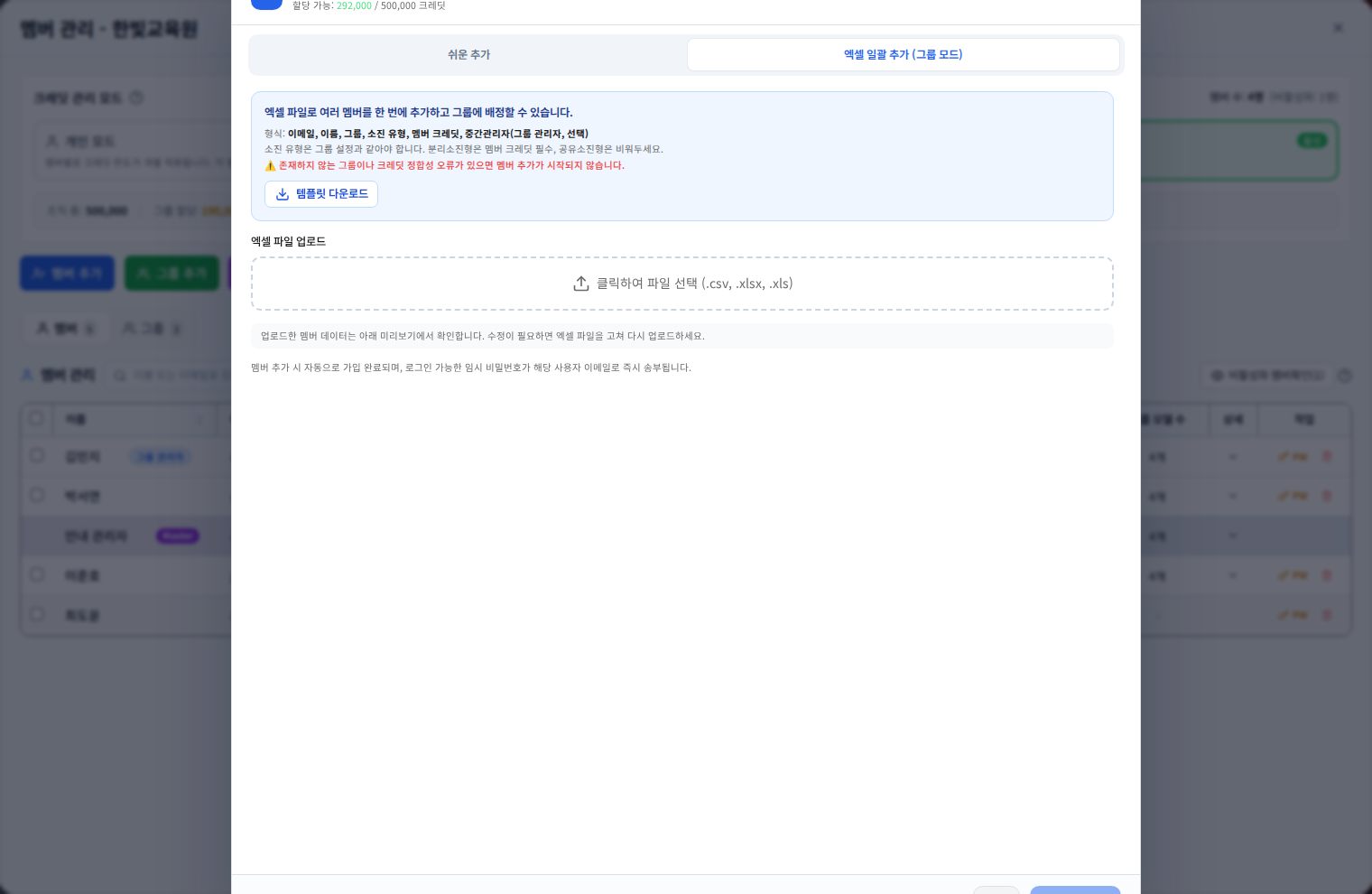
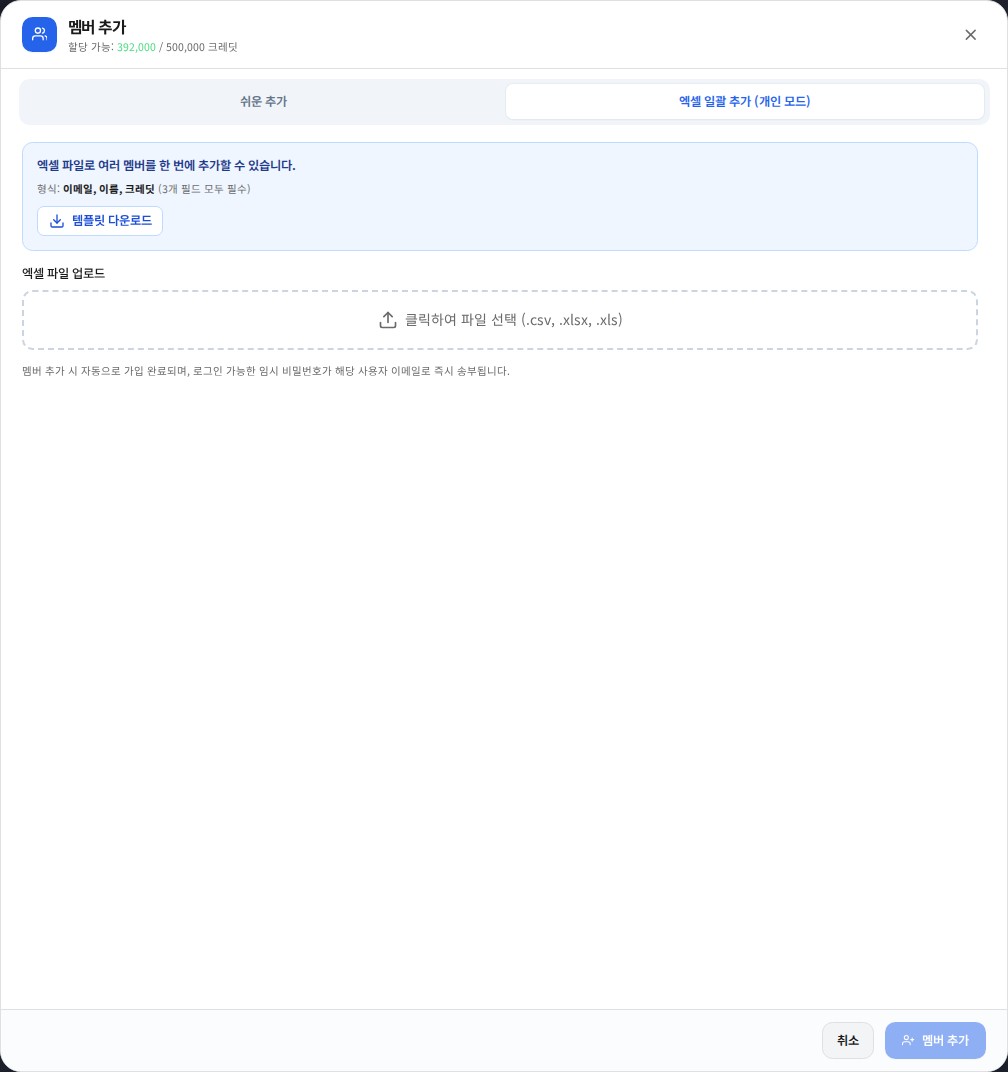
- Open the Excel tab for the current mode; personal and group templates differ.
- Download the current sample workbook and use existing group names exactly.
- Upload it and review valid/error rows, duplicate emails, group matches and totals.
- Review the invitation option when shown. Correct or exclude invalid rows before registering.
Verify registration and help members sign in
Check the result, then verify names, email addresses and groups in the member list. Deliver any temporary passwords or result workbook through an appropriate private channel. Check spam folders and spelling before using account management to reset a password. If only some rows failed, retry those rows rather than adding successful members again.
Was this answer helpful?