Connect Codex
Create a profile and set your key using the live popup commands.
Updated: October 2026
Codex quick setup is a panel, not a separate page or menu. In MonoRouter, issue or reissue a Universal API or ChatGPT API key in MonoRouter API keys. The panel appears under New API Key → Configuration downloads. This guide covers Codex CLI, the terminal tool.
The panel is absent on your initial visit and disappears when you reload or revisit the page. If you saved the full key, use Configure a saved key directly below instead of reissuing it just to reopen the panel. Prepare Node.js LTS and a terminal.
1. Choose the model and terminal
Select a model, setup method and shell. Add a separate profile keeps your default configuration and saves MonoRouter settings separately. Choose PowerShell on Windows or Bash·Zsh on macOS, Linux and WSL.
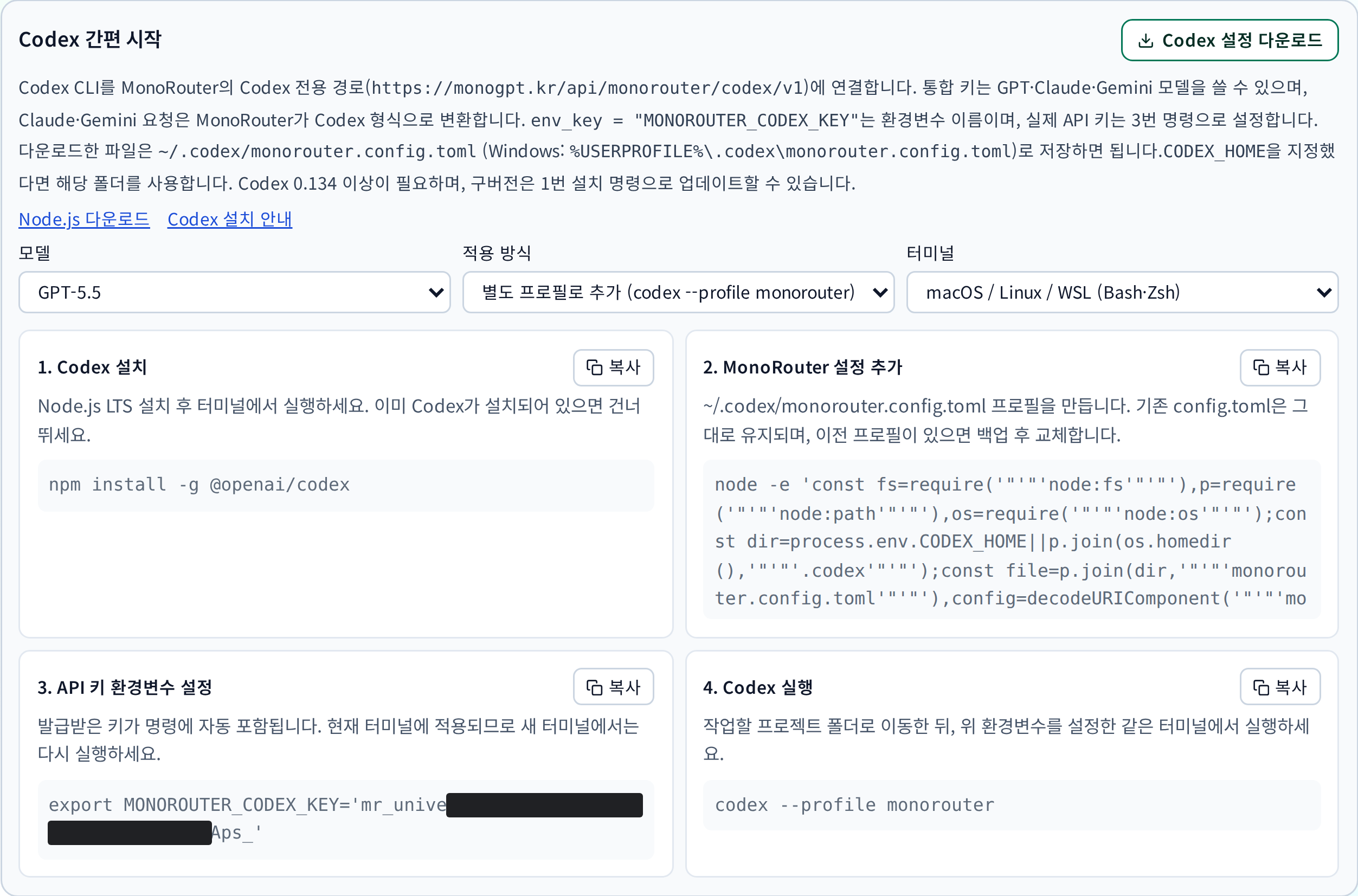
Captured after real key issuance. Copy commands from your own popup, not from this image.
2. Run the four commands in order
- Install Codex: run if installation or an update is needed. This profile format requires Codex 0.134 or later.
- Add MonoRouter settings: saves the selected configuration. A separate profile leaves your default file unchanged.
- Set the key variable: sets your actual key in the current terminal.
- Launch Codex: run from your project folder in the same terminal as step 3.
For the separate profile:
codex --profile monorouter
On Windows, use the popup's codex.cmd --profile monorouter command. Set the key variable again when opening a new terminal.
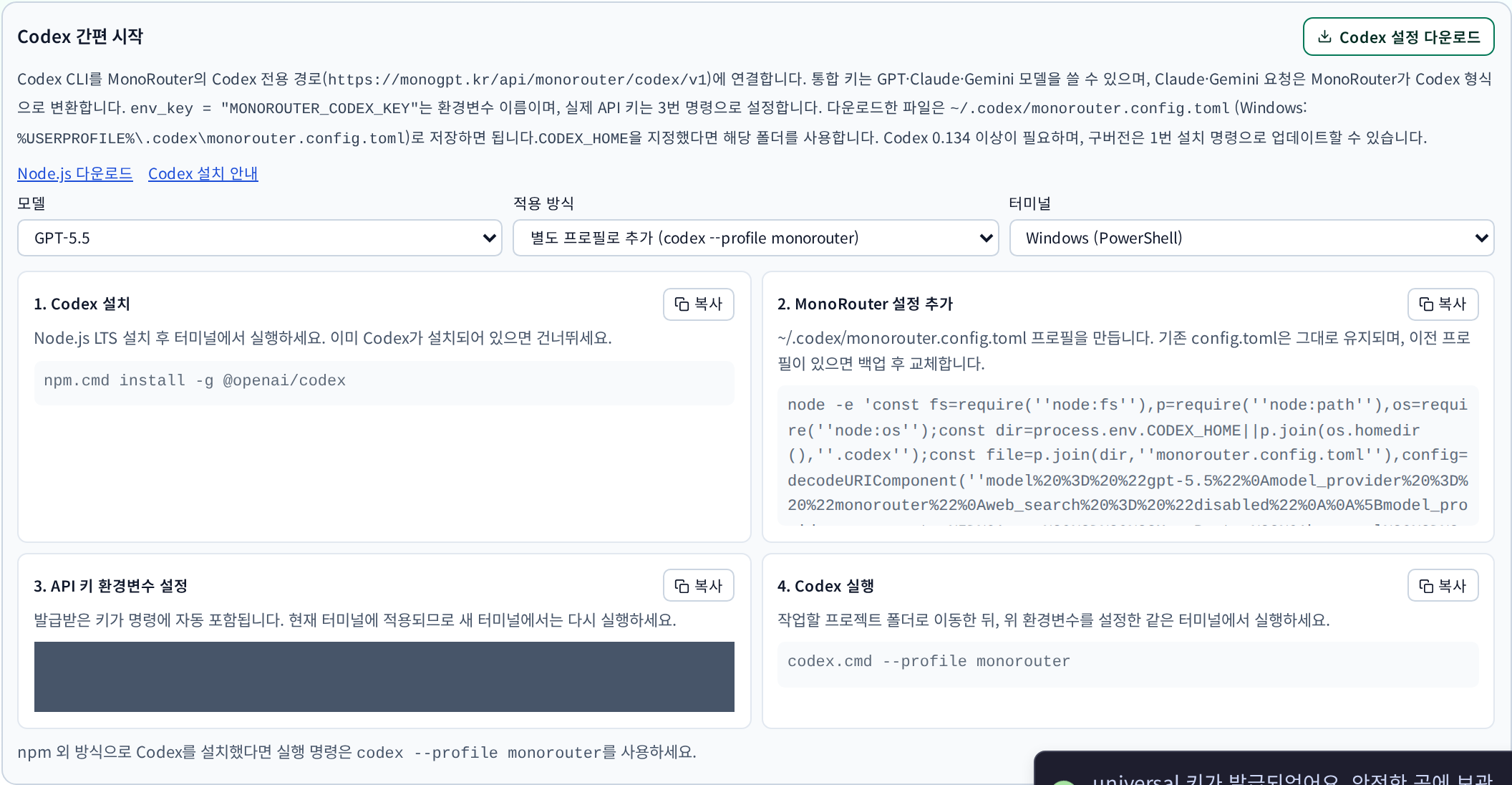
Captured from the live product after switching the shell selector to Windows. The secret-bearing command is masked.
If you download the configuration manually
Select Download Codex settings and confirm the consent dialog to receive monorouter.config.toml. Downloading alone does not install it.
| Item | Path or value |
|---|---|
| macOS and Linux | ~/.codex/monorouter.config.toml |
| Windows | %USERPROFILE%\.codex\monorouter.config.toml |
| Base URL | https://monogpt.kr/api/monorouter/codex/v1 |
| Key environment variable | MONOROUTER_CODEX_KEY |
| Wire API | wire_api = "responses" |
If you set CODEX_HOME, use that directory. The env_key field contains the variable's name, not the secret itself.
Configure a saved key directly
Use your saved universal/OpenAI key when the temporary panel is unavailable. The following is editable configuration text, not a screenshot.
- Create
~/.codex/monorouter.config.tomlin your user settings directory, or%USERPROFILE%\.codex\monorouter.config.tomlon Windows. Back up an existing file first. Do not put provider credentials in project-local.codexsettings. - Save the configuration below.
gpt-5.5is an example: confirm that your key permits the selected GPT model.
model = "gpt-5.5"
model_provider = "monorouter"
web_search = "disabled"

[model_providers.monorouter]
name = "MonoRouter"
base_url = "https://monogpt.kr/api/monorouter/codex/v1"
env_key = "MONOROUTER_CODEX_KEY"
wire_api = "responses"
requires_openai_auth = false
supports_websockets = false
- Replace
YOUR_ISSUED_KEYwith your saved key, and run from your project directory. The placeholder is not a credential.
macOS / Linux / WSL:
export MONOROUTER_CODEX_KEY='YOUR_ISSUED_KEY'
codex --profile monorouter
Windows PowerShell (npm installation):
$env:MONOROUTER_CODEX_KEY = 'YOUR_ISSUED_KEY'
codex.cmd --profile monorouter
The variable applies to this terminal session. Keep secret-bearing commands and terminal history private.
3. Check a response and usage
Ask a short read-only question, then check Usage. Claude and Gemini through a universal key use MonoRouter compatibility handling; OpenAI-specific features are not all available.
Was this answer helpful?