Connect Cursor
Read values from the JSON file and enter them in Cursor Settings.
Updated: October 2026
Connect Cursor by entering an API key and Base URL in Settings. The MonoRouter JSON download is a reference file containing those values, not a file to import into Cursor.
1. Prepare your key and endpoint
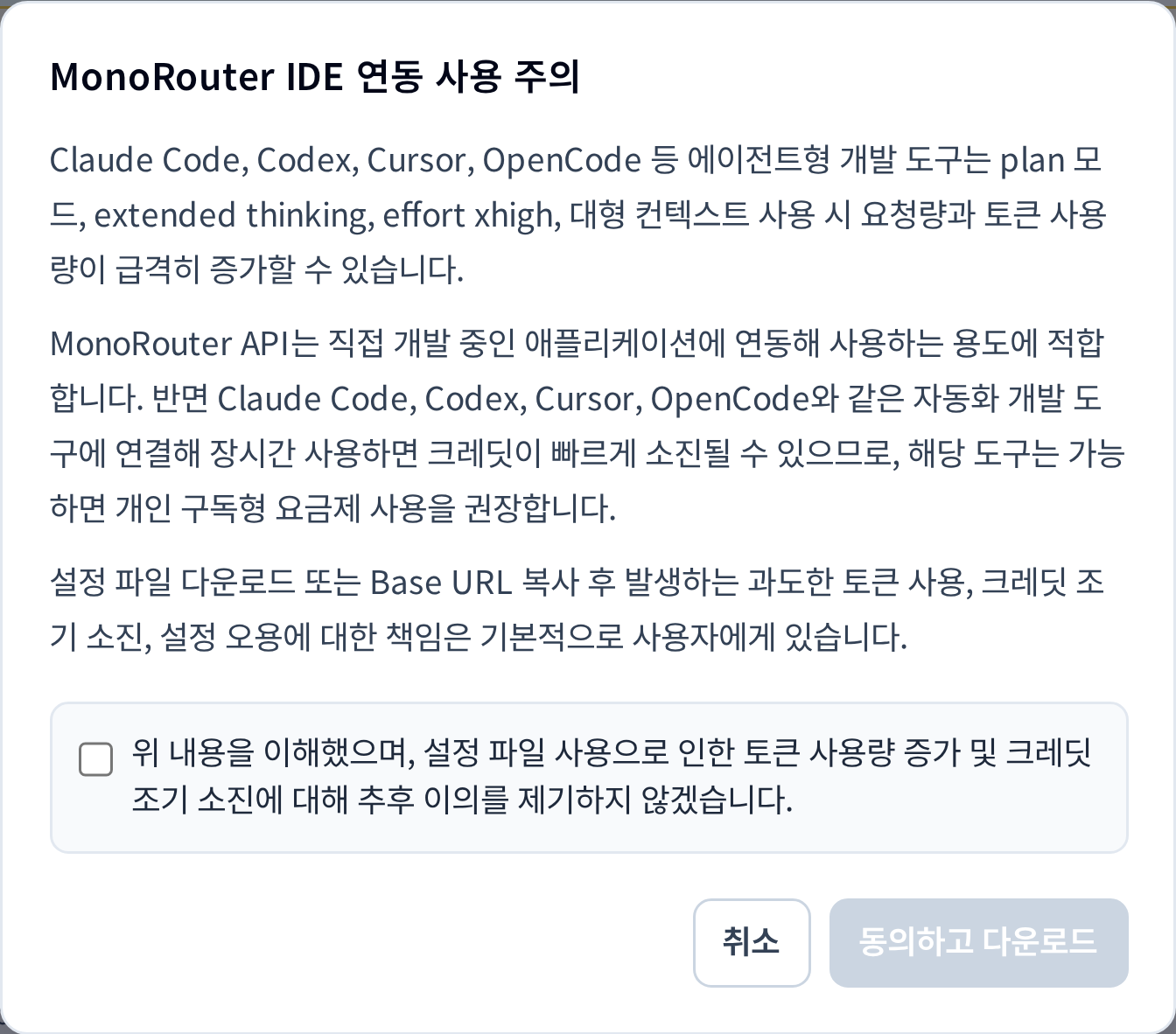
After issuing a key, select Cursor settings json. Confirm the consent dialog to download cursor-monorouter.json.
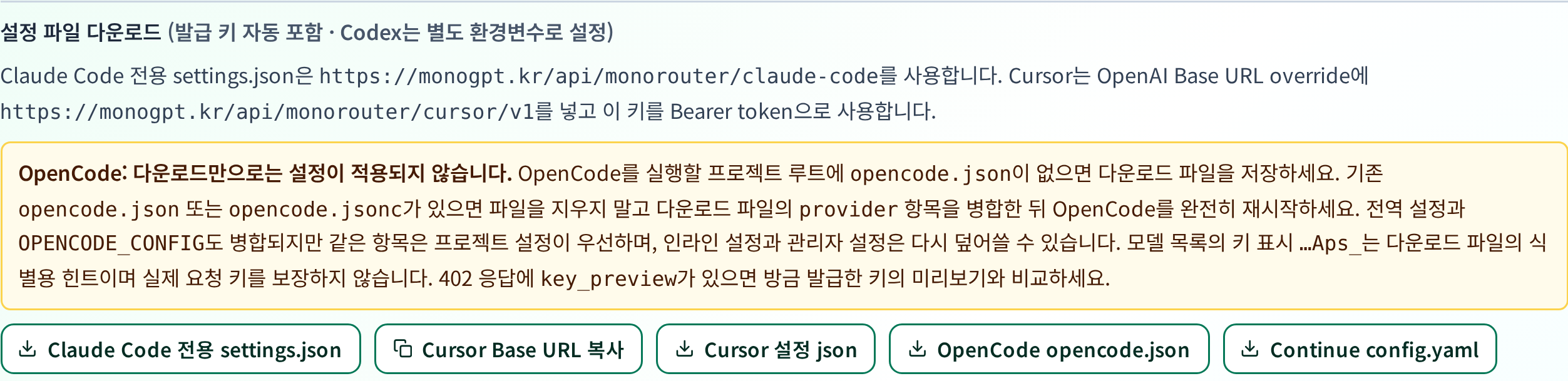
If you only need the endpoint, use Copy Cursor Base URL beside it.
2. Enter the values in Cursor
Open Settings → Models and configure the OpenAI key and custom Base URL. Labels and availability may vary with Cursor version and plan.
| Cursor setting | Value from the JSON |
|---|---|
| OpenAI API Key | openaiApiKey |
| Override OpenAI Base URL | openaiBaseUrl |
| Add model | A model ID from models |
The endpoint is https://monogpt.kr/api/monorouter/cursor/v1. Keep model prefixes, for example ~openai/gpt-5.5. The model must also be allowed by your key.
If custom Base URL settings are unavailable, check support in your Cursor version. Putting the JSON file in a folder does not apply these values.
3. Save and verify
Save the key and endpoint, select a model and send a short request. Check for the corresponding request in MonoRouter Usage. Features such as tab completion have their own support limits.
If the connection fails, check the /v1 endpoint suffix, full key and model ID. The reference file contains your actual key; do not share it.
Was this answer helpful?