Usage and troubleshooting
Check the key, endpoint, model and credit balance.
Updated: October 2026
Start with the error message and request time shown by your tool. Check these details before creating another key.
Check usage
Open Usage in the MonoRouter popup. Compare the request time, model and usage with your tool. Creating a key or downloading settings does not itself call a model.
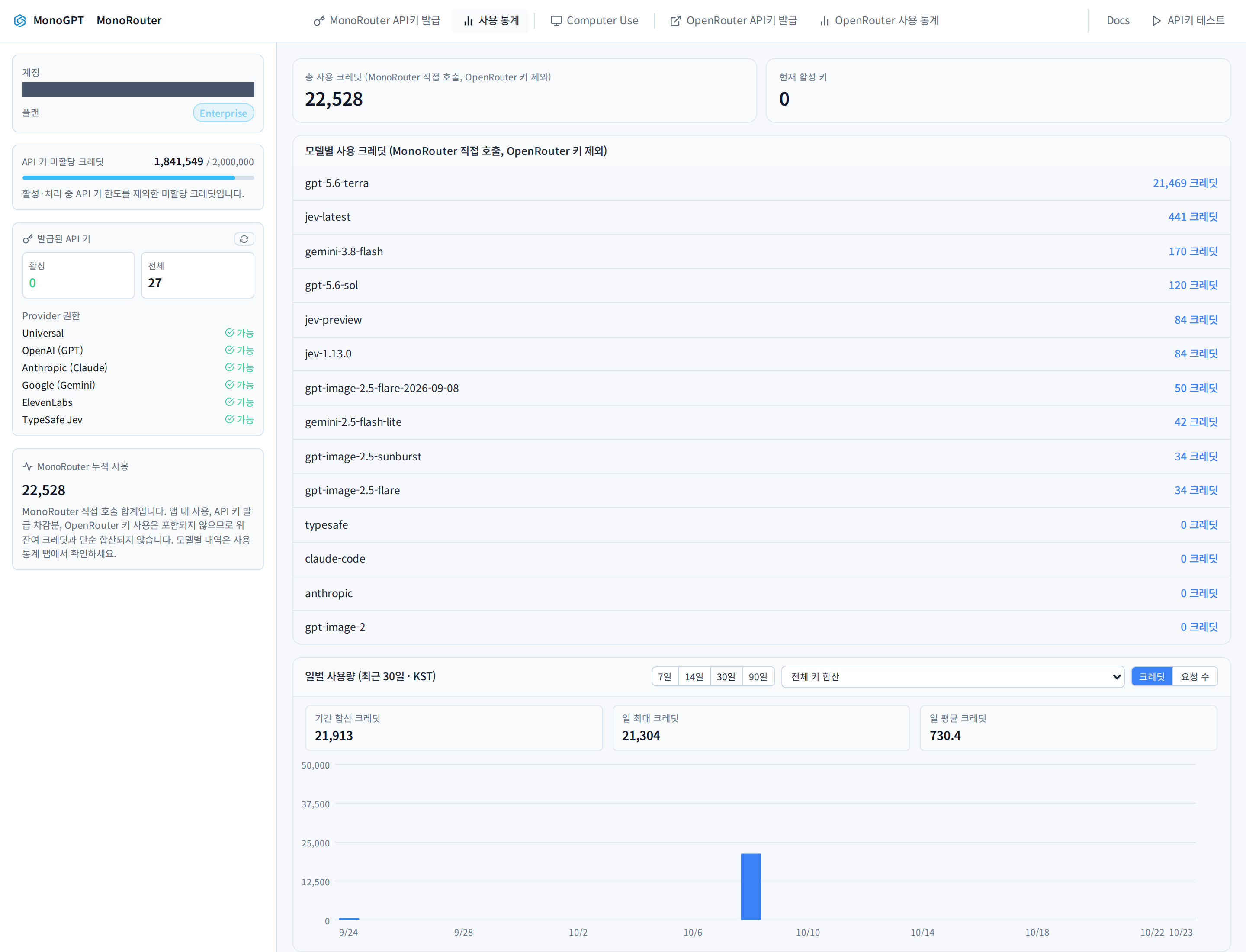
Captured from a real test account on 2026-10-23; account details are masked. These are earlier test records, not model calls made during this setup check.
Check the error
| Symptom | What to check |
|---|---|
| Authentication failure, 401 | Full key value and active status |
| Permission denied, 403 | Allowed models and organization tool/provider policy |
| Insufficient credits, 402 | Remaining key allowance and account/organization balance |
| Endpoint or model not found | Tool-specific Base URL and exact model ID |
| Too many requests, 429 | A burst of requests; retry after a short wait |
| Slow response or server error | Usage error details and provider status before retrying |
The status code alone does not identify the cause. Read the accompanying error text too.
A downloaded file has not taken effect
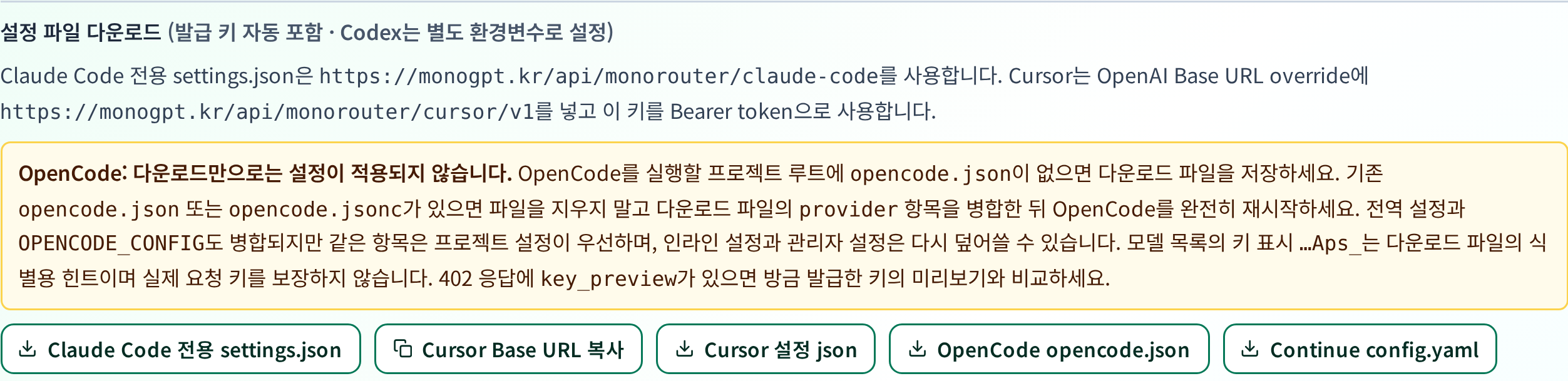
Downloading only saves a file. Complete the application step for your tool.
- Codex: check the profile location and version, then set the key variable in the same terminal.
- Claude Code: apply
claude-code-settings.jsontosettings.jsonor merge it with existing settings. - Cursor: enter the key, endpoint and model from JSON in Settings.
- OpenCode: check
opencode.jsonin the active project and the precedence of other settings files.
The setup panel shown after issuance may disappear on refresh. Save your key and settings when issued; check connected tools before issuing a replacement.
When contacting support
Include the tool and version, request time, model ID and an error message with secrets covered. Do not send a full API key or a settings file containing it.
Was this answer helpful?