Connect OpenCode
Save the downloaded opencode.json and choose your model.
Updated: October 2026
Install OpenCode, issue a MonoRouter key and use OpenCode opencode.json to download settings. The actual popup button is shown below.
1. Download the settings
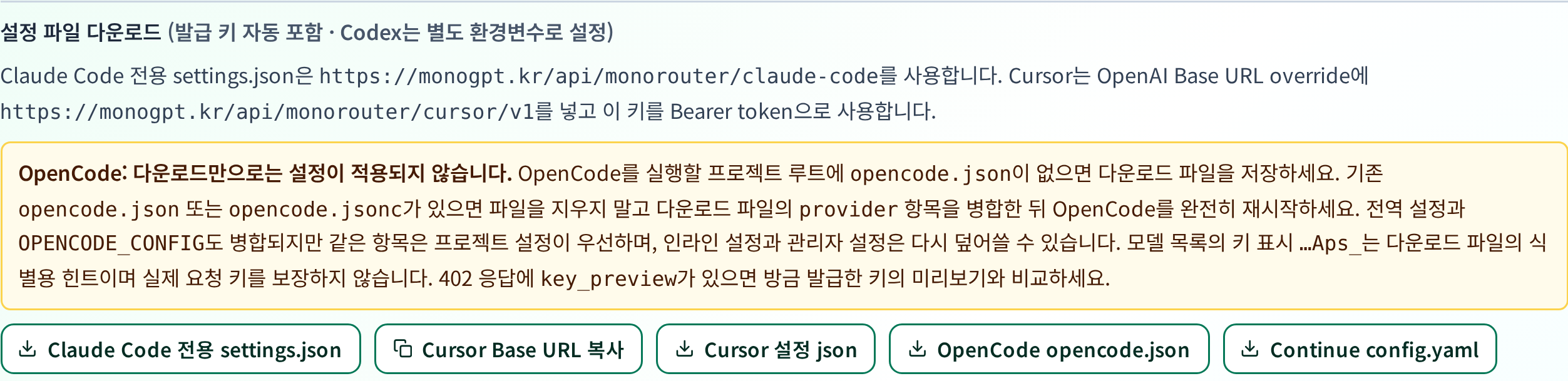
Read the consent dialog and select Agree and download. Your browser saves opencode.json. No separate configuration webpage opens.
2. Save it in your project
Save the download as opencode.json in your project folder. If that file already exists, back it up and merge the provider entries rather than replacing unrelated settings.
For shared settings across your projects, use ~/.config/opencode/opencode.json. Project settings override conflicting global values. Also check OPENCODE_CONFIG, inline settings and managed settings when present.
The file contains your actual API key. If you keep it in a project, make sure Git does not include it.
3. Select a model in OpenCode
Restart OpenCode from the project folder and choose a MonoRouter provider from the model list. The file defines the available providers and models, but actual requests still require the model to be permitted by your key.
The generated baseURL uses /api/monorouter/opencode/. Do not replace it with another tool's endpoint. The last-four-character key label helps identify the file; it does not guarantee which credential a request used.
4. Check usage
Send a short question and check the request and model in MonoRouter Usage. If a different key is being used, review duplicate provider settings in project, global and custom files. If an error includes key_preview, compare it with your newly issued key's preview.
Official OpenCode configuration documentation · Troubleshooting
Was this answer helpful?