Connect an MCP server directly
Register an MCP server your organization operates as a custom MCP server for chat.
Updated: September 2026
Screenshots show real Korean application components with fictional connection data. No external authorization, registration or sending was performed. Click images to enlarge them.
Prepare registration
The organization master needs the operated server’s name, URL and any required Bearer token. Review its tools and data scope first. This screen does not create an MCP server.
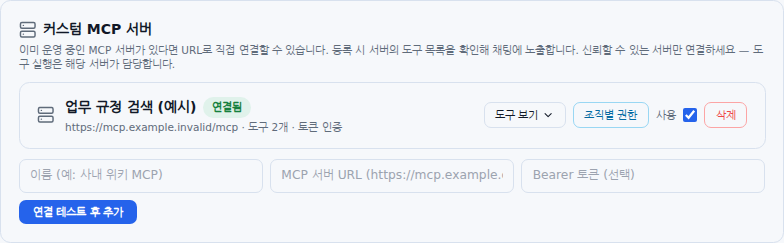
Test and add the server
Enter its name and endpoint under Custom MCP servers, add a token if required and click Test connection and add. Registration requires successful connection and tool discovery. Use the operator’s MCP endpoint, not an ordinary web-page URL, and choose a distinct server name.
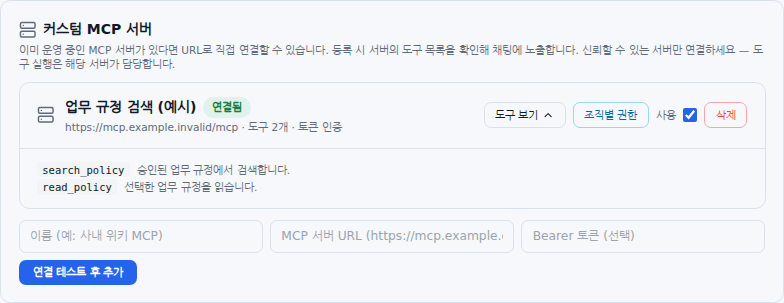
Inspect the discovered tools
Click View tools and review names and descriptions. A Write tool — automatic execution unsupported label must not be presented as chat execution support. Reopen the list after server-side changes to see current tools.
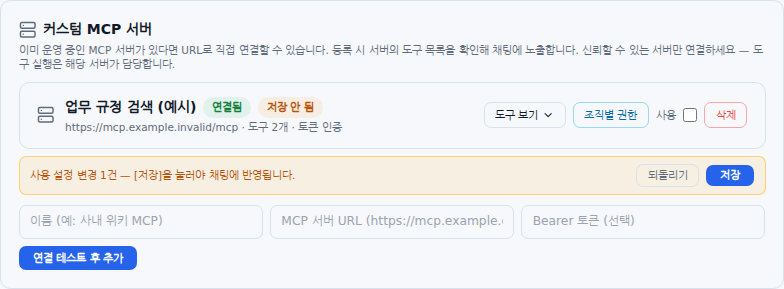
Save staged use changes
Changing an MCP Use checkbox shows Unsaved and a change count. Click Save below to apply it to chat. Refreshing can discard unsaved selections. Reload after saving to verify the persisted state.
Check access, removal and errors
Set Unit permissions where needed. Read the confirmation before deleting a registration. Diagnose failures in order: server running → reachable endpoint → authentication → MCP response. Also review source accuracy and access policies with the server operator. Finish with Chat usage.
Was this answer helpful?